How to fill one form for every row of a spreadsheet
This guide shows how to fill the same form once for every row of a spreadsheet. Each row becomes its own filled PDF. You upload the spreadsheet, add any details that apply to every row, generate the forms, and download them one by one, all at once, or merged into one file.
What you need before you start
| You need | What that means |
|---|---|
| A form in your forms library | The form to fill for each row. |
| A spreadsheet | A CSV, TSV or Excel file. The first row names the columns, and each row after it holds one record. |
| A paid plan | Batch filling needs one. Each row you generate uses one batch-fill credit, and batch-fill credits come with a paid plan. |
1. Open batch filling for the form
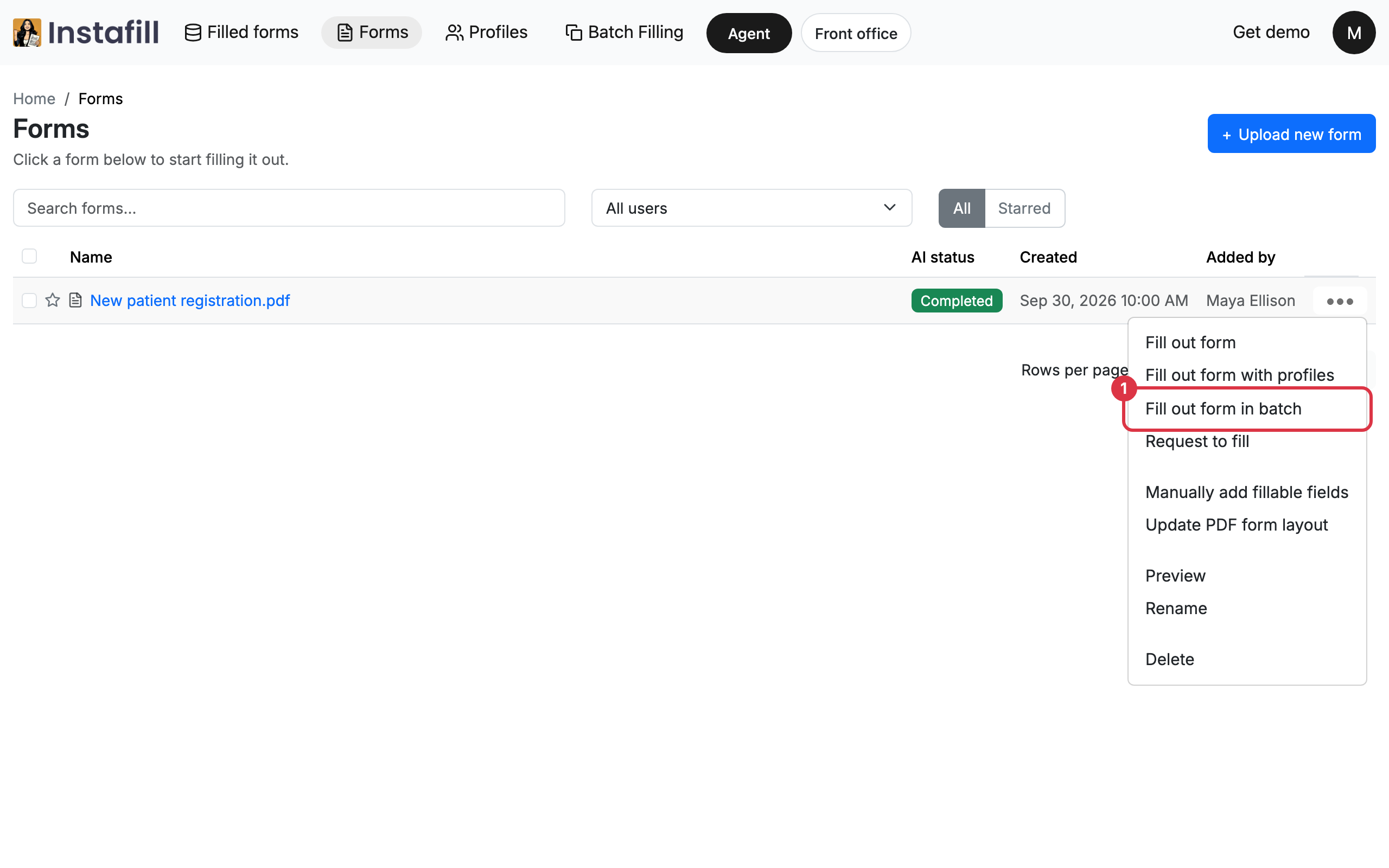
Open Forms in the top bar and find the form. Open the menu at the end of its row and choose Fill out form in batch.
2. Upload the spreadsheet
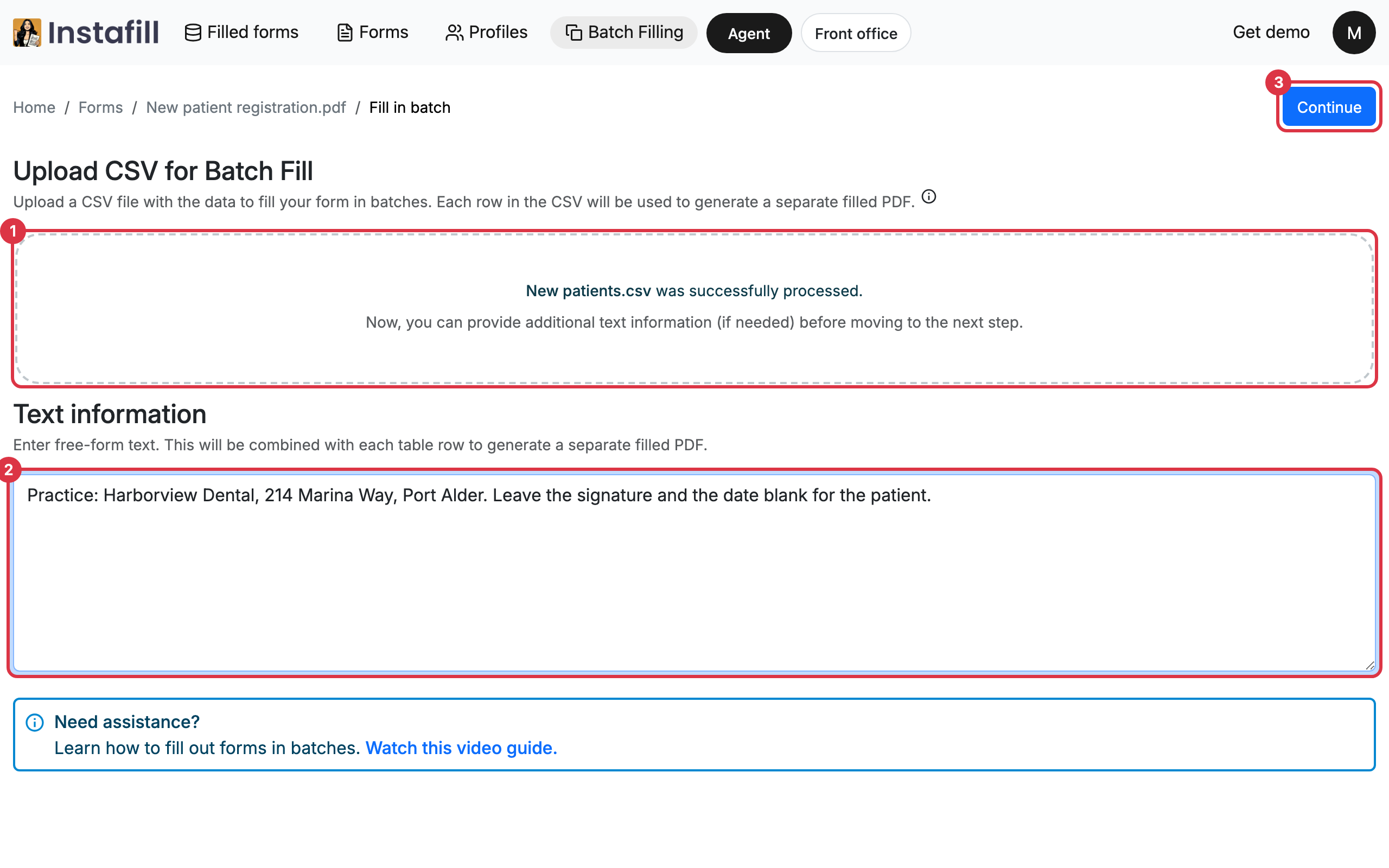
Under Upload CSV for Batch Fill, press Choose source file, or drag the file onto the box. The screen says when the file has been processed.
3. Add details that apply to every row
Under Text information, type anything every copy of the form needs but the spreadsheet does not hold, such as your company's address or the date of signing. It is combined with each row. This box is optional.
Press Continue to go on to the rows.
4. Generate the filled forms
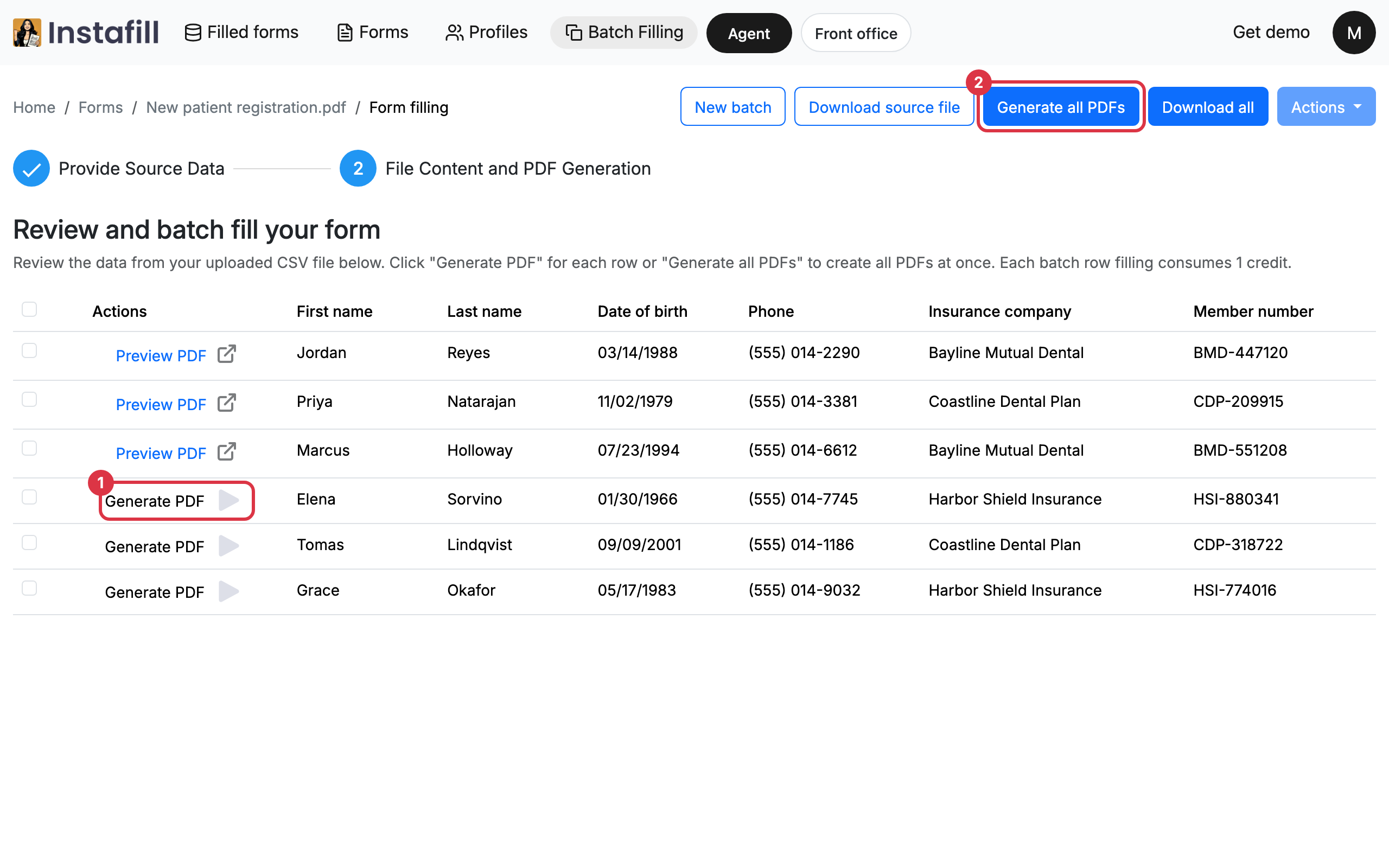
The screen lists every row of the spreadsheet, one column per header.
- One row: Press Generate PDF on that row.
- Every row: Press Generate all PDFs at the top.
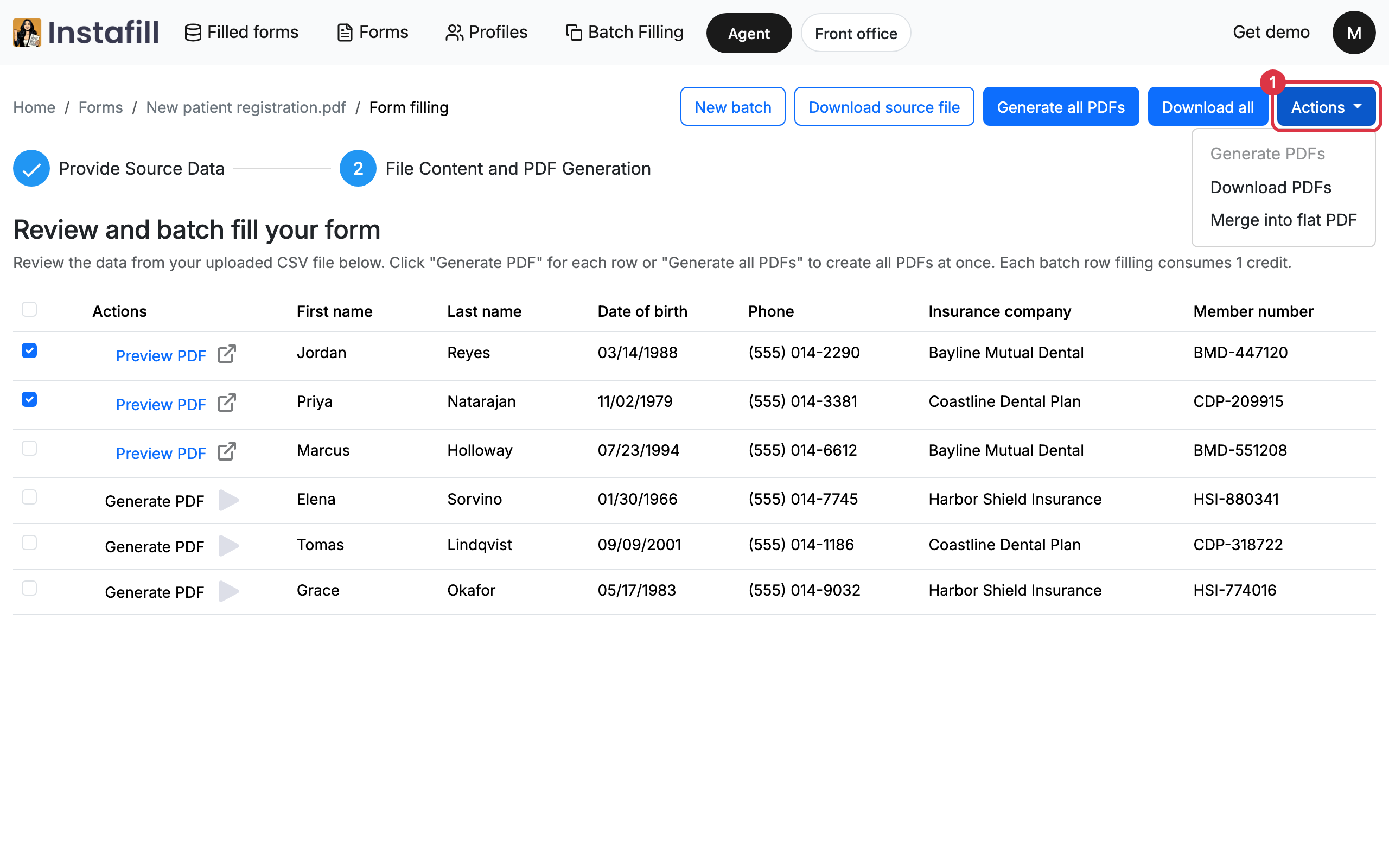
- Some rows: Tick the rows, open Actions and choose Generate PDFs.
A row shows a spinner while its form is being filled. When it is done, the row shows Preview PDF.
5. Check and download the forms
Press Preview PDF on a row to read its filled form. Then take the forms you need.
- Every filled form: Press Download all.
- Some of them: Tick the rows, open Actions and choose Download PDFs.
- One file: Tick the rows, open Actions and choose Merge into flat PDF. You pick which pages of each form go in.
Come back to a batch later
Every batch is kept. Batch Filling in the top bar lists them, and View batch history in a form's menu lists the batches of that form.
- Start again: New batch starts a fresh batch for the same form.
- Your spreadsheet: Download source file gives back the file you uploaded.
- Text information: When the batch was made with text information, you can change it under Review text information before you generate, and press Save. Cancel puts the text back. Once rows are being filled, or every row is filled, the text stays as it is.
How your credits are used
- One row, one credit: Each row you generate uses one batch-fill credit.
- All or none: When you generate several rows, the credits for all of them are taken when you start. If there are not enough for every row, none of them start. The plans page then opens and says the batch filling credits have run out.