How to create an API key for a workspace
This guide shows how to create an API key, the secret your own software uses to work with Instafill.ai without anyone signing in. Each key works inside one workspace. You see the key once, when you create it, and you can replace or remove it at any time.
What you need before you start
| You need | What that means |
|---|---|
| The Owner or Admin role | Only an Owner or an Admin of the organization sees API keys. |
| A workspace for the key | The key works inside this workspace only, and can reach what is in it. |
| A safe place to keep the key | Such as a password manager. Anyone who holds the key can use the workspace through it. |
1. Open API keys
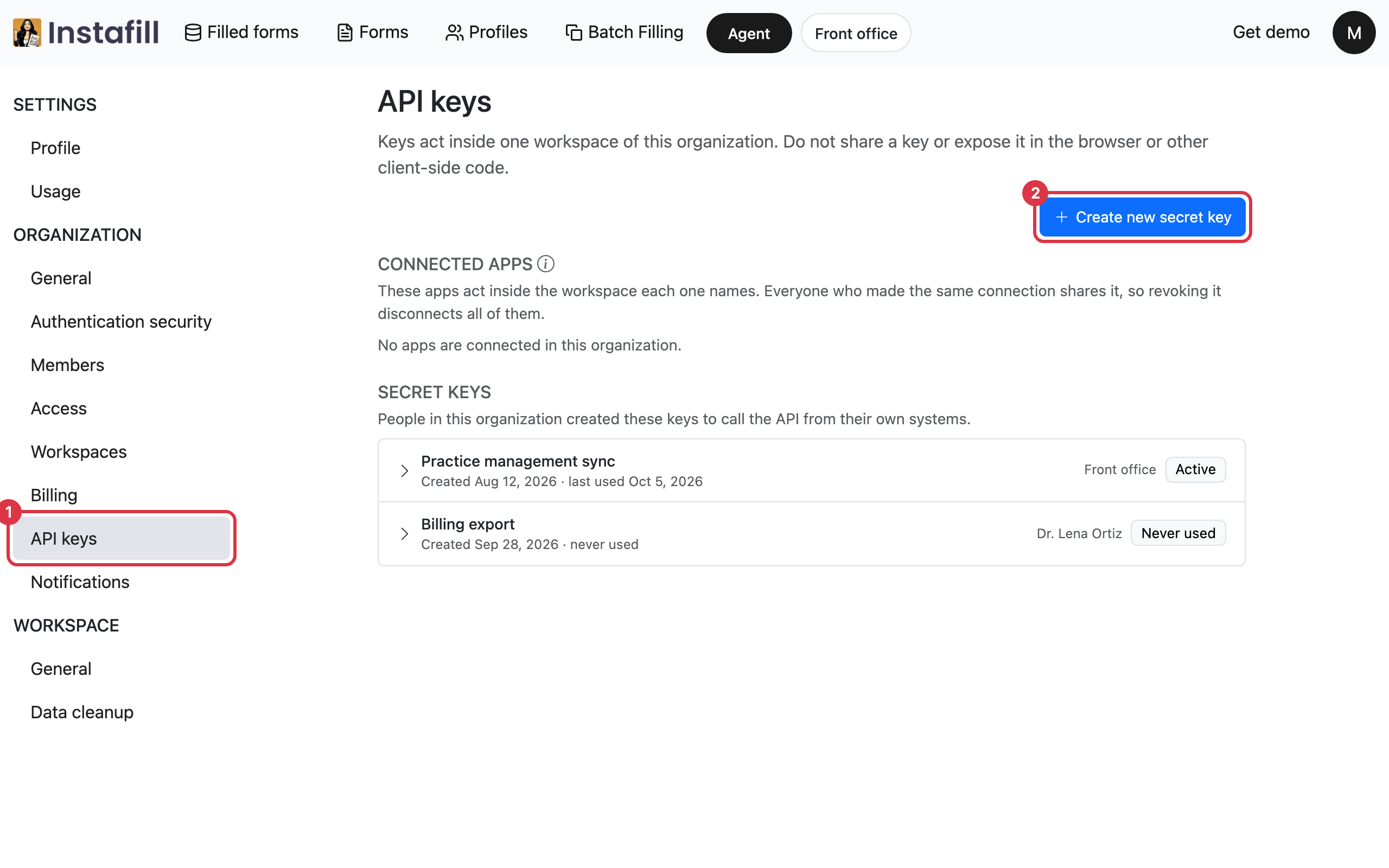
Click your initial in the top right corner and choose Profile. In the list on the left, under Organization, click API keys.
The page lists every key in the organization under Secret keys, each with its workspace and whether it has been used. Connected apps lists apps connected to a workspace. Revoking one disconnects everyone who connected that app there.
2. Name the key and choose its workspace
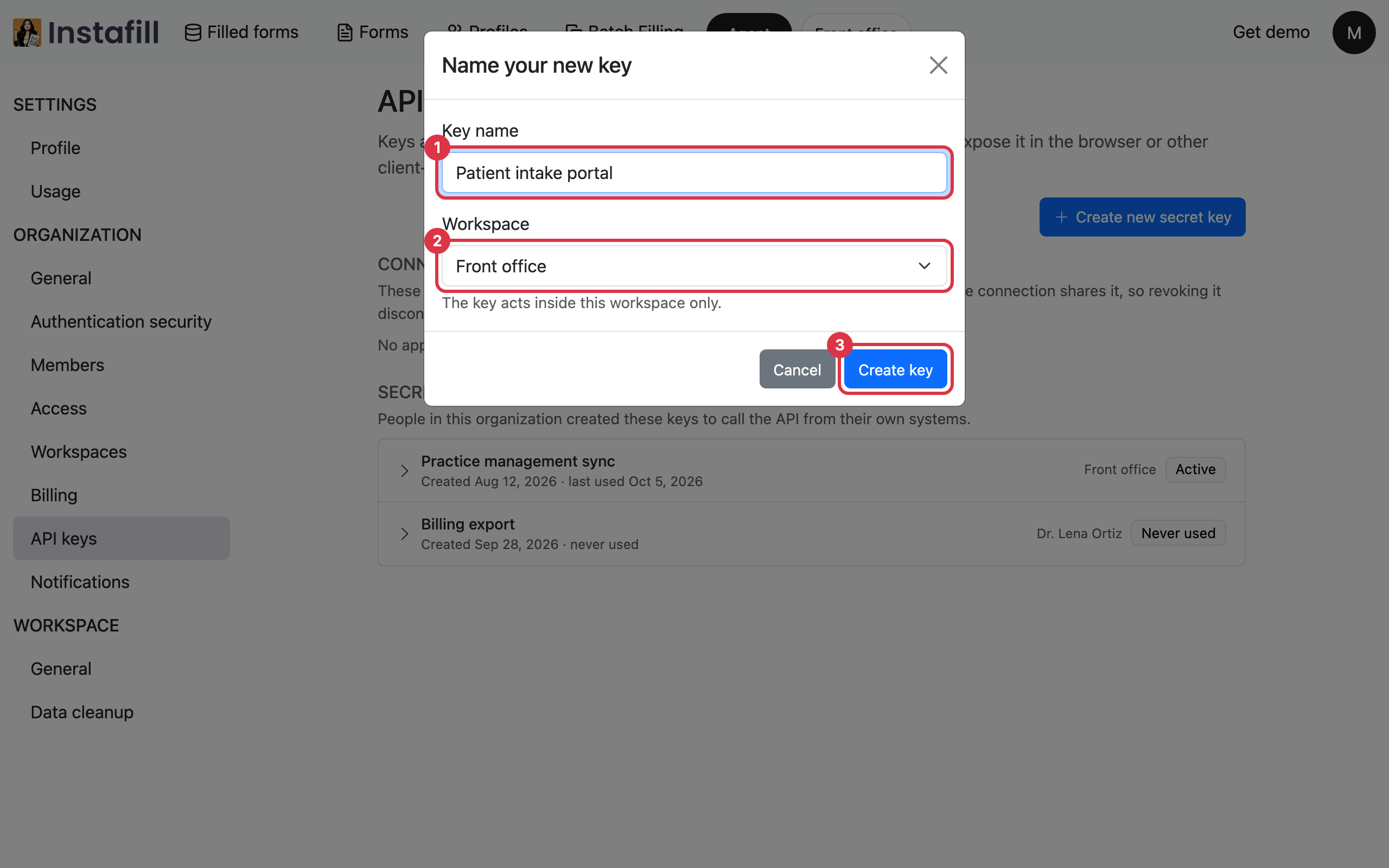
Press Create new secret key. In Name your new key:
- Key name: A name that says what uses the key, such as the system that will call Instafill.ai.
- Workspace: The workspace the key works in. It starts on the workspace you are working in.
Press Create key.
3. Copy the key and keep it safe
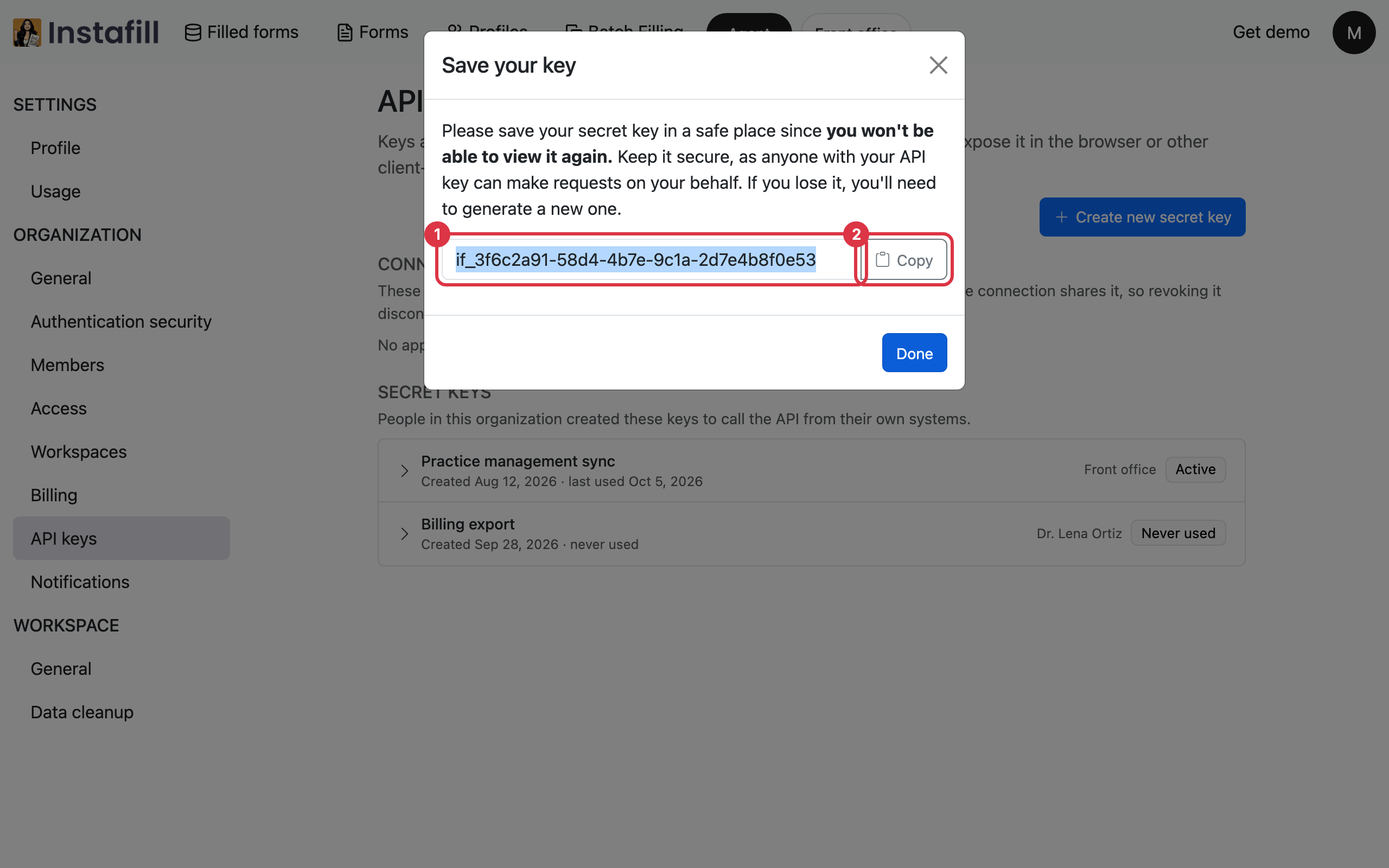
Save your key shows the new key. Press Copy and keep it somewhere safe, then press Done.
This is the only time the full key is shown. Later the list shows just its first and last characters. If the key is lost, create a new one.
4. Use the key from your own systems
Give the key to the system that will call Instafill.ai. How to send it with each request is in the API documentation, which opens from API Documentation in the menu under your initial.
A key works for 1 year from the day it is created. The list marks a key Expires soon as that day comes near.
Rotate or revoke a key
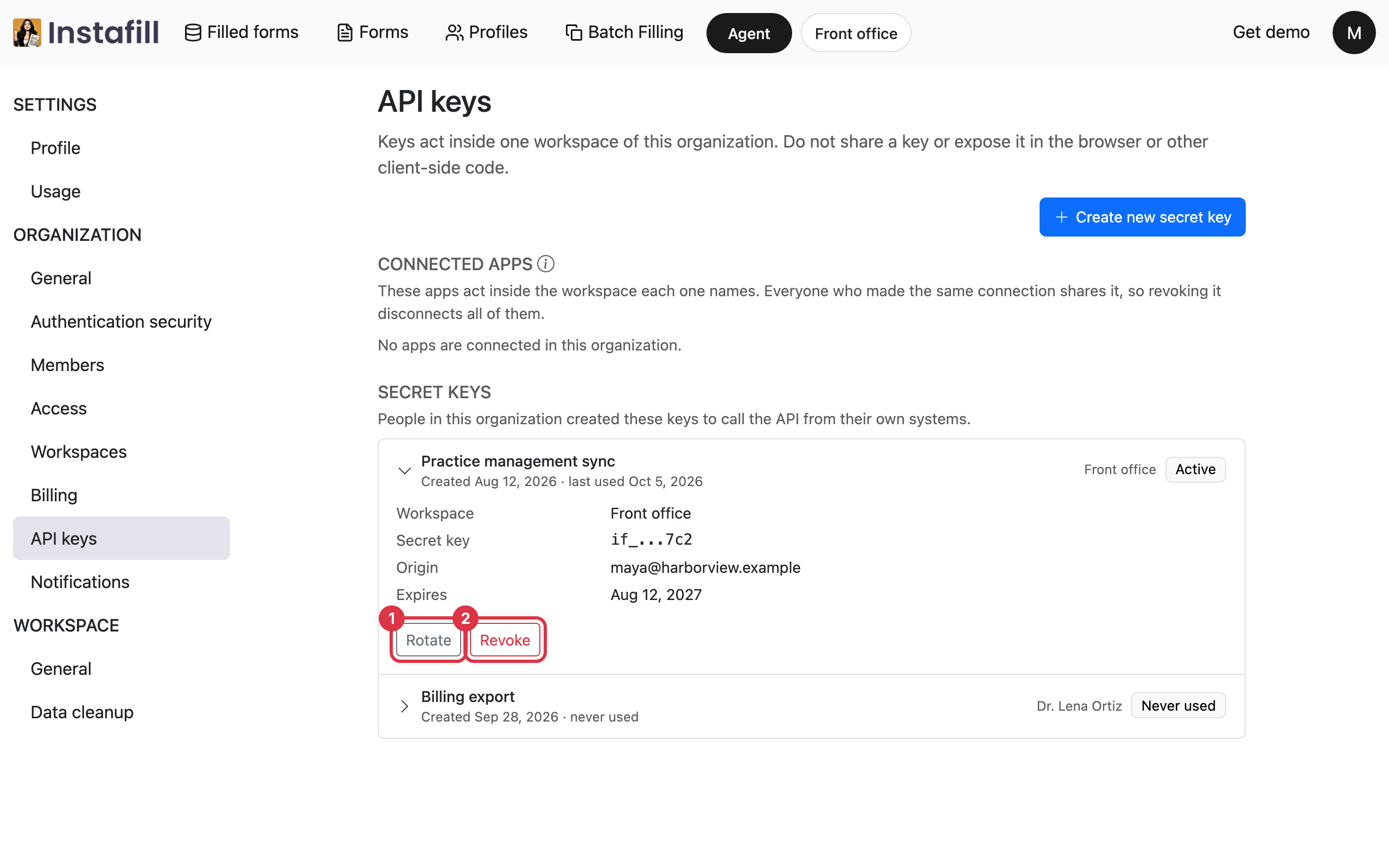
Click a key in the list to see its workspace, who created it and when it expires.
- Rotate: Gives the key a new secret at once and shows it in Save your key. The old secret stops working straight away, so update the system that uses it. The key also starts a new term of 1 year from that moment, so rotating renews it, even after it has expired.
- Revoke: Removes the key after you confirm with Revoke key. Anything still using it stops working, and this cannot be undone.
To keep a system working past the expiry date, rotate the key before then and update the system with the new secret.