How to add a signature to a form
This guide shows how to put a signature on a form so you never sign it by hand again. You draw or upload the signature once and place it on the form. From then on, every fill of that form in your workspace comes out signed, whoever fills it.
What you need before you start
| You need | What that means |
|---|---|
| A form in your forms library | The form that should carry the signature, such as the tax form your practice sends to every new supplier. |
| A signature | Drawn with a mouse or trackpad, or a picture of it as a PNG or JPG file. |
1. Open the form and press Sign
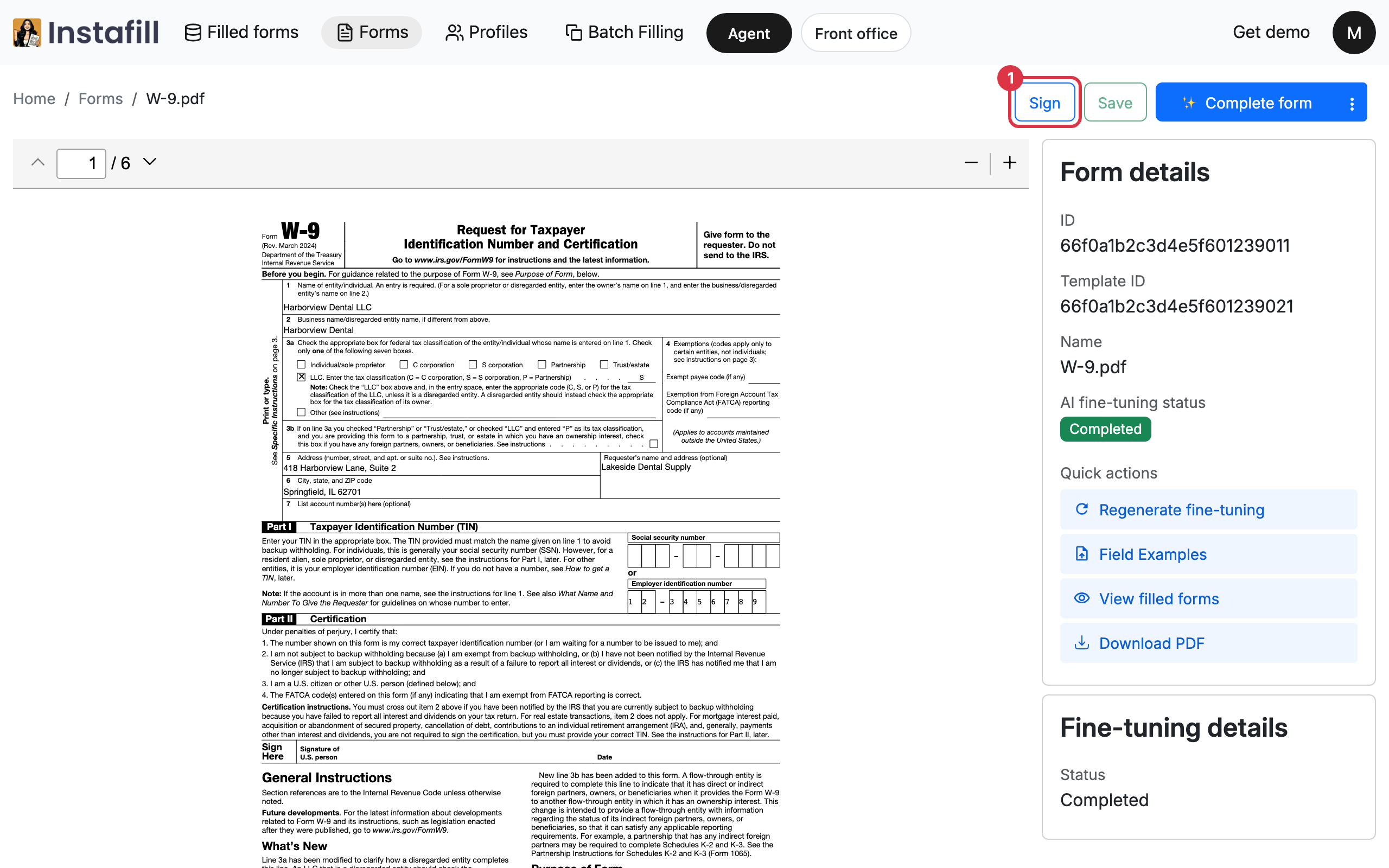
Open Forms in the top bar and click the form's name. On the form's page, press Sign.
2. Draw or upload the signature
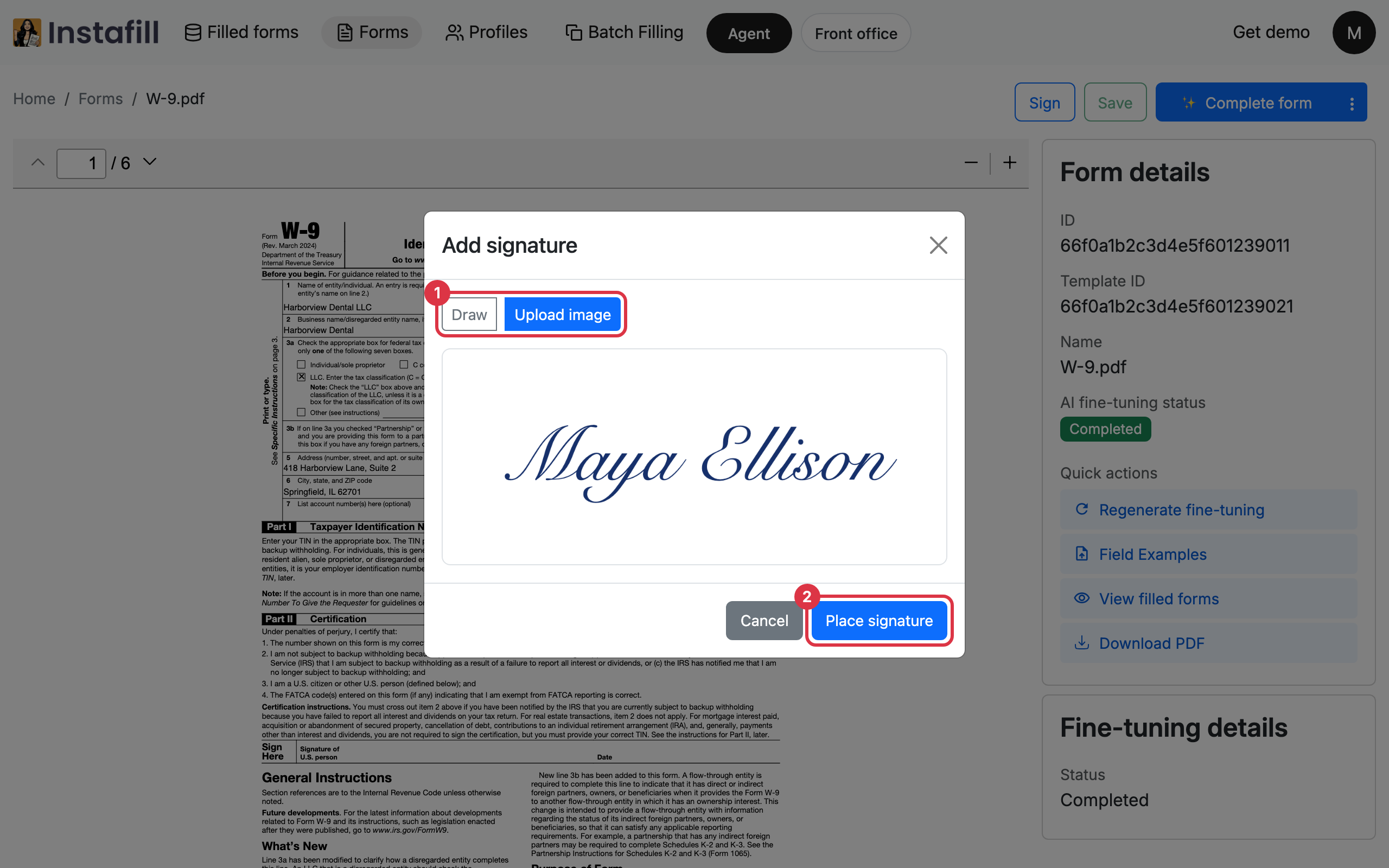
The Add signature dialog opens. Choose how to give the signature.
| Option | What you do |
|---|---|
| Draw | Sign in the box with a mouse or trackpad. Clear wipes it so you can start again. |
| Upload image | Click the box and choose a PNG or JPG picture of the signature. |
Press Place signature when it looks right.
3. Place it on the form
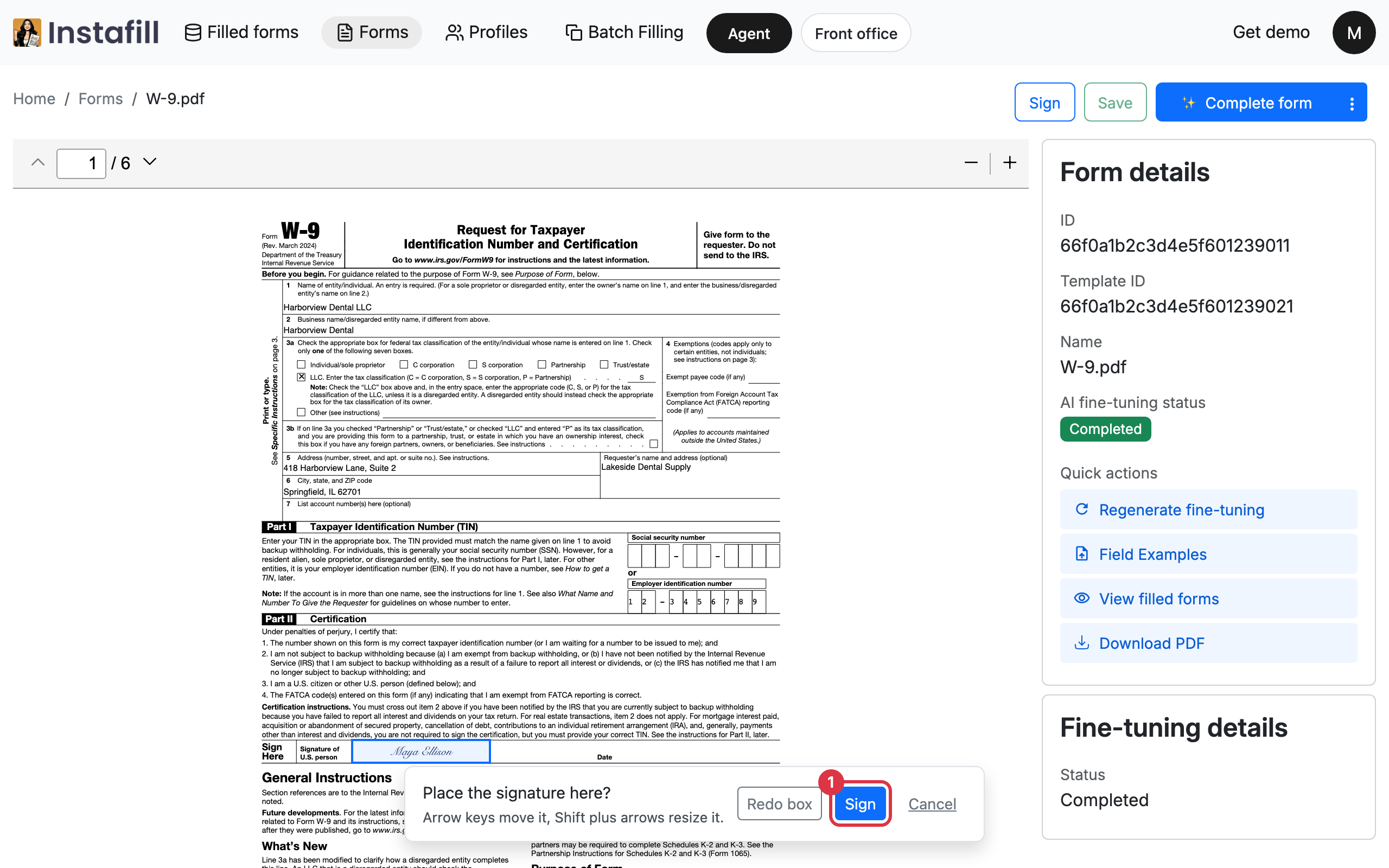
A bar at the bottom of the screen asks you to drag a box on the form where the signature should go. Drag over the signature line, or press Place in center to put it in the middle of the page.
The bar then asks Place the signature here?
- Small changes: Arrow keys move the signature, and Shift with the arrow keys resizes it.
- Start the box again: Press Redo box.
- Keep it: Press Sign. A message confirms that the signature was added, and the form shows it.
4. Fill the form as usual
Every fill of this form now comes out with the signature, by anyone in your workspace and by every way of filling. Forms you filled and downloaded before you signed stay as they were.
5. Move, replace or remove the signature
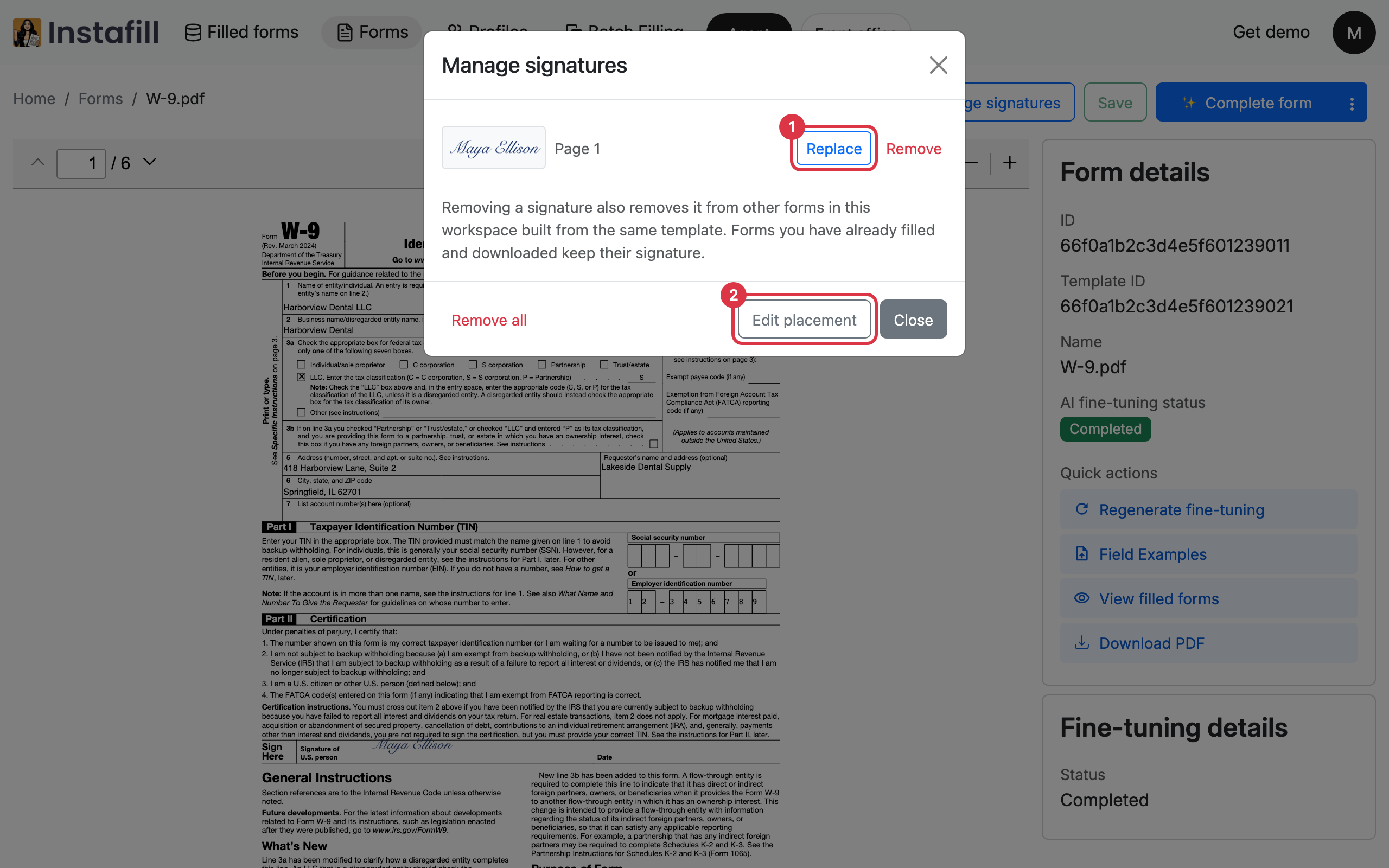
Once a form has a signature, its page shows Manage signatures. The dialog lists each signature with its page.
- Replace: Draw or upload a new signature in its place. Until you confirm, the old one stays.
- Remove: Press Remove, then Yes, remove. Remove all, then Yes, remove all, takes every signature off the form.
- Edit placement: Drag a signature to move it, or drag a corner to resize it. Press Done to keep the change.
Removing a signature also removes it from other forms in your workspace built from the same form. Forms you have already filled and downloaded keep their signature.
Sign again after changing the form's fields
If the form's fillable fields are changed later and the form is rebuilt, its signatures are taken off. Open the form and sign it again.