How to edit the text the Agent wrote in a finished document
This guide shows how to change the wording of a document the Agent has finished. When the Agent writes prose into a document, such as the body of a letter, you can read it and update it in your own words. You type the new text, save it, and the document is drawn again with your wording on the page.
What you need before you start
| You need | What that means |
|---|---|
| A finished run | The Agent has completed the document. A run that is still working on it has to finish first. |
| A document with text the Agent wrote | Edit text is offered only where the Agent wrote prose onto a page. A document made only of filled forms has no such text, and the button does not appear. |
1. Open the finished document
On the package screen, find the finished run and press Open PDF. The document opens over the screen with a toolbar above it. The cross in the corner closes it.
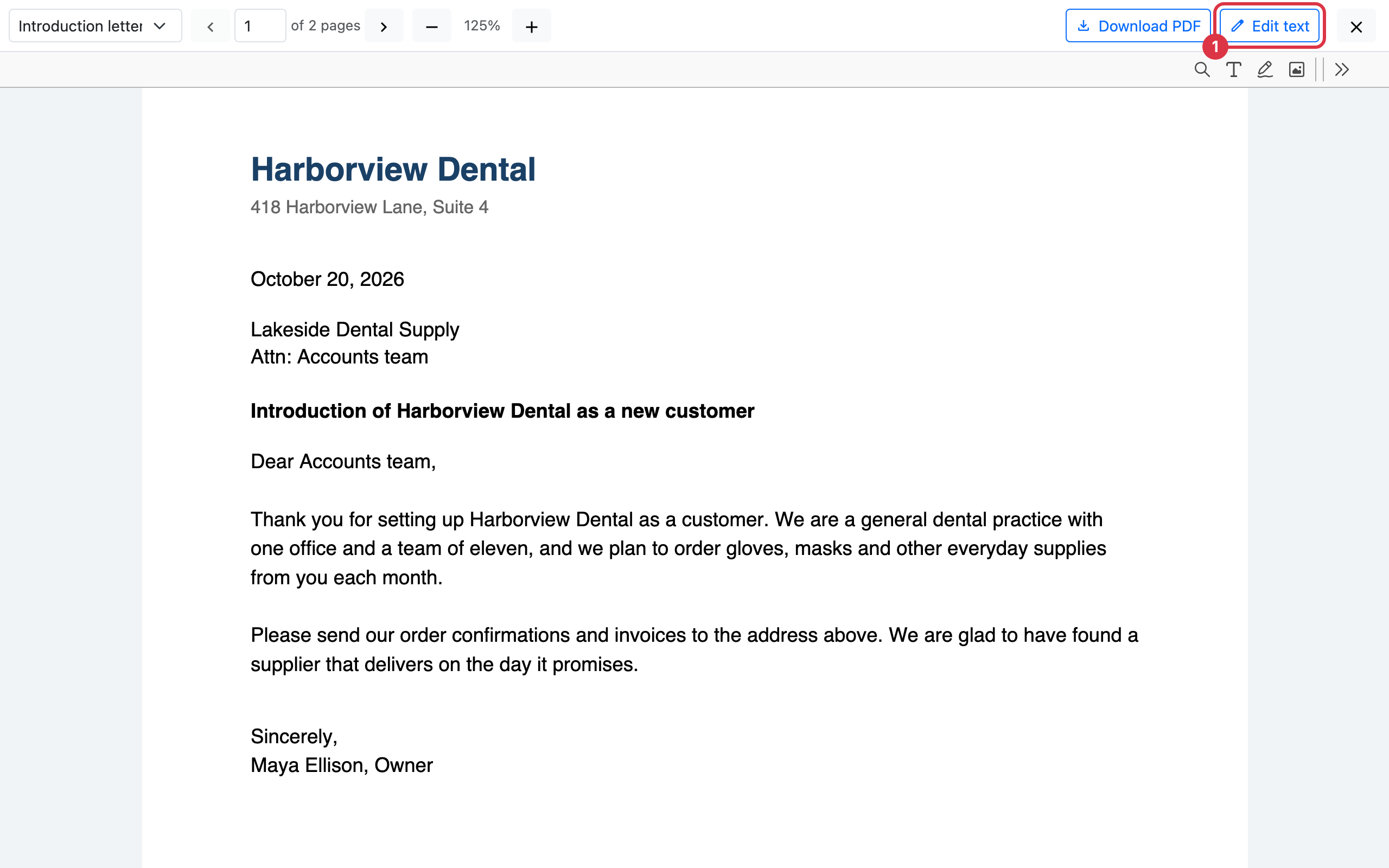
The toolbar lets you move between the parts of a longer document, go to a page, and zoom. It also has Download PDF, which takes the document away.
2. Press Edit text
Press Edit text at the right of the toolbar. A window opens over the document with every piece of text the Agent wrote.
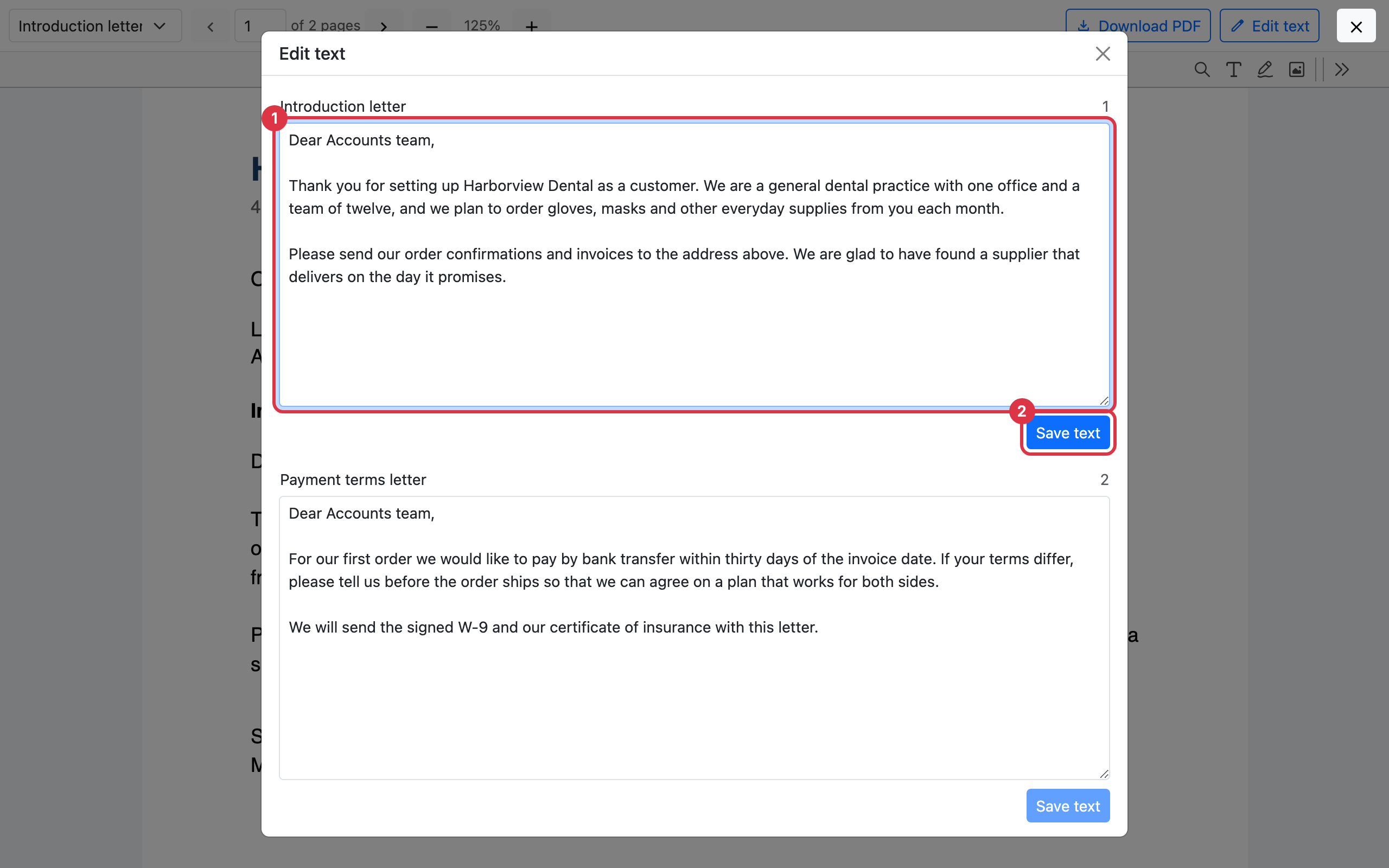
Each piece has its own box. Where the Agent gave the part a name, the name is shown above the box with the pages it covers. Press the name to close the window and jump to those pages, so you can see the text in place.
3. Change the wording
Click in a box and update the text. The page behind the window keeps showing the old wording until you save. Typing on the page itself does not change this text, because the words are kept apart from the page. This window is where they change.
4. Save the text
Press Save text. The button is off until something in that box has changed.
Saving does two things in one press. It stores your wording, and it draws the document again from it. When that finishes, the window closes and you are looking at the page, with the wording you wrote and the same page and zoom as before.
Each piece of text has its own Save text button, so you can update and save them one at a time.
If the page does not catch up
Your wording is stored first. If the document cannot be drawn again, the window says Your text is saved, but the document still shows the old wording and offers Build the document again. Press it to try the drawing once more. Nothing you typed is lost.
Two other messages can appear when you save:
- Somebody else changed this text while you had it open: Reload the page to see their version, then make your change again.
- A run is working on this package: Wait for the run to finish, then save again.
Take the document away
When the wording reads as you want, press Download PDF in the toolbar to save the updated document.