Yes! You can use AI to fill out Aetna Dental Provider Change Request Form

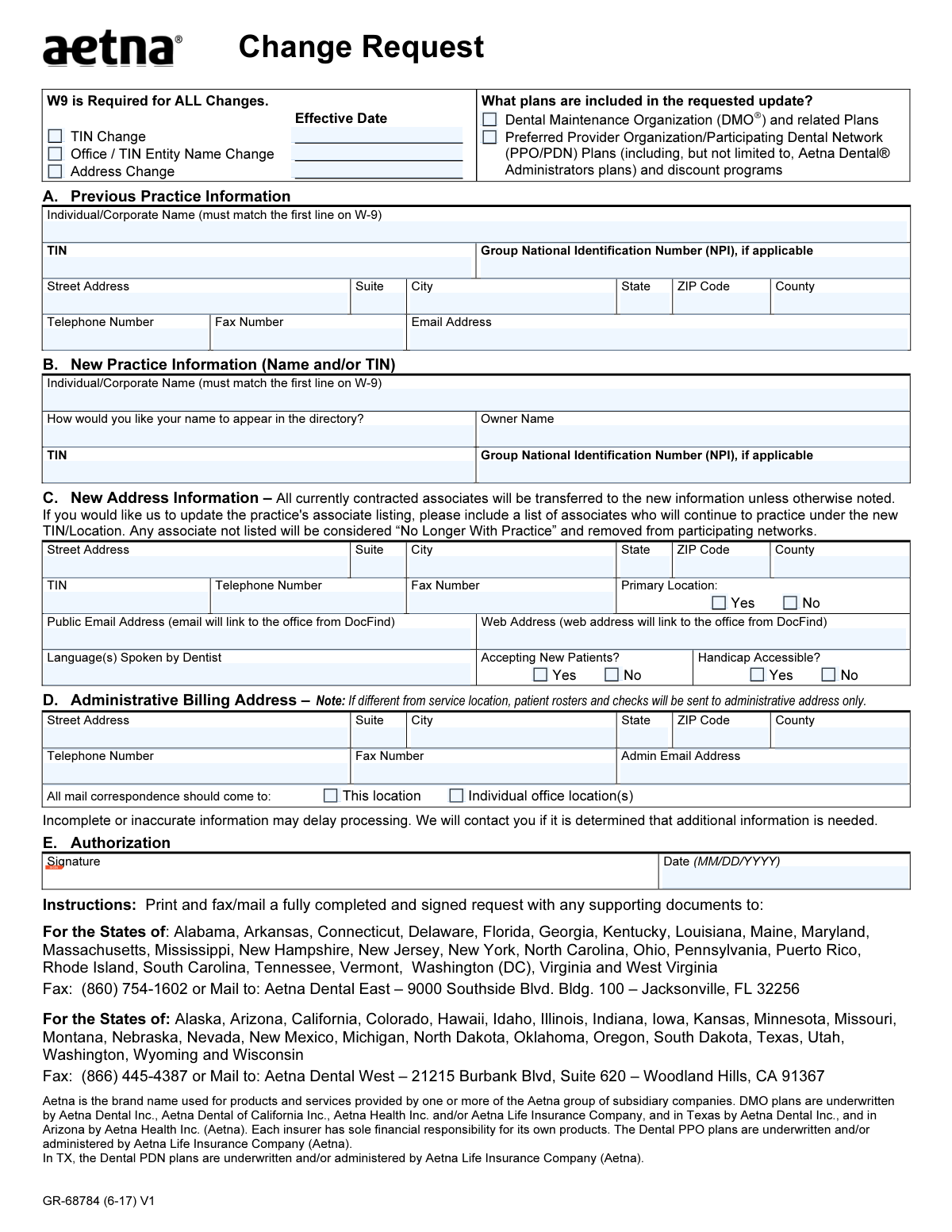
The Aetna Dental Provider Change Request Form is a document used by dental providers in the Aetna network to formally notify Aetna of significant changes to their practice. This includes updates to the Taxpayer Identification Number (TIN), practice name, physical address, and billing information. Submitting this form is crucial for maintaining accurate provider directories, ensuring proper claims processing, and receiving payments correctly. Today, this form can be filled out quickly and accurately using AI-powered services like Instafill.ai, which can also convert non-fillable PDF versions into interactive fillable forms.
GR-68784 is part of the dental provider forms category on Instafill.
Our AI automatically handles information lookup, data retrieval, formatting, and form filling.
It takes less than a minute to fill out GR-68784 using our AI form filling.
Securely upload your data. Information is encrypted in transit and deleted immediately after the form is filled out.

Form specifications

Form name: Aetna Dental Provider Change Request Form
Number of fields: 56
Number of pages: 1
Language: English
main-image

Instafill Demo: How to fill out PDF forms in seconds with AI

How to Fill Out GR-68784 Online for Free in 2026

Are you looking to fill out a GR-68784 form online quickly and accurately? Instafill.ai offers the #1 AI-powered PDF filling software of 2026, allowing you to complete your GR-68784 form in just 37 seconds or less.
Follow these steps to fill out your GR-68784 form online using Instafill.ai:
  1. 1 Navigate to Instafill.ai and upload or select the Aetna Dental Provider Change Request form.
  2. 2 Check the boxes at the top of the form to indicate the type of change being requested (TIN, Name, Address) and provide the effective date.
  3. 3 Enter the previous practice information in Section A if you are reporting a change from old details.
  4. 4 Complete Section B with the new practice name and/or TIN information, ensuring the details match the required W-9 form.
  5. 5 Fill out Section C with the new address information, specify if it's the primary location, and provide details for public directories like languages spoken and patient acceptance.
  6. 6 If your administrative billing address is different from the service location, complete Section D.
  7. 7 Review all entered information for accuracy, then digitally sign and date the authorization in Section E before submitting the completed form.

Our AI-powered system ensures each field is filled out correctly, reducing errors and saving you time.

Why Choose Instafill.ai for Your Fillable GR-68784 Form?

Speed

Complete your GR-68784 in as little as 37 seconds.

Up-to-Date

Always use the latest 2026 GR-68784 form version.

Cost-effective

No need to hire expensive lawyers.

Accuracy

Our AI performs 10 compliance checks to ensure your form is error-free.

Security

Your personal information is protected with bank-level encryption.

Frequently Asked Questions About Form GR-68784

This form is used by dental practices to notify Aetna of important changes to their practice, such as a new Tax ID (TIN), a change in the practice's legal name, or a change of address.

Any dental practice contracted with Aetna's DMO or PPO/PDN plans that needs to update its official information on file should complete and submit this form.

A current W-9 form is required to verify your practice's Taxpayer Identification Number (TIN) and legal name, ensuring that payments and tax reporting are accurate. This is a mandatory document for any update requested on this form.

Submission instructions depend on your state. Practices in eastern states should fax or mail the form to the Jacksonville, FL office, while practices in western and central states should use the fax number or address for Woodland Hills, CA, as detailed in the instructions section.

When changing your address, you must include a list of all associates who will continue practicing at the new location. Any associate not included on this list will be removed from participating networks, so it is crucial to provide a complete and accurate list.

The 'New Address' in Section C is the physical service location that appears in provider directories. The 'Administrative Billing Address' in Section D is where checks and patient rosters are sent if it's different from your service location.

Submitting an incomplete or inaccurate form may cause significant delays in processing your request. A representative will contact you if additional information is needed, but it's best to double-check that all required fields are completed before submission.

You must specify which plans your update applies to by checking the boxes for 'Dental Maintenance Organization (DMO)' and/or 'Preferred Provider Organization/Participating Dental Network (PPO/PDN)' at the top of the form.

You must provide the legal 'Individual/Corporate Name' exactly as it appears on your W-9. You also have the option to specify a different name for how you would like your practice to appear in the provider directory.

Yes, you can use AI-powered services like Instafill.ai to help fill out this form. These tools can accurately auto-fill your information, saving you time and reducing the risk of errors.

You can use a service like Instafill.ai to fill out the form online. Simply upload the PDF, and the platform will make it fillable, allowing you to type your information directly into the fields and then download the completed document.

If you have a non-fillable or 'flat' PDF, you can use a tool like Instafill.ai to convert it into an interactive, fillable form. This allows you to easily type your information instead of having to print and fill it out by hand.

For a new address, you must provide the full street address, contact numbers, and indicate if it's the primary location. You should also include details for the public directory, such as a public email, website, languages spoken, and whether you are accepting new patients.

Compliance GR-68784
Validation Checks by Instafill.ai

1
At Least One Change Type Required
This check ensures that at least one of the primary change request checkboxes (TIN Change, Office / TIN Entity Name Change, Address Change) is selected. It is critical because the form's purpose is to request a change, and without a selection, the intent of the submission is unknown. If no change type is selected, the form submission should be rejected with an error message prompting the user to specify the type of change they are requesting.
2
Conditional Effective Date Requirement
Validates that if a change type checkbox is selected, its corresponding 'Effective Date' field is filled out. This date is crucial for processing the change correctly and ensuring it applies from the intended day forward. A failure to provide this date would delay processing, as the processing team would need to contact the user for clarification, so the form should not be submittable without it.
3
TIN Format and Uniqueness Validation
This check verifies that all Taxpayer Identification Number (TIN) fields contain a valid 9-digit number. Additionally, if 'TIN Change' is selected, it confirms that the 'New TIN' in Section B is different from the 'Previous TIN' in Section A. This prevents erroneous submissions and ensures that a change is actually being requested, which is vital for financial and tax reporting accuracy.
4
Conditional Section Completion for Address Change
Ensures that if the 'Address Change' box is checked, the required fields in Section A (Previous Practice Information) and Section C (New Address Information) are fully completed. This is a logical check to guarantee that both the old address being replaced and the new address are provided for a successful update. An incomplete submission would be un-processable and would be rejected until all required address information is supplied.
5
Plan Inclusion Selection
This validation confirms that at least one of the plan types ('DMO' or 'PPO/PDN') is selected. This information is necessary to apply the requested changes to the correct provider networks and contracts. Without this selection, the system would not know which networks are affected, leading to processing delays or incorrect provider data.
6
Authorization Signature and Date Presence
Verifies that the 'Signature' and 'Authorization Date' fields in Section E are both completed before submission. The signature provides legal authorization for the requested changes, and the date establishes a timestamp for that authorization. A submission lacking either of these is considered incomplete and legally invalid, and must be rejected.
7
Date Format Validation (MM/DD/YYYY)
This check ensures that all date fields on the form, including the 'Effective Date' and 'Authorization Date', adhere strictly to the MM/DD/YYYY format. Consistent date formatting is essential for automated data parsing and preventing errors in the system of record. If a date is entered in an incorrect format, the user should be prompted to correct it before the form can be submitted.
8
NPI Number Format Validation
Checks that any value entered into a 'Group National Identification Number (NPI)' field is a valid 10-digit number. The NPI is a standard, unique identifier for health care providers, and maintaining its accuracy is critical for claims processing and identification. Submitting an incorrectly formatted NPI could lead to claim rejections and payment issues.
9
Administrative Address Logic Check
This validation enforces the logic in Section D. If the user selects 'This location' for mail correspondence, it verifies that the administrative address fields are filled out. Conversely, if 'Individual office location(s)' is selected, it ensures the administrative address fields are left empty. This prevents ambiguity and ensures mail is routed according to the user's explicit instructions.
10
Web Address URL Format
Validates that the 'Web Address' field in Section C contains a properly formatted URL (e.g., starts with 'http://', 'https://', or 'www.'). This ensures that the link provided for the DocFind directory will be functional for patients trying to access the practice's website. An invalid URL would result in a broken link, providing a poor user experience and reflecting badly on the provider and the directory.
11
ZIP Code Format Validation
Ensures that all ZIP Code fields across the form contain either a 5-digit or 9-digit (ZIP+4) numeric value. Correctly formatted ZIP codes are fundamental for mail delivery and for accurately geolocating practice addresses in provider directories. An invalid format would cause address validation to fail and could result in returned mail or incorrect directory listings.
12
Exclusive Choice for Radio Buttons
This check verifies that for each question with a Yes/No option (e.g., 'Primary Location?', 'Accepting New Patients?', 'Handicap Accessible?'), exactly one choice has been made. This prevents submissions with either no answer or conflicting answers for a single question. This data is essential for the provider directory, and missing or ambiguous information would require manual follow-up.
13
W9 Attachment Requirement
This validation confirms that a W-9 document has been uploaded or attached to the submission, as the form states 'W9 is Required for ALL Changes'. The W-9 is a legal tax document required to validate the TIN and entity name. A submission without the required W-9 is incomplete and cannot be processed for legal and compliance reasons, so it must be rejected until the document is provided.

Common Mistakes in Completing GR-68784

Forgetting to Include the Required W-9 Form

The form explicitly states 'W9 is Required for ALL Changes' at the very top, yet many submitters overlook this. This happens due to haste or assuming it's only for TIN changes. Submitting without a W-9 results in an automatic rejection and significant processing delays, as the request is considered incomplete. Always attach a current, signed W-9 with every submission, regardless of the change type, to ensure the request can be processed.

Omitting the Associate List During an Address Change

Section C warns that any associate not listed during an address change will be removed from participating networks. Practices often assume all providers will transfer automatically and fail to attach the required list. This can lead to the accidental termination of dentists from insurance networks, causing claim denials and disrupting patient care. To avoid this, always compile and include a complete list of all associates who will be practicing at the new location.

Confusing Service and Administrative Billing Addresses

The form has separate sections for the new service location (Section C) and the administrative billing address (Section D). Users often fill out only the service location, even when checks and rosters should go elsewhere, or they fill out the wrong section. This mistake causes critical mail, patient rosters, and payment checks to be sent to the wrong address, leading to lost revenue and administrative chaos. Carefully distinguish between the physical practice location and the financial/administrative office, and fill out Section D only if it's different.

Incorrectly Filling Conditional Sections

The form's sections are conditional based on the change type selected at the top (e.g., Section A is for 'Previous Practice Information'). A common error is filling out all sections instead of only the relevant ones, or failing to fill out a required section. This creates confusion for the processor and can delay the request or lead to incorrect changes being made. Before filling, clearly identify the change type at the top and then complete only the corresponding 'Previous' and 'New' information sections.

Mismatching the Legal Name with the W-9

The form requires the 'Individual/Corporate Name' to exactly match the first line of the W-9. Practices often enter their public-facing or 'Doing Business As' (DBA) name, which may differ from the legal entity name on tax documents. This mismatch causes validation failures against the W-9, leading to rejection of the form. To prevent this, have the W-9 on hand and copy the legal name from Line 1 precisely as it appears.

Inconsistent or Incorrect Taxpayer Identification Number (TIN)

The TIN is a critical identifier requested in multiple sections, and typos are common. An incorrect TIN or using different TINs in different sections of the form will cause the entire request to fail verification. This halts the change process and can impact payments and network status. Carefully enter the TIN and cross-reference it with the W-9 to ensure it is 100% accurate everywhere it appears on the form.

Submitting the Form to the Wrong Office

The submission instructions at the bottom are easy to miss and are split into two different addresses and fax numbers based on the practice's state. Users often don't scroll to the bottom or fail to read the state list carefully, causing them to send the form to the wrong processing center. This results in the request being lost or significantly delayed as it must be rerouted internally. Always verify the correct submission address or fax number for your state before sending.

Forgetting to Sign and Date the Authorization

An unsigned or undated form is legally invalid and cannot be processed. This is a simple oversight that happens when filers are in a hurry, but it invalidates the entire submission. The request will be returned or discarded, forcing the practice to start the process over. Always perform a final check to ensure Section E is completed with a valid signature and the current date in MM/DD/YYYY format.

Failing to Specify the Type of Change and Effective Date

The checkboxes and effective date fields at the top of the form are the most important part, as they define the purpose of the submission. People sometimes forget to check any boxes or enter an effective date, leaving the processor to guess what needs to be changed. This ambiguity leads to processing delays while the processor contacts the practice for clarification. Always start by clearly marking the change type (TIN, Name, Address) and providing a specific effective date.

Not Specifying Which Plans are Included in the Update

The form asks whether the update applies to DMO or PPO/PDN plans. If a practice is contracted with both, but only checks one box (or none), the change may only be applied to one part of their contract. This can result in incorrect directory listings, claim processing issues, and payment discrepancies for the plan that wasn't updated. Ensure you check all applicable plan types to guarantee the change is applied universally. AI-powered tools like Instafill.ai can help prevent such omissions by flagging incomplete required fields, and can also convert non-fillable PDFs like this one into an interactive, fillable format.
Saved over 80 hours a year

“I was never sure if my IRS forms like W-9 were filled correctly. Now, I can complete the forms accurately without any external help.”

Kevin Martin Green

Your data stays secure with advanced protection from Instafill and our subprocessors

Robust compliance program

Transparent business model

You’re not the product. You always know where your data is and what it is processed for.

ISO 27001, HIPAA, and GDPR

Our subprocesses adhere to multiple compliance standards, including but not limited to ISO 27001, HIPAA, and GDPR.

Security & privacy by design

We consider security and privacy from the initial design phase of any new service or functionality. It’s not an afterthought, it’s built-in, including support for two-factor authentication (2FA) to further protect your account.

Fill out GR-68784 with Instafill.ai

Worried about filling PDFs wrong? Instafill securely fills aetna-dental-provider-change-request-form forms, ensuring each field is accurate.