Yes! You can use AI to fill out Form CMS L564, Physician's/Supplier's Statement for Emergency Services

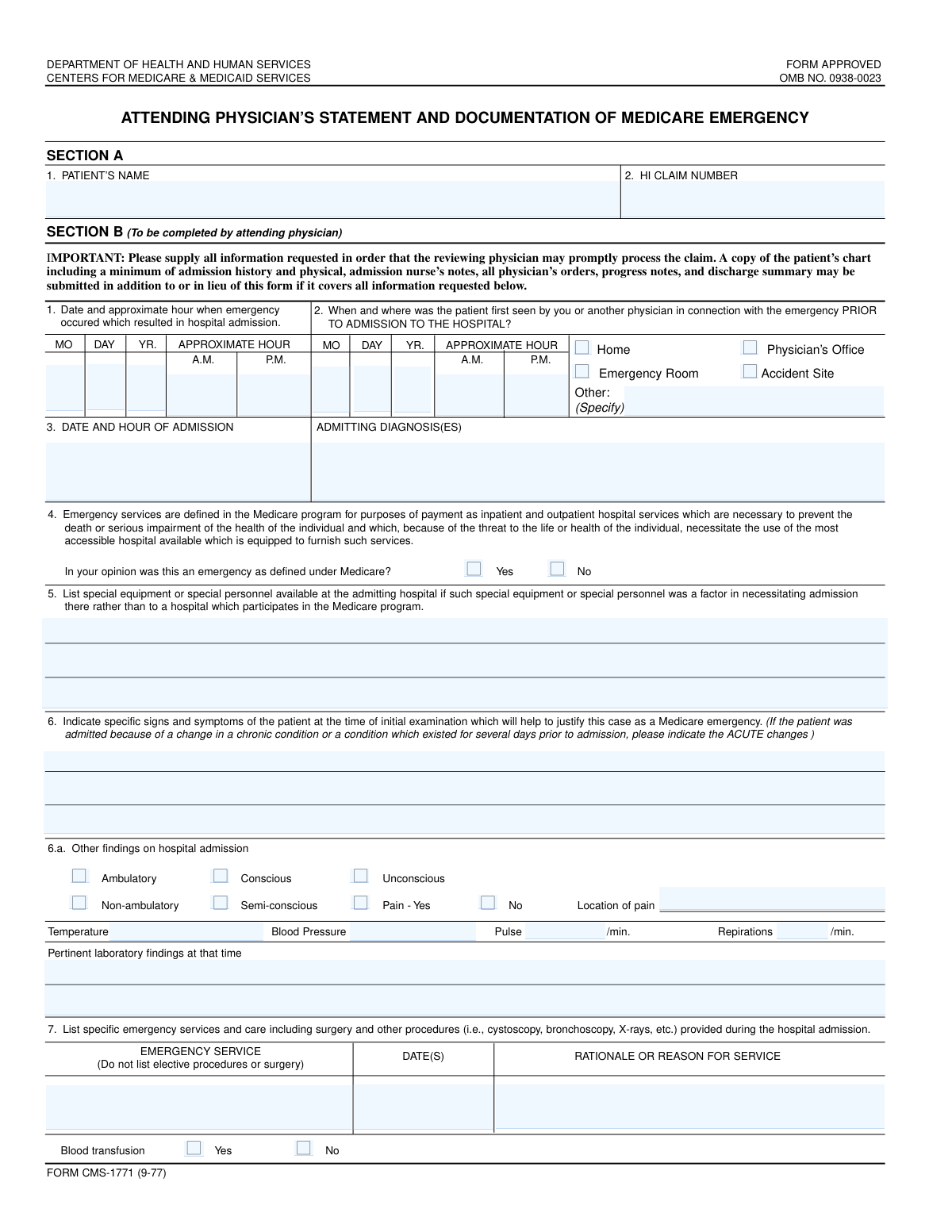
Form CMS L564, the Physician's/Supplier's Statement for Emergency Services, is a Medicare document used by healthcare providers to detail a patient's condition and the services provided during a medical emergency. This statement is crucial for justifying that the care met Medicare's criteria for an emergency, which is necessary for proper claim processing and reimbursement. Today, this form can be filled out quickly and accurately using AI-powered services like Instafill.ai, which can also convert non-fillable PDF versions into interactive fillable forms.
Our AI automatically handles information lookup, data retrieval, formatting, and form filling.
It takes less than a minute to fill out CMS L564 using our AI form filling.
Securely upload your data. Information is encrypted in transit and deleted immediately after the form is filled out.

Form specifications

Form name: Form CMS L564, Physician's/Supplier's Statement for Emergency Services
Number of fields: 65
Number of pages: 2
Language: English
Categories: CMS forms, NJ state forms, PA state forms, physician forms
main-image

Instafill Demo: How to fill out PDF forms in seconds with AI

How to Fill Out CMS L564 Online for Free in 2026

Are you looking to fill out a CMS L564 form online quickly and accurately? Instafill.ai offers the #1 AI-powered PDF filling software of 2026, allowing you to complete your CMS L564 form in just 37 seconds or less.
Follow these steps to fill out your CMS L564 form online using Instafill.ai:
  1. 1 Navigate to Instafill.ai and upload your CMS L564 form or select it from the template library.
  2. 2 Enter the patient's personal details, including their full name and Health Insurance (HI) Claim Number.
  3. 3 Provide comprehensive details about the emergency, including the date, time, location, and the patient's admitting diagnoses and vital signs.
  4. 4 Describe the specific signs and symptoms of the emergency, pertinent laboratory findings, and the emergency services rendered.
  5. 5 Justify the ongoing emergency status by detailing the clinical findings, complications, or special services provided, along with their corresponding dates.
  6. 6 Provide the physician's opinion on whether the condition constituted a Medicare emergency and include the earliest permissible discharge date if applicable.
  7. 7 Review all information for accuracy, then have the appropriate medical professional provide their signature, date, and contact information before submission.

Our AI-powered system ensures each field is filled out correctly, reducing errors and saving you time.

Why Choose Instafill.ai for Your Fillable CMS L564 Form?

Speed

Complete your CMS L564 in as little as 37 seconds.

Up-to-Date

Always use the latest 2026 CMS L564 form version.

Cost-effective

No need to hire expensive lawyers.

Accuracy

Our AI performs 10 compliance checks to ensure your form is error-free.

Security

Your personal information is protected with bank-level encryption.

Frequently Asked Questions About Form CMS L564

This form is used to document the medical necessity of a patient's emergency hospital admission for Medicare purposes. It provides a detailed clinical justification for the services rendered.

A physician (M.D. or D.O.) or other authorized hospital personnel with direct knowledge of the patient's case is responsible for completing and signing this form.

The patient's HI Claim Number is located on their official Medicare card. It is crucial for identifying the patient and processing the claim correctly.

The form allows for an approximate hour of the emergency. Provide your best clinical estimate based on the patient's history and the information available at the time of admission.

In this section, you should provide a detailed description of the patient's condition upon initial examination that justified the emergency admission. Include vital signs, acute changes, and other objective clinical findings.

The 'Admitting Diagnoses' are the initial conditions that warranted the emergency hospital admission. The 'Discharge Diagnosis(es)' are the final, confirmed conditions of the patient upon leaving the hospital.

Selecting 'No' indicates that, in your clinical opinion, the admission did not meet Medicare's definition of an emergency. Most of the subsequent fields used to justify the emergency will not need to be completed.

These sections are for creating a timeline of the patient's emergency status. Document each significant clinical finding, lab result, or complication in chronological order, including the date it occurred.

This is the date when, in your professional medical opinion, the patient's condition had stabilized enough that they no longer required an emergency level of care and could have been safely discharged or transferred.

This information helps justify why the patient was admitted to your specific hospital. It shows that your facility had unique resources necessary to treat the patient's condition that might not have been available at another nearby hospital.

Yes, services like Instafill.ai use AI to auto-fill form fields accurately and save time. You can connect your data to automatically populate the form, but you should always review the information for accuracy before signing.

To fill this form online, upload it to the Instafill.ai platform. The AI will make all the fields fillable, allowing you to type your information, e-sign, and securely share the completed document.

If your PDF is not fillable, you can use a service like Instafill.ai. It can convert flat, non-interactive PDFs into fillable forms that you can easily complete on your computer.

If the location is not one of the provided checkboxes (Home, ER, Physician's Office, Accident Site), you should write the specific location in the 'Other Location' field.

Compliance CMS L564
Validation Checks by Instafill.ai

1
Emergency Date Chronology Check
Validates that the combined 'Emergency Occurrence Date' is on or before the 'Date and Hour of Admission'. This ensures a logical sequence of events, as the emergency must precede the hospital admission it caused. A failure would indicate a data entry error that makes the claim's timeline nonsensical and could lead to rejection.
2
First Seen vs. Admission Date Consistency
Verifies that the 'First Seen Date and Time' is chronologically before or the same as the 'Date and Hour of Admission'. This check is crucial for establishing the timeline of care leading up to hospitalization. An invalid sequence suggests a mistake in recording the patient's history, which could undermine the justification for the admission.
3
Conditional Medicare Emergency Fields Validation
Ensures that if the 'Yes' box for 'Medicare Emergency Opinion' is checked, all subsequent required fields are filled out. This includes fields like 'First Finding/Complication Description', 'Discharge Diagnosis', and 'Signatory' details. This is critical because these fields provide the necessary justification for the emergency claim; missing information will result in an incomplete and likely denied claim.
4
Mutually Exclusive Time of Day Selection
Checks that for both 'Emergency Occurrence' and 'First Seen' times, either the 'Approximate AM Hour' or the 'Approximate PM Hour' is filled, but not both. This prevents ambiguity and ensures the time of day is clearly recorded. A failure indicates a conflicting entry that makes it impossible to determine the correct time of the event.
5
Pain Location Dependency Check
Validates that the 'Pain Location' field is filled only if the 'Pain - Yes' checkbox is selected. This enforces the form's conditional logic, preventing extraneous or contradictory information. If 'Pain Location' is filled when the patient reportedly has no pain, it creates a data conflict that requires manual review and correction.
6
Exclusive Location Selection for First Seen
Verifies that only one option is selected from the 'Location Where Patient Was First Seen' group (Home, Emergency Room, Physician's Office, Accident Site) or the 'Other Location' text field is filled, but not both. This ensures a single, unambiguous point of first contact is recorded. Multiple selections would create confusion about the patient's pre-admission care pathway.
7
Valid Health Insurance Claim Number Presence
Checks that the 'HI Claim Number' field is not empty and, ideally, matches a standard format. This number is essential for correctly identifying the patient within the Medicare system and processing the claim. An empty or incorrectly formatted number will cause an immediate lookup failure and rejection of the submission.
8
Complete and Valid Date Assembly
Ensures that any date constructed from separate month, day, and year fields (e.g., 'Emergency Occurrence Date') forms a valid calendar date. This check prevents impossible dates, such as 'February 30th' or a month of '13'. A valid date is fundamental for establishing the timeline of the medical event for claim processing.
9
Vital Signs Plausibility Check
Validates that the numeric values entered for 'Temperature', 'Pulse', and 'Respirations' fall within physiologically plausible ranges for a human. For example, a pulse of 500 or a temperature of 50 would be flagged as an error. This acts as a basic sanity check to catch significant typos or data entry errors that could misrepresent the patient's condition.
10
Discharge Date vs. Admission Date Logic
Confirms that the 'Earliest Permissible Discharge Date' is on or after the 'Date and Hour of Admission'. A patient cannot be discharged before they are admitted, so this check is a fundamental chronological validation. A failure points to a severe data entry error that invalidates the entire record of the hospital stay.
11
Finding/Complication Date Chronology
Verifies that all entered 'Finding/Complication' dates occur on or after the 'Date and Hour of Admission'. These findings are used to justify the hospital stay, so they must have occurred during or after admission. Dates preceding admission would be irrelevant to the in-hospital emergency justification and indicate a data error.
12
Exclusive Patient Status Selection
Ensures that for each status category ('Ambulatory Status', 'Consciousness Status'), only one option is selected. For example, a patient cannot be both 'Ambulatory' and 'Non-ambulatory' simultaneously. This validation prevents contradictory information about the patient's condition, which is vital for accurate medical records.
13
Required Admitting Diagnosis
Checks that the 'Admitting Diagnosis(es)' field is not empty. This field is critical as it provides the primary medical reason for the patient's hospital admission. Without this information, there is no basis for the claim, and it cannot be evaluated or processed.
14
Required Signs and Symptoms Description
Validates that the 'Specific Signs and Symptoms of Emergency' field contains a description. This narrative is essential for justifying the case as a Medicare emergency by detailing the patient's acute condition at the time of examination. An empty field would lead to an automatic rejection due to insufficient evidence for the emergency claim.

Common Mistakes in Completing CMS L564

Incorrectly Formatting Dates and Times

The form separates dates and times into multiple fields (e.g., 'Emergency Occurrence Month', 'Emergency Occurrence Year', 'Approximate AM Hour'). Users often enter four-digit years instead of two, or fill in both AM and PM hour fields for a single event, causing data entry conflicts. These errors can lead to claim processing delays or rejection due to chronological inconsistencies. To avoid this, carefully enter only the required information in each specific field (e.g., '02' for the PM hour, leaving the AM field blank) and double-check that all dates are logical.

Providing Vague or Non-Specific Medical Descriptions

Fields like 'Specific Signs and Symptoms' and 'Admitting Diagnoses' require detailed, clinical information to justify an emergency claim. A common mistake is using general terms like 'patient was in pain' or 'felt sick' instead of specific clinical observations and diagnoses. This lack of detail is a primary reason for claim denials, as it fails to meet Medicare's criteria for an emergency. Always use precise medical terminology, include relevant vital signs, and clearly describe the acute nature of the condition.

Ignoring Conditional Logic for 'Emergency' Justification

A large portion of the form is conditional upon selecting 'Yes' for the 'Medicare Emergency Opinion'. A frequent and critical error is failing to complete the subsequent required sections (e.g., 'First Finding/Complication', 'Discharge Diagnosis') after checking 'Yes', resulting in an incomplete claim. This guarantees a request for more information and significant delays. Ensure all required fields corresponding to your 'Yes' answer are filled out completely to build a strong case for the emergency.

Entering an Incorrect HI Claim Number

The 'HI Claim Number' is the primary identifier for the patient's Medicare account, and it must be exact. Users may accidentally transpose digits, enter a Social Security Number, or use a different insurance policy number. An incorrect HI Claim Number will cause an immediate mismatch in the system, leading to claim rejection and delays. Always verify the number directly from the patient's Medicare card before entry.

Making Contradictory Checkbox Selections

The form includes several checkbox groups for patient status, such as 'Consciousness Status' (Conscious, Semi-conscious, Unconscious). A common error is accidentally selecting multiple, mutually exclusive options, for example, checking both 'Conscious' and 'Unconscious'. This creates ambiguity and invalidates the data for that section, potentially requiring clarification and delaying the review process. Carefully review each group of checkboxes and select only the single most accurate option.

Failing to Differentiate Service from Rationale

The form asks for both a description of the 'Emergency Service' and the 'Rationale for Service'. A frequent mistake is to simply repeat the service description in the rationale field, rather than explaining *why* that specific service was medically necessary at that time. The rationale is crucial for justifying the emergency and must explain the clinical reasoning behind the intervention. To avoid this, clearly articulate the medical necessity, linking the patient's symptoms and diagnosis to the specific care provided.

Creating an Illogical Event Timeline

The form asks for multiple dates and times: 'Emergency Occurrence', 'First Seen', and 'Admission'. A common error is entering these dates out of logical order, such as the admission date being before the emergency occurrence date. Such chronological errors immediately flag the form for review and likely rejection, as they create an impossible narrative of events. Before submitting, review all dates to ensure they form a logical and sequential timeline of the patient's care journey.

Using a Nickname or Incomplete Patient Name

The 'Patient's Name' field requires the patient's full legal name as it appears on their Medicare card and official documents. Using nicknames, initials, or omitting a middle name can cause a mismatch with the patient's record in the Medicare system. This can lead to claim processing failures and require manual correction, delaying reimbursement. Always use the patient's full, official name to ensure accurate identification.

Forgetting to Complete Conditional Pain Assessment

The 'Pain Location' field is conditional and should only be filled out if the 'Pain - Yes' checkbox is selected. A common mistake is either checking 'Yes' but leaving the location blank, or describing a pain location without checking 'Yes'. This inconsistency creates a documentation gap and may undermine the severity of the reported symptoms. Ensure that if pain is present, both the 'Yes' box is checked and the specific location is described.

Neglecting to Justify Admission to a Specific Hospital

The field 'Special Equipment/Personnel Details' is intended to explain why the patient was admitted to a particular hospital over another, especially if a closer one was available. Many filers leave this blank, even when it's a critical factor in justifying the admission under emergency circumstances (e.g., the hospital had a specialized cardiac unit). Failing to provide this justification can weaken the emergency claim. If specialized resources were a factor in the admission decision, they must be detailed in this section.

Submitting an Incomplete Signatory Section

The signatory section at the end of the form is often rushed, leading to missing information. Common errors include forgetting to enter the 'Signature Date', providing an incomplete 'Signatory Address', or failing to check the appropriate title box ('M.D.' or 'D.O.'). An unsigned or improperly credentialed form is invalid and will be returned, halting the entire process. Always double-check that every field in the signatory section is complete and accurate.

Handling a Non-Fillable PDF Format

This form may only be available as a flat, non-fillable PDF, forcing users to print it and fill it out by hand, which can lead to illegible handwriting and data entry errors. This manual process is inefficient and prone to mistakes that cause claim rejections. To avoid this, use a tool like Instafill.ai, which can convert any non-fillable PDF into an interactive, fillable form, allowing for clean, typed entries and reducing the chance of errors.
Saved over 80 hours a year

“I was never sure if my IRS forms like W-9 were filled correctly. Now, I can complete the forms accurately without any external help.”

Kevin Martin Green

Your data stays secure with advanced protection from Instafill and our subprocessors

Robust compliance program

Transparent business model

You’re not the product. You always know where your data is and what it is processed for.

ISO 27001, HIPAA, and GDPR

Our subprocesses adhere to multiple compliance standards, including but not limited to ISO 27001, HIPAA, and GDPR.

Security & privacy by design

We consider security and privacy from the initial design phase of any new service or functionality. It’s not an afterthought, it’s built-in, including support for two-factor authentication (2FA) to further protect your account.

Fill out CMS L564 with Instafill.ai

Worried about filling PDFs wrong? Instafill securely fills form-cms-l564-physicianssuppliers-statement-for-emergency-services forms, ensuring each field is accurate.