Yes! You can use AI to fill out P87: Tax relief for expenses of employment
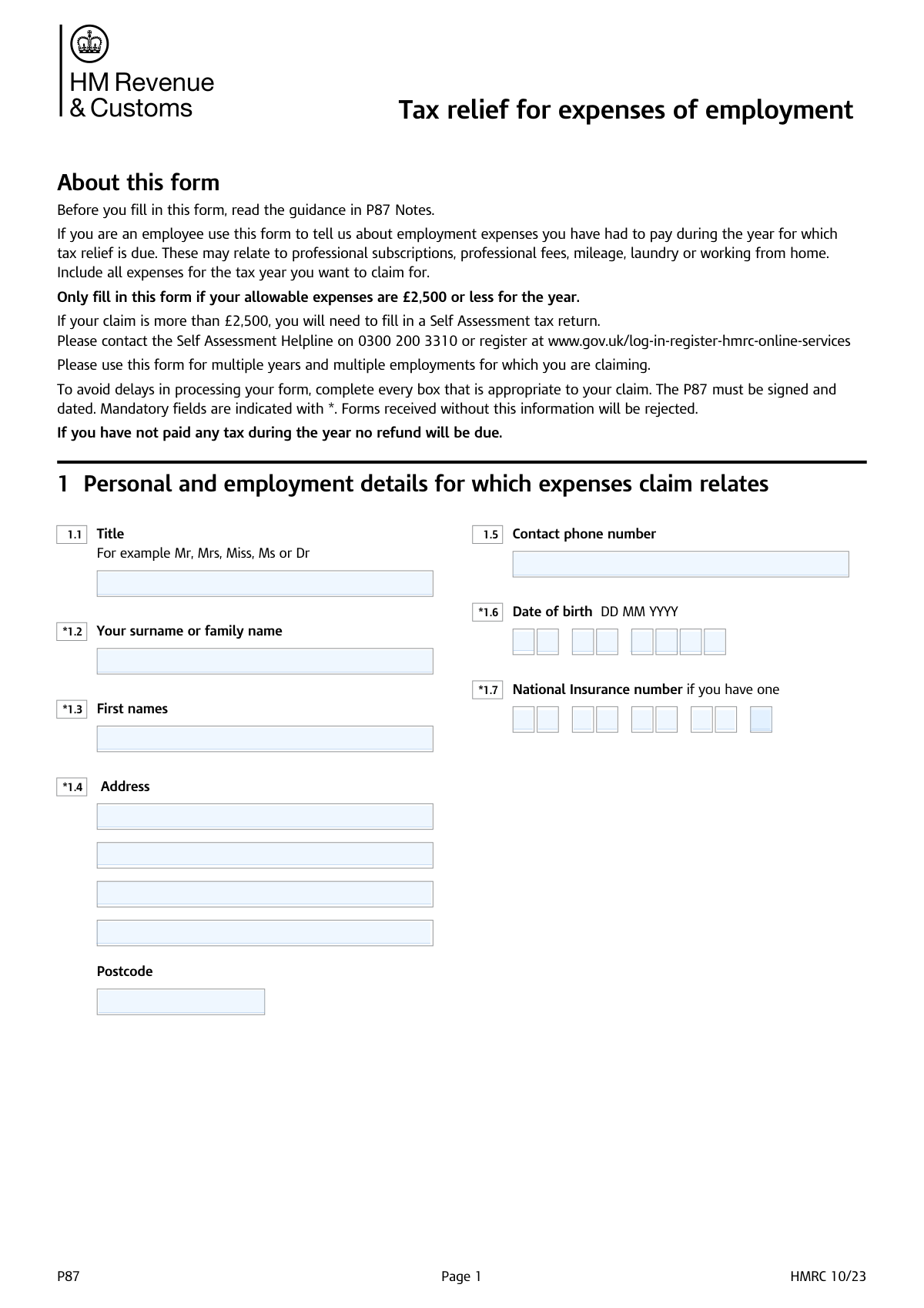
Form P87, 'Tax relief for expenses of employment,' is a UK tax form submitted to HMRC to claim tax back on allowable work-related expenses that your employer has not reimbursed. It's crucial for employees who have incurred costs for things like business mileage, professional subscriptions, or specialist clothing, as it allows them to reduce their taxable income and potentially receive a tax refund. Today, this form can be filled out quickly and accurately using AI-powered services like Instafill.ai, which can also convert non-fillable PDF versions into interactive fillable forms.
Our AI automatically handles information lookup, data retrieval, formatting, and form filling.
It takes less than a minute to fill out P87 using our AI form filling.
Securely upload your data. Information is encrypted in transit and deleted immediately after the form is filled out.
Form specifications
| Form name: | P87: Tax relief for expenses of employment |
| Number of fields: | 247 |
| Number of pages: | 8 |
| Language: | English |
| Categories: | employment forms, employment tax forms, tax forms |
Instafill Demo: How to fill out PDF forms in seconds with AI
How to Fill Out P87 Online for Free in 2026
Are you looking to fill out a P87 form online quickly and accurately? Instafill.ai offers the #1 AI-powered PDF filling software of 2026, allowing you to complete your P87 form in just 37 seconds or less.
Follow these steps to fill out your P87 form online using Instafill.ai:
- 1 Navigate to Instafill.ai and upload your P87 form, or select it from the available templates.
- 2 Provide your personal details, including your full name, address, date of birth, and National Insurance number.
- 3 Enter your employment details for each tax year you are claiming for, including the employer's name, PAYE reference, and your job title.
- 4 Input the details of the expenses you are claiming, such as flat rate expenses, professional subscriptions, business mileage, and other costs like working from home allowances.
- 5 If you are claiming for multiple years, repeat the employment and expense entry for each relevant tax period in the provided columns.
- 6 Review all the information pre-filled by the AI for accuracy, make any necessary corrections, and then digitally sign and date the declaration.
- 7 Choose how you want to receive any potential refund, and submit the completed form directly to HMRC.
Our AI-powered system ensures each field is filled out correctly, reducing errors and saving you time.
Why Choose Instafill.ai for Your Fillable P87 Form?
Speed
Complete your P87 in as little as 37 seconds.
Up-to-Date
Always use the latest 2026 P87 form version.
Cost-effective
No need to hire expensive lawyers.
Accuracy
Our AI performs 10 compliance checks to ensure your form is error-free.
Security
Your personal information is protected with bank-level encryption.
Frequently Asked Questions About Form P87
This form is used to claim UK tax relief on work-related expenses that you paid for yourself and were not fully reimbursed for by your employer. You should complete it if you are an employee wanting to claim a tax refund for costs like professional fees, mileage, or using your home for work.
Before you start, gather your National Insurance number, details from your P60 or P45 for each employment, and records of the expenses you are claiming. This includes receipts, mileage logs, and details of any professional subscriptions.
Your employer's PAYE reference number is located on your P60, P45, or payslips. You can also find this information in your online Personal Tax Account on the GOV.UK website.
Each column (A, B, C, D, E) is for a separate tax year, which runs from 6 April to 5 April. You should use one column for each tax year you are claiming for, and if you had multiple jobs in one year, you may need to use a separate form for each employment.
Flat rate expenses are a set amount of tax relief you can claim for your industry without needing to provide receipts for your spending. The amount is fixed by HMRC for various occupations, so you should check official guidance to see what you are entitled to.
Yes, you can claim tax relief on fees you pay to approved professional organizations, but only if membership is required for your job. Remember to subtract any amount your employer has already reimbursed you for.
You can claim a set rate per mile for business travel in your own vehicle (e.g., 45p per mile for the first 10,000 miles for cars). You must deduct any mileage allowance your employer has already paid you from the total calculated amount.
You can claim for increased costs like heating and electricity if you are required to work from home. You can either claim a flat weekly rate set by HMRC or calculate the exact additional costs, but you will need proof for the latter.
Nominating someone authorizes HMRC to send your tax refund cheque to another person or a professional, such as your tax agent. If you choose this option, you must provide the nominee's full name, address, and other required details.
For each column (tax year), add up all your claimed expenses from the different sections like flat rate, professional fees, and mileage. Then, subtract any non-taxable expense payments you received from your employer to find the final claim amount.
Yes, services like Instafill.ai use AI to help you accurately auto-fill form fields, which can save you time and reduce errors. The AI can recognize fields and populate them with your saved information.
Simply upload the form to the Instafill.ai platform. The AI will make the form fillable, and you can click on any field to add your information or let the AI autofill it from your profile, then download the completed document.
If you have a non-fillable or 'flat' PDF, you can use a service like Instafill.ai to convert it into an interactive, fillable form. Just upload the file, and the platform will automatically detect the fields for you to complete online.
Compliance P87
Validation Checks by Instafill.ai
1
Validates National Insurance Number (NINO) Format
This check ensures that the combined National Insurance number parts form a valid UK NINO. The format must be two letters, followed by six digits, and a final letter (A, B, C, or D). This is critical for correctly identifying the taxpayer with HMRC. A failure would prevent the form from being matched to the correct individual's tax records, causing processing delays or rejection.
2
Ensures Date of Birth is a Valid and Plausible Date
This validation confirms that the day, month, and year entered for the date of birth form a real calendar date (e.g., not April 31). It also checks that the date is in the past and represents a reasonable age for a taxpayer, for example, over 16 years old. An invalid date of birth is a key data quality failure that can prevent identity verification and lead to the form's rejection.
3
Validates UK Postcode Format
This check verifies that both the personal and employer postcode fields adhere to the standard UK postcode format, including the space between the outward and inward codes (e.g., 'SW1A 0AA'). Correctly formatted postcodes are essential for address validation, mail delivery, and data accuracy. An incorrectly formatted postcode can lead to returned mail and incorrect geographic data association.
4
Ensures Completeness of Core Personal Details
This validation ensures that essential personal identification fields, specifically 'Surname / Family name' and 'First names', are not left blank. These fields are the minimum required to identify an individual on official documents. Submission with missing names would make the form unusable as it cannot be attributed to anyone, leading to immediate rejection.
5
Verifies Contact Phone Number Format
This check examines the 'Contact phone number' to ensure it contains a plausible sequence of digits, potentially allowing for spaces, hyphens, and an international dialing code. A valid contact number is important in case the processing authority needs to contact the applicant for clarifications. An invalid number would remove a key communication channel, potentially delaying the claim if issues arise.
6
Ensures Logical Consistency for Employment Columns
This validation checks that if any data is entered into an employment column (e.g., Column A), then all core fields for that column ('Year ending 5 April', 'Employer PAYE reference', 'Employer name') are also completed. This prevents submission of incomplete employment records which are unusable for tax assessment. Failure to provide a complete record for an employment entry will require clarification and delay processing.
7
Validates Tax Year Entry Format
This check ensures that the 'Year ending 5 April' fields in columns A-E contain exactly two numeric digits as specified. This input is used to construct the full tax year (e.g., '21' becomes '2021'), so incorrect formatting would lead to an invalid tax year. This error would make it impossible to process the claim for that period, as the tax context would be wrong.
8
Validates Employer PAYE Reference Format
This check verifies that the 'Employer PAYE reference' follows the expected format, which is typically a three-digit tax office number followed by a unique reference (e.g., '123/A246' or '123 A246'). This reference is crucial for HMRC to identify the specific employer and associated payroll records. An incorrect PAYE reference will prevent the system from matching the employment details, halting the claim.
9
Verifies Mileage Calculation Consistency
This validation checks the arithmetic in the mileage section. It ensures that the sum of 'Mileage amount up to first 10,000 miles' and 'Mileage amount over 10,000 miles' equals the 'Total business mileage'. This prevents logical contradictions in the submitted data. Discrepancies would indicate a user error and require correction before the mileage claim can be accurately assessed.
10
Cross-Checks Calculated Mileage Allowance
This check performs the multiplication to verify the calculated allowance fields. It confirms that the value in 'Mileage multiplied by 45p' is equal to ('Mileage amount up to first 10,000 miles' * 0.45), and similarly for the 25p rate. This ensures the claim amount is arithmetically correct based on the mileage entered. An error here would lead to an incorrect claim amount and likely an audit or adjustment by the tax authority.
11
Verifies Professional Subscription Expense Calculation
This validation ensures that the 'Expenses claimed' for a professional body is equal to the 'Amount of subscription' minus the 'Amount repaid to you'. This simple check prevents mathematical errors and ensures the claimed amount accurately reflects the net expense. If the calculation is incorrect, the claim amount will be wrong, leading to either an over or under-claim of tax relief.
12
Checks for Conditional Nominee Information
This validation enforces a conditional rule: if the 'Cheque payable to nominee' option is selected, then the 'Nominee’s name' and 'Nominee’s postcode' fields must be filled. This ensures that if a payment is to be directed to a third party, all necessary information to identify and locate that party is provided. Failure to provide these details would make it impossible to issue the payment as directed, causing it to be blocked.
13
Validates Signature Date Logic
This check ensures the signature date is a valid calendar date, is not in the future, and is not before the end of the latest tax year being claimed. The signature legally certifies the information as correct at the time of signing. An illogical date (e.g., a future date or a date before the events occurred) can invalidate the legal declaration of the form.
14
Verifies Grand Total Expense Calculation
This check recalculates the final total expense claim based on its constituent parts (box 3.1, 4.4, 5.13, etc.) and compares it to the value entered by the user. This serves as a final verification of the form's arithmetic before submission. A mismatch indicates a calculation error that would result in an incorrect total claim amount, requiring manual correction by the tax authority.
Common Mistakes in Completing P87
The form splits the National Insurance number into multiple parts, which often confuses users who may enter the entire number in one box or misalign the character groups. An incorrect NINO will cause significant delays or rejection as tax authorities cannot match the form to the individual's record. To avoid this, carefully copy the number exactly as it appears on official documents, distributing the characters across the provided fields as instructed. AI-powered tools like Instafill.ai can help by automatically parsing and formatting the NINO correctly across the required fields.
The fields for 'Year ending 5 April' specifically ask for only the last two digits of the year (e.g., '24' for the year 2024). A common error is entering the full four-digit year, which can cause data entry failures or misinterpretation by the processing system. Always read field-specific instructions carefully and enter only the two digits required to prevent processing errors and delays.
The PAYE reference is a unique code for an employer and must be copied exactly from a P60, P45, or payslip. People often make typos, miss characters, or confuse it with their employee number, which prevents tax authorities from correctly identifying the employment history. Double-check this reference against your official documents to ensure it is complete and accurate, including any letters, numbers, and slashes.
The mileage claim section involves a tiered calculation (e.g., 45p for the first 10,000 miles, 25p thereafter), which is a common source of arithmetic errors. Users may apply the higher rate to all miles or miscalculate the totals, leading to an incorrect claim amount and potential queries from tax authorities. To prevent this, carefully separate mileage into the correct tiers before applying the rates. Using a tool like Instafill.ai can prevent these mistakes by performing the complex calculations automatically based on your total mileage input.
When claiming for professional subscriptions, individuals often enter the total amount they paid, forgetting to subtract any portion that their employer has already reimbursed. The form has separate boxes for the total subscription and the amount repaid, and failing to complete both correctly results in an over-claim and an incorrect tax assessment. Ensure you deduct any employer reimbursements and only claim for the net amount you personally paid out-of-pocket.
Several fields on the form require adding or subtracting figures from other boxes to calculate a total. Manual calculation is highly prone to error, leading to an incorrect total expense claim that can delay a refund or trigger a review. Use a calculator for all calculations and re-check your work before finalizing the form. AI form-filling tools like Instafill.ai can eliminate this risk entirely by performing all calculations automatically and ensuring accuracy.
This form is often provided as a non-fillable PDF, forcing users to print it and fill it out by hand. This leads to common errors like illegible handwriting, writing outside the designated boxes, and making mistakes that are difficult to correct cleanly. These issues can cause the form to be misinterpreted by data entry staff or scanners, leading to processing delays. To avoid this, use a tool like Instafill.ai to convert the flat PDF into an interactive, fillable form, ensuring all your entries are typed, clear, and perfectly aligned.
The 'First names' field asks for given name(s) in full, including middle names, as they appear on official records. Applicants frequently enter only their primary first name, which can cause identity verification issues if it doesn't perfectly match official records. To ensure a smooth process, enter all of your names exactly as they are shown on your passport, birth certificate, or other official identification.
The form requires repeating employer details across multiple columns (A-E) for different tax years. It is very common for users to miss a field, such as the 'Employer postcode' or 'Type of industry', in one of the columns. This incomplete data can halt the processing of the claim for that specific year. Systematically fill out all fields for one column before moving to the next to ensure each employment record is complete.
A missing signature or date is one of the most common reasons for a form to be immediately rejected and returned. This simple oversight invalidates the entire submission, as it means you have not legally declared the information to be true and correct. Always perform a final review of the form before sending, paying special attention to the signature and date fields to ensure they are completed.
Saved over 80 hours a year
“I was never sure if my IRS forms like W-9 were filled correctly. Now, I can complete the forms accurately without any external help.”
Kevin Martin Green
Your data stays secure with advanced protection from Instafill and our subprocessors

Robust compliance program
Transparent business model
You’re not the product. You always know where your data is and what it is processed for.
ISO 27001, HIPAA, and GDPR
Our subprocesses adhere to multiple compliance standards, including but not limited to ISO 27001, HIPAA, and GDPR.
Security & privacy by design
We consider security and privacy from the initial design phase of any new service or functionality. It’s not an afterthought, it’s built-in, including support for two-factor authentication (2FA) to further protect your account.
Fill out P87 with Instafill.ai
Worried about filling PDFs wrong? Instafill securely fills p87-tax-relief-for-expenses-of-employment forms, ensuring each field is accurate.