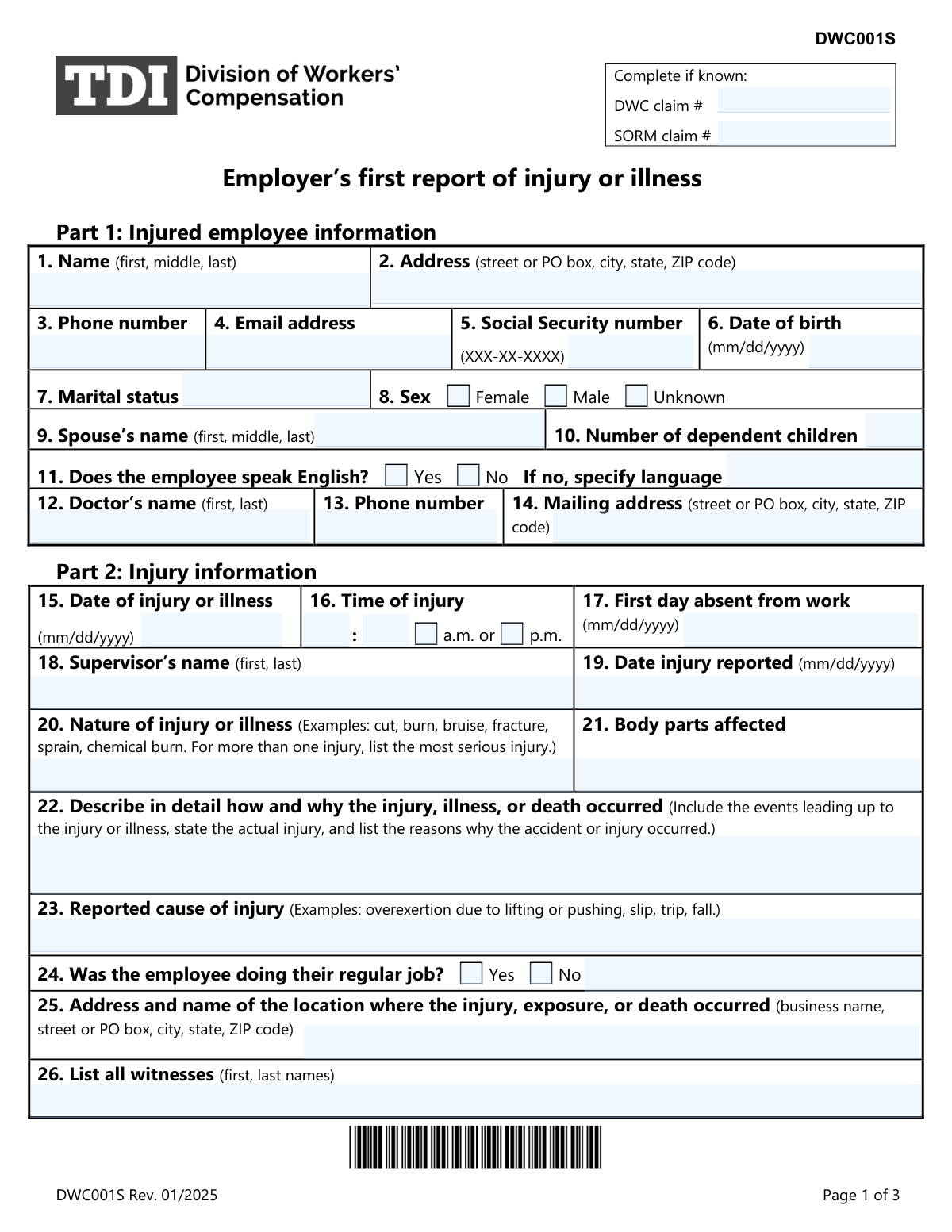
Yes! You can use AI to fill out DWC001S, Employer’s first report of injury or illness

The DWC001S, Employer's First Report of Injury or Illness, is a mandatory form for Texas employers to report a work-related injury, illness, or death to the State Office of Risk Management (SORM). Filing this report is the first step in initiating the workers' compensation claims process for the affected employee. Today, this form can be filled out quickly and accurately using AI-powered services like Instafill.ai, which can also convert non-fillable PDF versions into interactive fillable forms.
Our AI automatically handles information lookup, data retrieval, formatting, and form filling.
It takes less than a minute to fill out DWC001S using our AI form filling.
Securely upload your data. Information is encrypted in transit and deleted immediately after the form is filled out.

Form specifications

Form name: DWC001S, Employer’s first report of injury or illness
Number of pages: 2
Language: English
Categories: employer forms, IRS forms
main-image

Instafill Demo: How to fill out PDF forms in seconds with AI

How to Fill Out DWC001S Online for Free in 2026

Are you looking to fill out a DWC001S form online quickly and accurately? Instafill.ai offers the #1 AI-powered PDF filling software of 2026, allowing you to complete your DWC001S form in just 37 seconds or less.
Follow these steps to fill out your DWC001S form online using Instafill.ai:
  1. 1 Navigate to Instafill.ai and upload or select the DWC001S form.
  2. 2 Provide the injured employee's personal details, contact information, and Social Security number in Part 1.
  3. 3 Enter detailed information about the injury in Part 2, including the date, time, nature of the injury, and how it occurred.
  4. 4 Complete Part 3 with the employee's employment information, such as date of hire, occupation, and rate of pay.
  5. 5 Fill in the employer's information in Part 4, including agency name, address, and relevant identification numbers.
  6. 6 Review all the information auto-filled by the AI for accuracy and completeness across all sections.
  7. 7 Certify the form with a signature and date in Part 5 before submitting it to the State Office of Risk Management (SORM) and providing a copy to the employee.

Our AI-powered system ensures each field is filled out correctly, reducing errors and saving you time.

Why Choose Instafill.ai for Your Fillable DWC001S Form?

Speed

Complete your DWC001S in as little as 37 seconds.

Up-to-Date

Always use the latest 2026 DWC001S form version.

Cost-effective

No need to hire expensive lawyers.

Accuracy

Our AI performs 10 compliance checks to ensure your form is error-free.

Security

Your personal information is protected with bank-level encryption.

Frequently Asked Questions About Form DWC001S

The DWC001S, 'Employer’s first report of injury or illness,' is used by employers to report a work-related injury or illness. It provides the State Office of Risk Management (SORM) with the necessary information to begin the workers' compensation claims process.

You must submit this form within eight days after the employee’s first day of absence from work due to the injury, you receive notice of an occupational disease, or an employee dies from a work-related incident.

Send the completed form to the State Office of Risk Management (SORM) and a copy to the injured employee or their representative. Do not send it to the Texas Department of Insurance, Division of Workers’ Compensation (DWC), unless they specifically request it.

Failing to file this report in a timely manner without a good reason may result in a fine. It is crucial to submit the form to ensure the claims process can begin promptly for the injured employee.

Yes, you should keep a copy of the completed form for your records. This copy serves as the Employer’s Record of Injury as required by Texas Labor Code Section 409.006.

You should provide a detailed and factual account of how the injury occurred. Include the events leading up to the incident, a clear description of the injury itself, and the factors you believe contributed to the accident.

Fill out the form as completely and accurately as possible with the information you have. If some details are unknown, you can indicate that, but be sure to complete all mandatory fields to the best of your ability to avoid delays.

You must check 'Yes' in Part 2, question 29, and provide the date of death. It is critical to submit the form within eight days of the employee's death.

The North American Industry Classification System (NAICS) code can typically be found on your business tax returns or by searching the official U.S. Census Bureau website. You will need to provide both the primary and specific six-digit codes.

Yes, services like Instafill.ai use AI to help you accurately auto-fill form fields, which can save time and reduce errors. This is especially helpful for recurring information like your agency details.

You can use a service like Instafill.ai to complete the form digitally. Simply upload the DWC001S form, and the AI will identify the fields, allowing you to type in your information, save your progress, and download the completed document.

If you have a non-fillable or 'flat' PDF, you can upload it to a platform like Instafill.ai. The service will automatically convert it into an interactive, fillable form that you can complete on your computer.

The DWC (Division of Workers' Compensation) and SORM (State Office of Risk Management) may assign separate numbers to track the claim. You should enter these numbers in the designated fields at the top of the form if they have been provided to you.

Compliance DWC001S
Validation Checks by Instafill.ai

1
Validate Social Security Number Format
This check ensures that the Social Security Number in field 5 is entered in the specific XXX-XX-XXXX format. Correct formatting is crucial for unique employee identification and integration with other systems. If the format is incorrect, the submission should be rejected with an error message prompting the user to correct the entry.
2
Ensure Date of Injury is After Date of Birth
This validation compares the 'Date of injury or illness' (field 15) with the 'Date of birth' (field 6). The date of injury must be chronologically after the employee's date of birth. This check prevents logically impossible data entry errors that would invalidate the entire report.
3
Verify Date of Injury is On or After Date of Hire
This check ensures the 'Date of injury or illness' (field 15) is on or after the 'Date of hire' (field 30). An employee cannot have a work-related injury before their official start date. This logical validation is essential for confirming the injury occurred during the course of employment.
4
Confirm Injury Report Date is On or After Injury Date
This validation compares the 'Date injury reported' (field 19) to the 'Date of injury or illness' (field 15). The report date must be the same day as or after the injury date. This check maintains the logical timeline of events and is important for assessing reporting timeliness.
5
Conditional Requirement for Employee's Language
This check verifies that if 'No' is selected for 'Does the employee speak English?' (field 11), the subsequent field to specify the language is not empty. Capturing the employee's primary language is critical for ensuring effective communication during the claims process. A failure would prompt the user to provide the required language.
6
Conditional Requirement for Date of Death
This validation ensures that if 'Yes' is selected for 'Did the employee die?' (field 29), the corresponding 'Date of death' field is populated with a valid date. This is a critical piece of information for fatality claims and must be captured accurately. The form should not be submittable without this date if the 'Yes' box is checked.
7
Validate NAICS Code Length
This check verifies that the 'Primary NAICS code' (field 47) and 'Specific NAICS code' (field 48) each contain exactly six digits. NAICS codes are a standard used for industry classification, and an incorrect length would make the code invalid for statistical analysis and reporting. The system should flag any entry that is not six digits long.
8
Exclusive Selection for Rate of Pay
This validation ensures that only one of the pay rate fields ('Hourly', 'Weekly', or 'Monthly' in field 36) is filled out. Having multiple entries creates ambiguity and makes it impossible to accurately calculate wage replacement benefits. If more than one field is populated, an error should be triggered, forcing the user to select only one.
9
Validate Return-to-Work Date Chronology
This check ensures the 'Return-to-work date' (field 28) is on or after the 'First day absent from work' (field 17). A return date cannot precede the first day of absence. This logical check is vital for correctly calculating the duration of disability and associated benefits.
10
Completeness Check for Core Incident Fields
This validation verifies that essential fields such as 'Injured employee name' (field 1), 'Date of injury' (field 15), 'Describe in detail how... the injury... occurred' (field 22), and 'Agency name' (field 41) are not empty. These fields represent the minimum data necessary to initiate a claim and understand the incident. The form cannot be submitted if any of these core fields are missing.
11
Validate Dependent Children as Non-Negative Integer
This check ensures the value entered for 'Number of dependent children' (field 10) is a whole number greater than or equal to zero. Entering text, decimals, or negative numbers would be invalid data. This validation is important for data integrity and potential dependency benefit calculations.
12
Conditional Response for Accident Prevention Services
This validation rule checks that if 'Yes' is selected for 'Did you request accident prevention services in the past 12 months?' (field 52), then one of the options for 'did you receive them?' must also be selected. This ensures that the two-part question is fully answered, providing complete data for analysis. A failure would prompt the user to complete the second part of the question.
13
Validate Agency Location Code Format
This check ensures the 'Agency location code' (field 45) is entered in the specified ###/###/### format. Adherence to this format is necessary for the code to be correctly parsed and used for internal agency routing and identification. An entry not matching this pattern should be flagged as invalid.
14
Ensure Date of Death is After Date of Injury
This validation compares the 'Date of death' (field 29) with the 'Date of injury or illness' (field 15). The date of death must be on or after the date of injury. This check is a critical logical validation for fatality claims to ensure the reported death could be related to the work incident.

Common Mistakes in Completing DWC001S

Providing a Vague or Incomplete Injury Description

In field 22, employers often write brief, unhelpful descriptions like 'hurt back' or 'employee fell.' This happens because the person filling out the form may be rushing or may not have all the details. A vague description can significantly delay the claim investigation and determination, as the insurer will need to request more information. To avoid this, provide a full narrative including the events leading up to the injury, the specific movements the employee was making, and the resulting injury, as the form instructs.

Using Incorrect Date Formats

Many fields (e.g., 6, 15, 19, 30) require the 'mm/dd/yyyy' format, but users frequently enter dates in other formats like 'dd/mm/yyyy' or 'Jan 1, 2025'. This simple data entry error can cause automated systems to reject the form or lead to processing delays while the information is manually corrected. Always double-check that all dates are entered in the specified format. AI-powered tools like Instafill.ai can help prevent this by automatically formatting dates correctly as you fill out the form.

Confusing 'Nature of Injury' with 'Cause of Injury'

Users often mix up field 20 ('Nature of injury') and field 23 ('Reported cause'). For example, they might write 'fall' in the nature field and 'fractured wrist' in the cause field, which is the reverse of what is required. This confusion can lead to incorrect data classification and slow down the claim. The 'nature' is the medical diagnosis (e.g., sprain, cut, fracture), while the 'cause' is the event that led to it (e.g., slip, overexertion, fall).

Submitting an Unsigned or Undated Form

Forgetting to sign and date the certification in field 53 is a critical error that completely invalidates the report. This often happens when a form is filled out digitally but printed for a physical signature that is then overlooked. An unsigned form is not considered officially filed, which can result in non-compliance and potential fines for failing to report the injury within the required eight-day timeframe. Always perform a final review to ensure the signature and date are present before submission.

Entering an Incomplete Social Security Number

The Social Security number in field 5 is a primary identifier for the injured employee, but it is often entered with typos or in the wrong format. A missing digit or transposed numbers will cause a data mismatch, making it difficult for the insurer to locate the employee's records and process the claim. This leads to significant delays and requires follow-up to correct the information. It is crucial to verify the SSN with the employee's records and enter it exactly as 'XXX-XX-XXXX'.

Omitting Specific Injury Location Details

In field 25, employers sometimes list a general location like 'the warehouse' or just the main company address, even if the injury occurred at a different site or specific area. The form requires the full address and name of the location where the injury happened for investigation and risk assessment purposes. Failing to provide a precise location can impede the investigation and analysis of workplace hazards. Be sure to list the exact business name and street address of the incident location.

Incomplete Pay Rate Information

When filling out field 36, a user might enter the numerical pay rate but forget to check the corresponding box for 'Hourly,' 'Weekly,' or 'Monthly.' This ambiguity forces the claims adjuster to contact the employer for clarification, delaying the calculation of wage replacement benefits for the injured employee. To prevent this, ensure you enter the pay rate and check the box that indicates the correct pay period. AI form-filling tools can often flag such incomplete field groups.

Leaving Technical Codes Blank

Fields for the 'State Payroll Classification Code' (34), 'Primary NAICS code' (47), and 'Specific NAICS code' (48) are frequently left blank. Employers may not have this information readily available and skip it to save time. However, these codes are essential for the insurer and state agencies for statistical tracking, risk analysis, and premium calculations. Leaving them blank can result in follow-up requests and processing delays. This information should be sourced from your company's payroll or accounting department before starting the form.

Forgetting to Specify the Employee's Language

In field 11, if an employee does not speak English, the person completing the form may check 'No' but then forget to write in the employee's primary language. This oversight hinders the ability of the insurance carrier and medical providers to communicate effectively with the injured worker, potentially delaying their care and the claims process. If 'No' is selected, it is critical to also specify the language to ensure proper translation services can be arranged.

Failing to List Known Witnesses

Field 26 asks for the names of all witnesses, but it is often left blank even when witnesses were present. This may happen because the person filling out the form is unaware of witnesses or doesn't think to ask the supervisor or injured employee. Witness statements are crucial for verifying the details of the incident, and omitting them can weaken the claim and complicate the investigation. Always ask the supervisor and employee if anyone saw the incident and list their full names.
Saved over 80 hours a year

“I was never sure if my IRS forms like W-9 were filled correctly. Now, I can complete the forms accurately without any external help.”

Kevin Martin Green

Your data stays secure with advanced protection from Instafill and our subprocessors

Robust compliance program

Transparent business model

You’re not the product. You always know where your data is and what it is processed for.

ISO 27001, HIPAA, and GDPR

Our subprocesses adhere to multiple compliance standards, including but not limited to ISO 27001, HIPAA, and GDPR.

Security & privacy by design

We consider security and privacy from the initial design phase of any new service or functionality. It’s not an afterthought, it’s built-in, including support for two-factor authentication (2FA) to further protect your account.

Fill out DWC001S with Instafill.ai

Worried about filling PDFs wrong? Instafill securely fills dwc001s-employers-first-report-of-injury-or-illness forms, ensuring each field is accurate.