Yes! You can use AI to fill out Employee Flexible Spending Account (FSA) Enrollment Form (CLB122_0423)

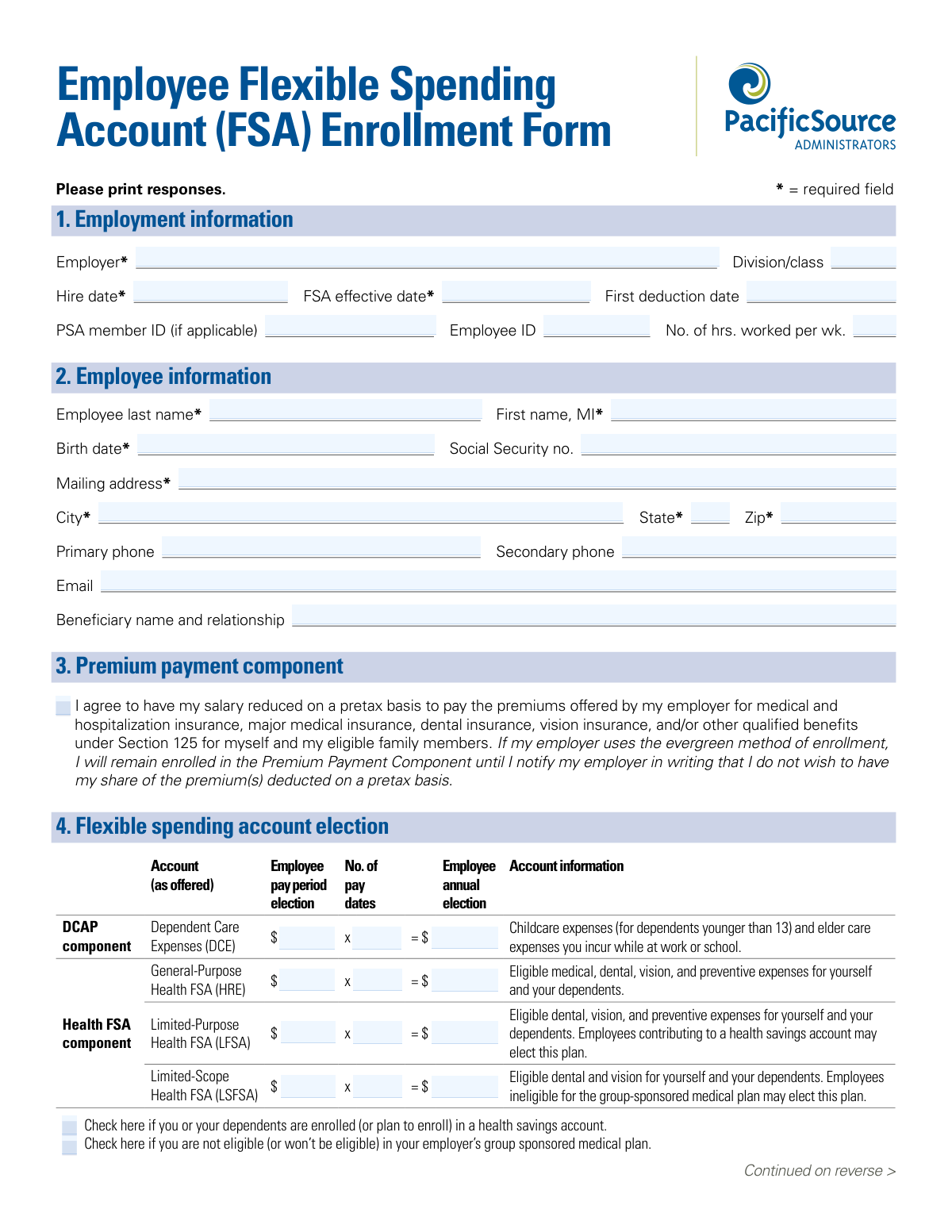
The Employee Flexible Spending Account (FSA) Enrollment Form is a crucial document for employees who wish to take advantage of tax-saving benefits offered by their employer under Section 125 of the IRS code. By completing this form, an employee authorizes their employer to deduct a specified amount from their gross pay to be placed into an FSA for reimbursement of eligible medical or dependent care expenses, reducing their taxable income. Today, this form can be filled out quickly and accurately using AI-powered services like Instafill.ai, which can also convert non-fillable PDF versions into interactive fillable forms.
CLB122_0423 is part of the employee forms and enrollment forms categories on Instafill.
Our AI automatically handles information lookup, data retrieval, formatting, and form filling.
It takes less than a minute to fill out CLB122_0423 using our AI form filling.
Securely upload your data. Information is encrypted in transit and deleted immediately after the form is filled out.

Form specifications

Form name: Employee Flexible Spending Account (FSA) Enrollment Form (CLB122_0423)
Number of fields: 46
Number of pages: 2
Language: English
main-image

Instafill Demo: How to fill out PDF forms in seconds with AI

How to Fill Out CLB122_0423 Online for Free in 2026

Are you looking to fill out a CLB122_0423 form online quickly and accurately? Instafill.ai offers the #1 AI-powered PDF filling software of 2026, allowing you to complete your CLB122_0423 form in just 37 seconds or less.
Follow these steps to fill out your CLB122_0423 form online using Instafill.ai:
  1. 1 Navigate to Instafill.ai and upload or select the FSA Enrollment Form.
  2. 2 Use the AI assistant to automatically fill in your employment and personal information, such as employer name, employee ID, name, and address.
  3. 3 In the 'Flexible spending account election' section, specify your per-pay-period and annual election amounts for the desired FSA components, like Health FSA or Dependent Care.
  4. 4 If enrolling in a dependent care account, provide the names and birth dates of your dependents in the appropriate section.
  5. 5 Select any optional features, such as enrolling in the benefit debit card or EasyPay program, if offered and applicable.
  6. 6 Carefully review the participant authorization, then use the tool to apply your digital signature and the current date to finalize your enrollment.
  7. 7 Download the completed form to submit to your employer and keep a copy for your personal records.

Our AI-powered system ensures each field is filled out correctly, reducing errors and saving you time.

Why Choose Instafill.ai for Your Fillable CLB122_0423 Form?

Speed

Complete your CLB122_0423 in as little as 37 seconds.

Up-to-Date

Always use the latest 2026 CLB122_0423 form version.

Cost-effective

No need to hire expensive lawyers.

Accuracy

Our AI performs 10 compliance checks to ensure your form is error-free.

Security

Your personal information is protected with bank-level encryption.

Frequently Asked Questions About Form CLB122_0423

This form is used to enroll in your employer's Flexible Spending Account (FSA) program, allowing you to set aside pretax money from your paycheck for eligible healthcare or dependent care expenses. You also use this form to waive participation if you choose not to enroll.

Any employee who wants to enroll in a Health FSA or Dependent Care FSA for the upcoming plan year should complete this form. You should also fill it out if you wish to formally decline or waive participation in the plan.

A General-Purpose Health FSA covers a wide range of medical, dental, and vision costs. A Limited-Purpose FSA is designed for employees contributing to a Health Savings Account (HSA) and only covers eligible dental, vision, and preventive expenses.

First, determine the total amount you want to contribute for the entire year based on your expected expenses. Then, divide that total by your number of pay dates in the plan year to find your per-pay-period election amount.

No, the dependent information section is only required if you are enrolling in the Dependent Care Account Program (DCAP). You do not need to list dependents if you are only enrolling in a Health FSA, even if you plan to use the funds for their expenses.

Any funds remaining in your account at the end of the plan year may be forfeited under the IRS 'use-it-or-lose-it' rule. Check your plan summary, as your employer may offer a carryover or grace period provision to mitigate this.

Generally, your election is locked in for the plan year and cannot be changed. You may only revoke or change your election if you experience a qualified change in status, such as marriage or birth of a child, and notify your employer within 30 days.

The benefit debit card is an optional feature that allows you to pay for eligible expenses directly from your Health FSA at the point of sale. You must keep all itemized receipts, as they may be required to substantiate the purchase.

After completing and signing the form, you should return the original copy to your employer. Your employer is responsible for retaining a copy and forwarding it to PacificSource Administrators.

Signing the waiver indicates that you are officially declining to participate in the Health FSA, Dependent Care FSA, and Premium Payment Component for this plan year. You will not be able to enroll later unless you have a qualifying life event.

Yes, services like Instafill.ai use AI to accurately auto-fill form fields with your information, which can save you time and help prevent errors. This is especially useful for recurring forms where your personal data remains the same.

Simply upload the FSA enrollment form to the Instafill.ai platform. The AI will identify the fields, allowing you to automatically populate your personal and employment information before you complete your elections and sign electronically.

If you have a non-fillable or 'flat' PDF, you can use a service like Instafill.ai to convert it into an interactive, fillable form. This allows you to type your information directly into the fields instead of printing and filling it out by hand.

Compliance CLB122_0423
Validation Checks by Instafill.ai

1
Required Fields Completion
This check verifies that all fields marked with an asterisk (*) have been completed by the employee. It is a fundamental check to ensure the form is administratively complete for processing, as missing data like name, hire date, or address would prevent successful enrollment. If validation fails, the submission is rejected with a message indicating which required fields are missing.
2
FSA Election Calculation Accuracy
This validation ensures that for each FSA account type (DCAP, General-Purpose, etc.), the 'Employee annual election' amount correctly equals the 'Employee pay period election' multiplied by the 'No. of pay dates'. This check is crucial for preventing payroll deduction errors and ensuring the employee's intended annual contribution is accurately recorded. A mismatch would trigger an error requiring the user to correct the values before submission.
3
DCAP Dependent Information Requirement
This check confirms that if a monetary value is entered for the Dependent Care (DCAP) component, the 'Dependent information' section (name and date of birth) is also filled out for at least one dependent. DCAP funds can only be used for qualifying dependents, so this information is essential for compliance and claim processing. Failure to provide dependent details while electing DCAP will block the submission and prompt the user for the required information.
4
DCAP Dependent Age Eligibility
This validation calculates the age of dependents listed in the 'Dependent information' section based on their date of birth. If the DCAP component is elected, this check confirms that at least one dependent is under the age of 13, as specified by the plan rules on the form. This prevents enrollment based on non-qualifying dependents and avoids future claim denials and compliance issues.
5
Limited-Purpose FSA (LFSA) Eligibility
This check confirms that if an employee enters an election amount for the 'Limited-Purpose Health FSA (LFSA)', the checkbox indicating they 'are enrolled (or plan to enroll) in a health savings account' is also checked. The form explicitly links this FSA type to HSA participants, making this a critical logic check. An attempt to elect an LFSA without checking the HSA box would result in an error message explaining the requirement.
6
Limited-Scope FSA (LSFSA) Eligibility
This validation ensures that if an employee makes an election for the 'Limited-Scope Health FSA (LSFSA)', the checkbox for 'not eligible... in your employer’s group sponsored medical plan' is also checked. This FSA type is specifically designated for employees in that situation. The system will flag an error if an LSFSA election is made without the corresponding eligibility box being checked.
7
Logical Date Sequence
This validation compares the 'Hire date' and 'FSA effective date' to ensure the effective date is on or after the employee's hire date. Benefits cannot logically or legally begin before employment commences. This check prevents administrative and compliance errors in setting up the benefit plan. If the effective date is before the hire date, the system will flag it as an error.
8
Signature and Date Requirement for Authorization
This check ensures that if any FSA election amounts are entered, the 'Employee signature' and 'Date' fields in the authorization section are also completed. The signature serves as legal attestation and authorization for payroll deductions. Submitting an enrollment with monetary elections but without a signature would render it invalid, so the system must block it.
9
Mutually Exclusive FSA Plan Selection
This validation ensures an employee does not elect a 'General-Purpose Health FSA' at the same time as a 'Limited-Purpose Health FSA' or 'Limited-Scope Health FSA'. General-purpose FSAs are incompatible with HSAs (which require an LFSA), making simultaneous enrollment a logical conflict that could lead to tax complications. The system should prevent the user from entering values for both general and limited/scope plan types on the same form.
10
Mutually Exclusive Debit Card Choice
This check validates that the user has selected either 'Enroll and/or remain enrolled' or 'Disenroll' for the benefit debit card, but not both. These options are mutually exclusive. If a Health FSA is elected but both or neither option is selected, the form should be considered incomplete, prompting the user to make a single, clear choice.
11
Waiver vs. Election Logic
This validation determines if the form represents a waiver or an enrollment. If the employee signs and dates the form without entering any monetary values in the 'Flexible spending account election' section, it is processed as a waiver of benefits. If any election amount is entered, the signature is treated as an authorization for enrollment. This check prevents ambiguity in the employee's intent.
12
Social Security Number Format
This check validates that the 'Social Security no.' field, if data is entered, follows the standard 9-digit format (e.g., XXX-XX-XXXX or XXXXXXXXX). Although not marked as required, if the number is provided, it must be structurally valid for correct tax reporting and identification purposes. An invalid format would prompt the user to correct the entry before submission.

Common Mistakes in Completing CLB122_0423

Miscalculating Annual FSA Election Amounts

The form requires employees to calculate their total annual election by multiplying the per-pay-period amount by the number of pay dates. Mathematical errors are common and can lead to incorrect payroll deductions and an annual election amount that is higher or lower than intended. This could result in forfeiting unused funds at the end of the year or not having enough funds for planned expenses. To avoid this, carefully double-check your calculations before submitting the form. AI-powered tools like Instafill.ai can prevent this by performing the calculations automatically as you enter the numbers.

Selecting an Incompatible Health FSA Type

Employees who are enrolled in a Health Savings Account (HSA) often mistakenly elect a General-Purpose Health FSA instead of the required Limited-Purpose FSA. This error makes them ineligible to contribute to their HSA for the entire year, which has significant negative tax consequences. It is crucial to read the descriptions for each FSA type and check the box indicating HSA enrollment if applicable. This ensures you select the correct, compatible plan.

Forgetting to List Dependents for DCAP

An employee will elect a Dependent Care Assistance Plan (DCAP) contribution in Section 4 but then forget to list the qualifying dependents in Section 5. The form explicitly states that dependent information is required if enrolling in the dependent care component. Failure to provide this information will render the DCAP election invalid, and any claims for dependent care expenses will be denied until the information is provided.

Missing Signature or Date in Authorization Section

Forgetting to sign and date the form in Section 7 is one of the most frequent and critical errors. An unsigned or undated form is legally invalid and cannot be processed by the employer or plan administrator. This oversight will result in the rejection of the entire enrollment, forcing the employee to resubmit and potentially miss the enrollment deadline. Always perform a final review to ensure the signature and date fields are complete.

Using Illegible Handwriting

The form specifies 'Please print responses,' yet many people fill it out with hurried or cursive handwriting. This leads to data entry errors by the administrator, resulting in misspelled names, incorrect addresses, or wrong Social Security numbers. Such mistakes can cause significant delays in account setup and claim processing. Since this form is a non-fillable PDF, using a service like Instafill.ai to convert it into a fillable version ensures all entries are typed and perfectly legible, eliminating this risk.

Omitting Required Fields Marked with an Asterisk

Many fields on the form are marked with an asterisk (*) to indicate they are required, such as 'Employer,' 'Hire date,' and 'Mailing address.' It is common for people to accidentally skip one of these fields while filling out the form. An incomplete form will be rejected by the administrator, delaying enrollment and requiring the employee to correct and resubmit it. AI form-filling tools like Instafill.ai can help by automatically highlighting all required fields to ensure none are missed.

Confusing FSA Effective Date with First Deduction Date

Employees often mix up the 'FSA effective date' and the 'First deduction date.' The effective date is when you can begin incurring eligible expenses, while the deduction date is when the first contribution is taken from your paycheck. Confusing them can lead to submitting claims for expenses incurred before the plan was active, which will result in claim denial. It's important to confirm these dates with your HR department to ensure proper financial planning.

Entering Inconsistent or Incorrect Personal Information

Mistakes such as transposing numbers in a Social Security number, using a nickname instead of a legal first name, or entering an incorrect date of birth are common. These inconsistencies between the form and official payroll records can cause identity verification failures. This will delay the account setup and can create significant problems when processing claims or issuing a debit card. Always use your legal name and double-check numbers against an official document.

Providing Incomplete Election Information

In the FSA election table (Section 4), an employee might fill in their desired annual election but leave the 'Employee pay period election' field blank, or vice-versa. This forces the payroll department to either guess the intended deduction or return the form as incomplete. This ambiguity will halt the enrollment process. To prevent this, ensure all three columns (per-pay election, number of pay dates, and annual election) are filled out for any account you wish to enroll in.

Forgetting to Check Critical Eligibility Boxes

The two checkboxes in Section 4—'enrolled... in a health savings account' and 'not eligible... in your employer’s group sponsored medical plan'—are crucial for determining FSA eligibility. Forgetting to check the appropriate box can lead to being enrolled in the wrong type of FSA or having your election questioned by the administrator. This can have serious financial repercussions, such as jeopardizing HSA eligibility. Always review these boxes to ensure they accurately reflect your situation.
Saved over 80 hours a year

“I was never sure if my IRS forms like W-9 were filled correctly. Now, I can complete the forms accurately without any external help.”

Kevin Martin Green

Your data stays secure with advanced protection from Instafill and our subprocessors

Robust compliance program

Transparent business model

You’re not the product. You always know where your data is and what it is processed for.

ISO 27001, HIPAA, and GDPR

Our subprocesses adhere to multiple compliance standards, including but not limited to ISO 27001, HIPAA, and GDPR.

Security & privacy by design

We consider security and privacy from the initial design phase of any new service or functionality. It’s not an afterthought, it’s built-in, including support for two-factor authentication (2FA) to further protect your account.

Fill out CLB122_0423 with Instafill.ai

Worried about filling PDFs wrong? Instafill securely fills employee-flexible-spending-account-fsa-enrollment-form-clb1220423 forms, ensuring each field is accurate.