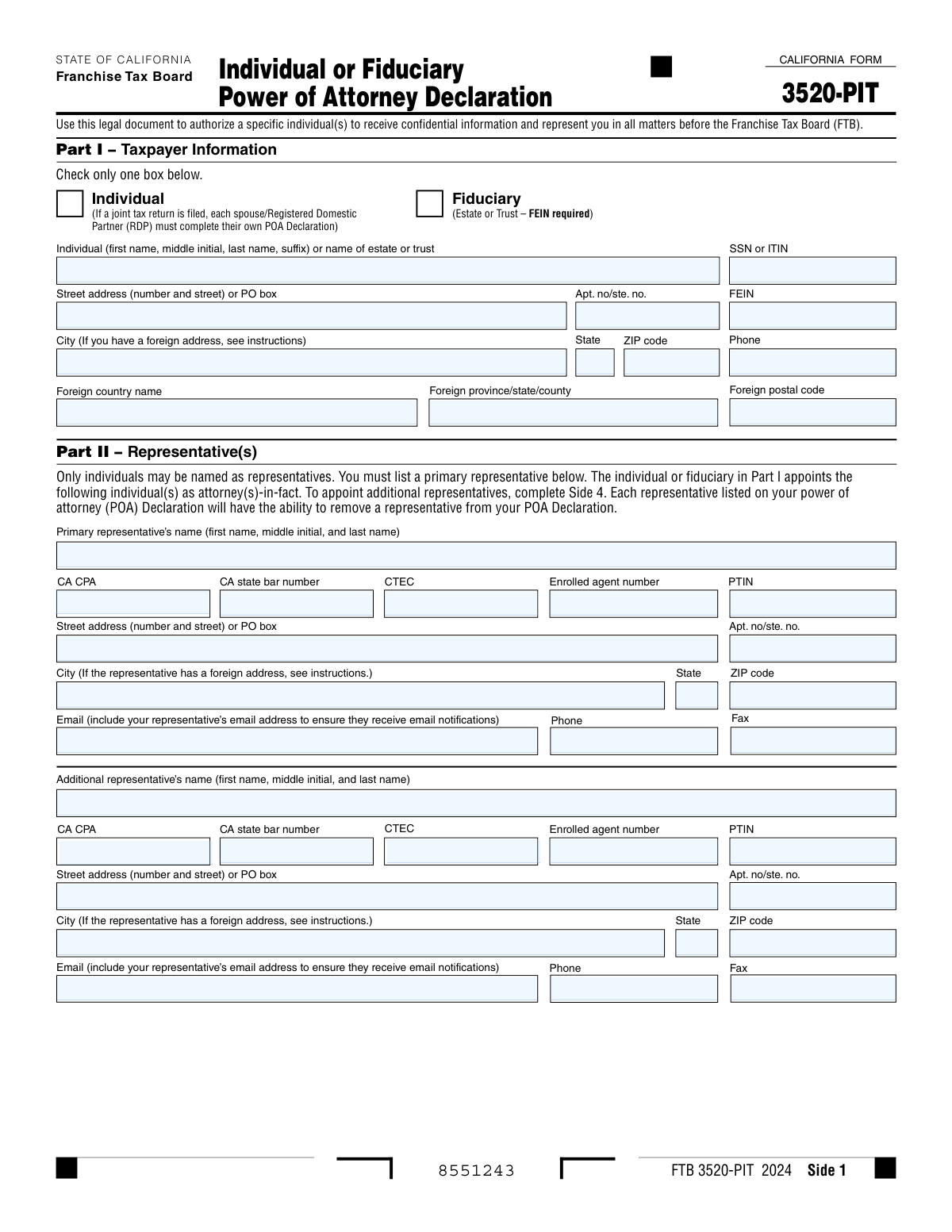
Yes! You can use AI to fill out Form FTB 3520-PIT, Individual or Fiduciary Power of Attorney Declaration

Form FTB 3520-PIT is a legal document used by individuals, estates, or trusts to appoint a representative, such as a CPA or attorney, to act on their behalf in matters before the California Franchise Tax Board (FTB). This declaration authorizes the representative to receive confidential tax information and handle tax-related issues for specific or all tax years. Today, this form can be filled out quickly and accurately using AI-powered services like Instafill.ai, which can also convert non-fillable PDF versions into interactive fillable forms.
FTB 3520-PIT is part of the power of attorney forms category on Instafill.
Our AI automatically handles information lookup, data retrieval, formatting, and form filling.
It takes less than a minute to fill out FTB 3520-PIT using our AI form filling.
Securely upload your data. Information is encrypted in transit and deleted immediately after the form is filled out.

Form specifications

Form name: Form FTB 3520-PIT, Individual or Fiduciary Power of Attorney Declaration
Number of fields: 128
Number of pages: 5
Language: English
main-image

Instafill Demo: How to fill out PDF forms in seconds with AI

How to Fill Out FTB 3520-PIT Online for Free in 2026

Are you looking to fill out a FTB 3520-PIT form online quickly and accurately? Instafill.ai offers the #1 AI-powered PDF filling software of 2026, allowing you to complete your FTB 3520-PIT form in just 37 seconds or less.
Follow these steps to fill out your FTB 3520-PIT form online using Instafill.ai:
  1. 1 Navigate to Instafill.ai and upload or select Form FTB 3520-PIT.
  2. 2 Complete Part I by providing the taxpayer's information, indicating whether you are an individual or a fiduciary for an estate or trust.
  3. 3 Fill out Part II with the full details of the primary representative and any additional representatives you wish to appoint.
  4. 4 In Part III, specify the scope of the authorization by choosing to grant power of attorney for all tax years or for specific years.
  5. 5 Review the additional authorizations in Part IV, such as the authority to sign tax returns or receive refund checks, and check 'Yes' or 'No' for each.
  6. 6 Complete Part V to grant or deny your tax professional full online access to your MyFTB account.
  7. 7 Carefully review the entire form for accuracy, then complete Part VI by printing your name, signing, and dating the declaration to finalize the power of attorney.

Our AI-powered system ensures each field is filled out correctly, reducing errors and saving you time.

Why Choose Instafill.ai for Your Fillable FTB 3520-PIT Form?

Speed

Complete your FTB 3520-PIT in as little as 37 seconds.

Up-to-Date

Always use the latest 2026 FTB 3520-PIT form version.

Cost-effective

No need to hire expensive lawyers.

Accuracy

Our AI performs 10 compliance checks to ensure your form is error-free.

Security

Your personal information is protected with bank-level encryption.

Frequently Asked Questions About Form FTB 3520-PIT

Form FTB 3520-PIT is a Power of Attorney (POA) Declaration used to authorize a specific individual, like a tax professional, to represent you and receive your confidential tax information for all matters before the California Franchise Tax Board (FTB).

Any individual, estate, or trust that wants to appoint a representative to handle their state tax matters with the FTB should complete this form. If you file a joint return, both you and your spouse/RDP must each complete a separate form to appoint a representative.

No, if you file a joint tax return, each spouse or Registered Domestic Partner (RDP) must complete their own separate POA Declaration to authorize a representative.

You will need your personal information (name, address, SSN/ITIN) or the estate/trust's information (name, FEIN). You also need the full name, address, contact details, and any professional license numbers (like CPA, Bar, or PTIN) for each representative you are appointing.

Authorizing 'All Years' grants your representative access for all past, current, and future tax periods until the POA expires. Authorizing 'Specific Years' limits their access to only the years or income periods you list on the form.

Checking 'Yes' in Part V allows your tax professional to have full online access to your FTB account, letting them view tax returns and take actions on your behalf. If you check 'No' or leave it blank, they will only have limited access to view notices and correspondence.

Yes, you can appoint a primary and an additional representative on Side 1 of the form. To appoint more representatives, you must complete and attach Side 4 for each additional person.

The FTB will reject any POA Declaration that is not signed and dated by the taxpayer or an authorized individual. A valid signature is required to make the authorization official.

Yes, the authority granted in this POA Declaration will generally expire six years from the date the form is signed, or on the date it is revoked, whichever occurs first.

No, submitting this POA Declaration will not revoke any previously submitted POA Declarations with overlapping privileges. You must take separate action to revoke a prior POA.

Part IV allows you to grant your representative specific extra powers, such as the ability to add other representatives, sign a tax return on your behalf (in specific situations), or receive your refund check. You must explicitly check 'Yes' for each power you wish to grant.

Yes, services like Instafill.ai use AI to help you accurately auto-fill form fields, which can save time and reduce errors. This is especially helpful for repetitive information like your name, address, and your representative's details.

You can use a service like Instafill.ai to fill out the form online. Simply upload the form, and the platform will identify the fields, allowing you to type in your information, check boxes, and sign electronically before downloading the completed PDF.

If you have a non-fillable or 'flat' PDF, you can use a tool like Instafill.ai to convert it into an interactive, fillable form. This allows you to easily type your information directly onto the document instead of printing and filling it out by hand.

Compliance FTB 3520-PIT
Validation Checks by Instafill.ai

1
Mutually Exclusive Taxpayer Type Selection
This check ensures that only one of the two taxpayer type checkboxes in Part I, 'Individual' or 'Fiduciary (Estate or Trust)', is selected. Selecting both or neither creates ambiguity about the taxpayer's identity and which identification number (SSN/ITIN or FEIN) is required. If this validation fails, the form submission should be rejected for clarification as the subsequent fields depend on this choice.
2
Conditional Taxpayer ID Requirement
This validation verifies that the correct type of taxpayer identification number is provided based on the selection in Part I. If 'Individual' is checked, the 'SSN or ITIN' field must be completed and the 'FEIN' field must be empty. Conversely, if 'Fiduciary' is checked, the 'FEIN' field is required and 'SSN or ITIN' must be empty. This is critical for correctly identifying the taxpayer's account with the FTB.
3
Primary Representative Mandatory Fields
Verifies that all required information for the 'Primary representative' in Part II is complete. This includes the representative's full name, full street address (or PO Box), city, state, ZIP code, email address, and phone number. A complete and valid POA requires a clearly identified and contactable primary representative, and failure to provide this information will cause the declaration to be rejected.
4
Authorization Period Selection Logic
This check enforces the rule in Part III that a user cannot select 'Yes' for both 'Authorize All Years' and 'Authorize Specific Years'. The form instructions state that if both are selected, 'specific years' prevails, but also that it may cause the declaration to be invalid. This validation prevents this ambiguity by forcing a clear choice, ensuring the intended scope of the POA is unambiguous.
5
Conditional Specific Year Entry
If the 'Yes' box for 'Authorize Specific Years' in Part III is checked, this validation ensures that at least one year range (e.g., box 2a) is completed with a valid 'Year Begins' and 'Year Ends'. Granting authorization for specific years without specifying any years makes the authorization meaningless. A failure would prompt the user to either provide the years or change their selection to 'No'.
6
Valid Year Range Chronology
For each specific year range provided in Part III (boxes 2a-2d), this check confirms that the 'Year Ends' value is greater than or equal to the 'Year Begins' value. An end year that is before the begin year is a logical impossibility and would render that specific authorization invalid. The validation prevents nonsensical date ranges from being submitted.
7
Five-Year Future Authorization Limit
This validation checks that any 'Year Ends' date entered in the 'Authorize Specific Years' section of Part III is not more than five years from the signature date in Part VI. The form instructions explicitly state this limitation for designating future years. This prevents the creation of an overly extended, and thus invalid, future-dated power of attorney.
8
Signature Block Completeness
This is a critical check to ensure the 'Signature', 'Print name', and 'Date' fields in Part VI are all filled out. The form is a legal declaration and is invalid without the taxpayer's (or their legal representative's) signature and the date it was signed. The form explicitly states it will be rejected if not signed and dated, making this a mandatory check for processing.
9
Conditional Fiduciary Title Requirement
This validation ensures that if 'Fiduciary (Estate or Trust)' is checked in Part I, the 'Title' field in Part VI is completed. The title (e.g., Trustee, Executor) is required to confirm the signing individual's legal authority to act on behalf of the estate or trust. Without this title, the signer's authority is not established, and the POA declaration may be rejected.
10
Conditional 'Other Acts' Description
This check verifies that if the 'Yes' box for 'Other acts (describe on Side 5)' is checked in Part IV, then the corresponding description field on Side 5 is not empty. Granting 'Other acts' authority without specifying what those acts are creates an open-ended and dangerously vague authorization. This validation ensures that any such special permissions are explicitly defined as required by the form.
11
Fiduciary MyFTB Access Restriction
This validation enforces the rule stated in the Part V notes: 'Online access is not available for fiduciary accounts.' If the 'Fiduciary' box is checked in Part I, this check prevents the user from selecting 'Yes' for 'Authorize MyFTB Full Online Account Access'. This prevents a request that the system cannot fulfill and manages user expectations by aligning the form with system capabilities.
12
PTIN Format Validation
This check ensures that any Preparer Tax Identification Number (PTIN) entered for a representative follows the correct IRS format, which is a letter 'P' followed by eight digits (e.g., P01234567). Incorrectly formatted PTINs cannot be validated or used by the system to identify the tax professional. This check applies to all PTIN fields on the form to ensure data quality.
13
U.S. vs. Foreign Address Field Exclusivity
This validation ensures that for any given address block (taxpayer or representative), the user provides either U.S. address details (State, ZIP Code) or foreign address details (Foreign country, province, postal code), but not both. Mixing these fields indicates a data entry error and creates an ambiguous or invalid mailing address. The check enforces a clean separation to ensure mail can be correctly routed.
14
Additional Representative Data Integrity
This check ensures that if an 'Additional representative’s name' is entered on Side 1 or Side 4, then their corresponding required contact fields (Street address, City, State, ZIP, Email) are also completed. An entry with only a name is incomplete and unusable for the FTB. This validation enforces the submission of a complete record for every representative being appointed.
15
Exclusive Yes/No Selection for Authorizations
For each individual authorization item in Part IV and Part V, this validation ensures that the user has not checked both the 'Yes' and 'No' boxes. The form instructions state that checking both will be processed as a 'No', but this can lead to user confusion and may not reflect their intent. This check forces a single, unambiguous choice for each authorization question, improving data accuracy.

Common Mistakes in Completing FTB 3520-PIT

Submitting One Form for Joint Filers

Married couples or Registered Domestic Partners who file joint tax returns often mistakenly believe a single POA form covers both individuals. The form explicitly states that each spouse or partner must complete and sign their own separate FTB 3520-PIT declaration. Submitting one form for a joint account will result in the POA only being applied to the signing individual, leaving the other partner unrepresented and causing significant delays or communication breakdowns.

Ambiguous Year Authorization in Part III

Filers frequently create ambiguity in Part III by either leaving the section blank, checking both 'Yes' and 'No' for a single option, or checking both 'Authorize All Years' and 'Authorize Specific Years'. The instructions clearly state that any of these errors will cause the FTB to process the selection as 'No' and may lead to the entire POA declaration being rejected. To avoid this, you must definitively check 'Yes' for either 'All Years' OR 'Specific Years' and 'No' for the other.

Missing Signature, Date, or Printed Name in Part VI

Forgetting to sign, date, or print your name in Part VI is one of the most common and critical errors. The FTB will automatically reject any POA declaration that is not properly signed and dated by the taxpayer or an authorized fiduciary. This mistake often happens when filers are in a hurry. To prevent rejection, always double-check that the signature, printed name, and date fields are completed before submitting the form.

Listing a Business Entity as a Representative

Taxpayers often list the name of an accounting or law firm in Part II instead of a specific person. The form instructions clearly state, 'Only individuals may be named as representatives.' Naming a firm will cause the form to be rejected, as the POA must be granted to a specific attorney, CPA, or Enrolled Agent. Always enter the full name of the individual professional who will be representing you.

Misunderstanding MyFTB Online Account Access in Part V

Many filers fail to check the 'Yes' box in Part V, not realizing the consequences. If 'Yes' is not checked, the representative is automatically granted only 'limited' online access, and any existing 'full' access will be downgraded. This prevents the representative from viewing tax returns or taking other critical actions online. To grant your tax professional the necessary access, you must check 'Yes' in Part V.

Improperly Completing the 'Specific Years' Fields

When a filer checks 'Yes' to authorize specific years in Part III, they often fail to fill out the year ranges correctly. Common mistakes include leaving the year boxes blank or not entering 'NA' or striking through the unused year range boxes as instructed. This ambiguity can lead to processing delays or rejection. Ensure you enter a four-digit start and end year for each period and mark any unused fields as not applicable.

Fiduciary Forgetting to Include Their Title

When an executor, trustee, or other fiduciary signs the POA on behalf of an estate or trust, they are required to enter their official title (e.g., 'Trustee') in Part VI. Forgetting to provide this title can invalidate the signature and lead to the form's rejection. The FTB needs this information to verify the signer has the legal authority to act on behalf of the entity.

Incomplete or Incorrect Representative Contact Information

Leaving the representative's email address or phone number blank in Part II is a frequent oversight. The form requires this information to ensure the representative receives critical email notifications and can be contacted by the FTB. Missing or inaccurate contact details can cause your representative to miss important deadlines or correspondence, negatively impacting your case. Using an AI-powered tool like Instafill.ai can help prevent this by flagging required fields and validating data formats before submission.

Using the Wrong Taxpayer Identification Number

A common data entry error is entering the wrong type of identification number in Part I. Individuals must use their Social Security Number (SSN) or ITIN, while estates or trusts must use a Federal Employer Identification Number (FEIN). Entering an SSN for a trust or an FEIN for an individual will cause a mismatch in the FTB's system and result in the POA being rejected. Always double-check that you have selected the correct entity type and provided the corresponding ID number.

Leaving Additional Authorizations Blank in Part IV

In Part IV, filers often leave the Yes/No checkboxes blank for additional powers, assuming no selection means no authorization. While this is true (it defaults to 'No'), it can be an unintentional error that limits the representative's ability to act effectively. For example, if the representative needs to waive a statute of limitations but the box was left blank, they will lack the authority to do so, potentially harming your case. Carefully review each item and make a definitive 'Yes' or 'No' selection.

Splitting an Address Across Multiple Fields

People frequently enter their full street address, including the apartment or suite number, into the main 'Street address' field. The form provides a separate, dedicated field for 'Apt. no/ste. no.'. This mistake can cause mail to be misdirected or returned as undeliverable. To ensure proper delivery of sensitive tax documents, the street name and number should be in the first field, and the unit designator in the second. AI form-fillers like Instafill.ai can parse address components correctly to prevent this error.

Submitting a Blank 'Other Acts' Page

The form includes Side 5 for describing 'Other acts' authorized in Part IV, and the instructions state 'Do not return this side if blank.' Filers sometimes include this blank page in their submission out of an abundance of caution. While not a critical error, it is inefficient and adds unnecessary bulk to the submission. If you did not check 'Yes' for 'Other acts' in Part IV, you should not include Side 5 with your filing. If the form is a non-fillable PDF, a tool like Instafill.ai can convert it to a fillable version, making it easier to manage and submit only the necessary pages.
Saved over 80 hours a year

“I was never sure if my IRS forms like W-9 were filled correctly. Now, I can complete the forms accurately without any external help.”

Kevin Martin Green

Your data stays secure with advanced protection from Instafill and our subprocessors

Robust compliance program

Transparent business model

You’re not the product. You always know where your data is and what it is processed for.

ISO 27001, HIPAA, and GDPR

Our subprocesses adhere to multiple compliance standards, including but not limited to ISO 27001, HIPAA, and GDPR.

Security & privacy by design

We consider security and privacy from the initial design phase of any new service or functionality. It’s not an afterthought, it’s built-in, including support for two-factor authentication (2FA) to further protect your account.

Fill out FTB 3520-PIT with Instafill.ai

Worried about filling PDFs wrong? Instafill securely fills form-ftb-3520-pit-individual-or-fiduciary-power-of-attorney-declaration forms, ensuring each field is accurate.