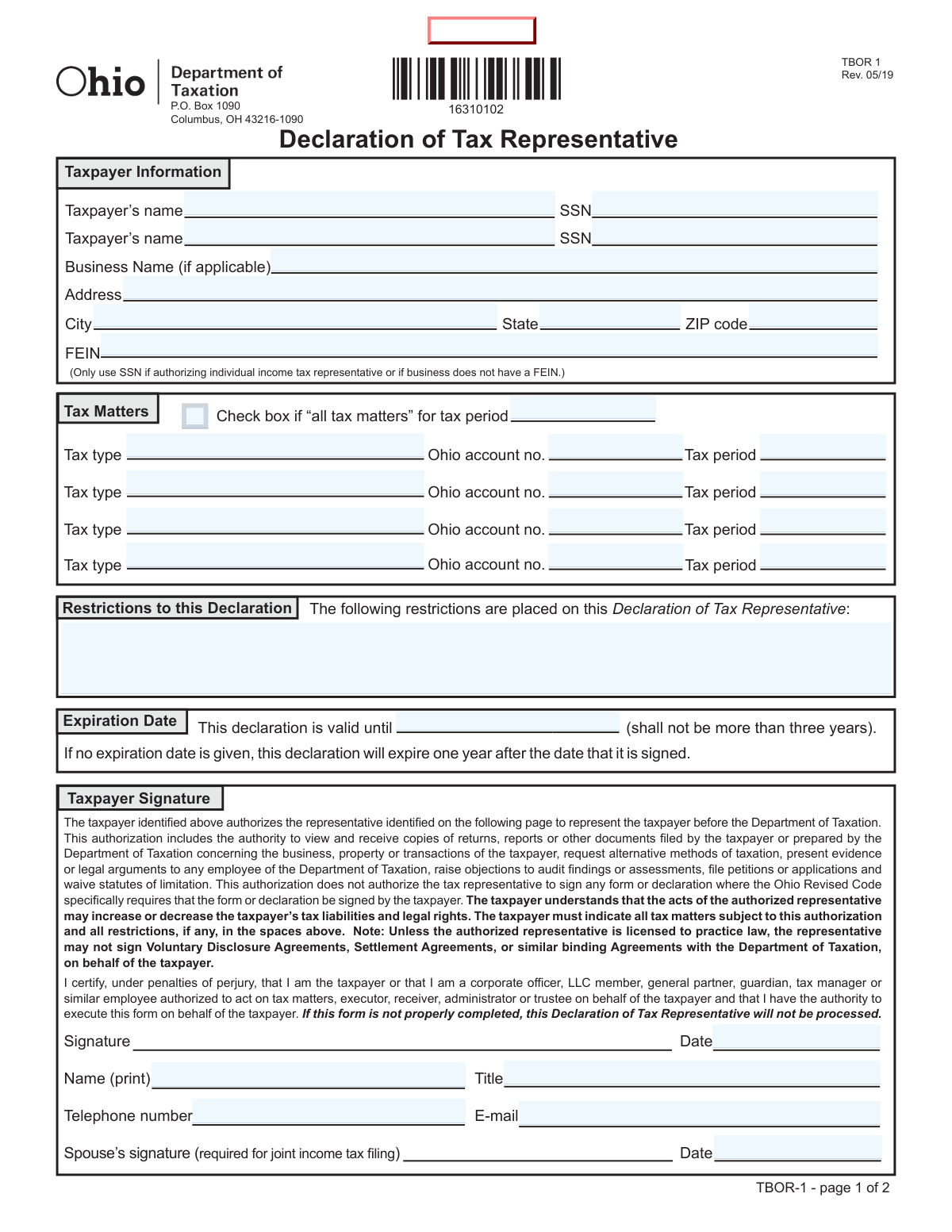
Yes! You can use AI to fill out Ohio Department of Taxation Declaration of Tax Representative (Form TBOR 1)

Ohio Form TBOR 1, the Declaration of Tax Representative, is a legal document used to grant power of attorney to an individual or firm to represent a taxpayer before the Ohio Department of Taxation. This authorization allows the representative to receive confidential tax information and act on the taxpayer's behalf in various tax matters, which is crucial for ensuring your chosen representative has the legal standing to assist you. Today, this form can be filled out quickly and accurately using AI-powered services like Instafill.ai, which can also convert non-fillable PDF versions into interactive fillable forms.
TBOR 1 is part of the representative forms, tax declaration forms and tax forms categories on Instafill.
Our AI automatically handles information lookup, data retrieval, formatting, and form filling.
It takes less than a minute to fill out TBOR 1 using our AI form filling.
Securely upload your data. Information is encrypted in transit and deleted immediately after the form is filled out.

Form specifications

Form name: Ohio Department of Taxation Declaration of Tax Representative (Form TBOR 1)
Number of fields: 91
Number of pages: 2
Language: English
main-image

Instafill Demo: How to fill out PDF forms in seconds with AI

How to Fill Out TBOR 1 Online for Free in 2026

Are you looking to fill out a TBOR 1 form online quickly and accurately? Instafill.ai offers the #1 AI-powered PDF filling software of 2026, allowing you to complete your TBOR 1 form in just 37 seconds or less.
Follow these steps to fill out your TBOR 1 form online using Instafill.ai:
  1. 1 Navigate to Instafill.ai and upload or select the Ohio Form TBOR 1.
  2. 2 Provide the taxpayer's information, including name, SSN or FEIN, and address, as prompted by the AI.
  3. 3 Specify the tax matters the representative is authorized to handle, either by checking "all tax matters" or by listing specific tax types, account numbers, and periods.
  4. 4 Enter the representative's information, including their name, firm, contact details, and professional designation (e.g., attorney, CPA).
  5. 5 Add any restrictions or an expiration date for the authorization; if no expiration is set, it defaults to one year.
  6. 6 Review all entered information for accuracy, then have both the taxpayer (and spouse, if required for joint filings) and the representative electronically sign and date the document.
  7. 7 Download, print, or submit the completed Form TBOR 1 to the Ohio Department of Taxation via the specified methods (mail, email, or fax).

Our AI-powered system ensures each field is filled out correctly, reducing errors and saving you time.

Why Choose Instafill.ai for Your Fillable TBOR 1 Form?

Speed

Complete your TBOR 1 in as little as 37 seconds.

Up-to-Date

Always use the latest 2026 TBOR 1 form version.

Cost-effective

No need to hire expensive lawyers.

Accuracy

Our AI performs 10 compliance checks to ensure your form is error-free.

Security

Your personal information is protected with bank-level encryption.

Frequently Asked Questions About Form TBOR 1

This form allows you, the taxpayer, to authorize a specific person, such as a CPA or attorney, to represent you and act on your behalf before the Ohio Department of Taxation.

Any individual or business in Ohio who wants to grant someone else the authority to communicate with the Department of Taxation, receive confidential tax information, and handle state tax issues on their behalf should file this form.

You will need your personal or business details (Name, SSN/FEIN, Address), the specific tax matters you need help with (tax type, account number, period), and your chosen representative's full name and contact information.

Yes, if the authorization is for your joint income tax account, both spouses are required to sign the form in the designated signature fields on the first page.

In the "Tax Matters" section, you can either check the box for "all tax matters" for a specific period or list individual tax types, their Ohio account numbers, and the relevant tax periods separately.

If you leave the expiration date blank, the declaration will automatically expire one year from the date you sign it. You can set a specific expiration date, but it cannot be more than three years from the signature date.

Yes, you can specify any limitations on your representative's authority in the "Restrictions to this Declaration" section on the first page of the form.

You can appoint an attorney, a Certified Public Accountant (CPA), an Enrolled Agent, a corporate officer, a full-time employee, or an immediate family member. The representative must declare their qualification on page 2.

You can submit the form by mail to P.O. Box 1090, Columbus, OH 43216-1090, by e-mail to [email protected], or by fax. The form notes that mail is the most secure submission method.

The form states that if it is not properly completed, the Declaration of Tax Representative will not be processed. Ensure all required fields for both the taxpayer and the representative are filled out correctly.

Yes, services like Instafill.ai use AI to accurately auto-fill form fields from your saved information, which can save you time and help reduce errors.

Simply upload the TBOR-1 form to Instafill.ai, and its AI will identify the fields and help you fill them out interactively. The platform can pre-fill information from your profile to complete the form quickly and accurately.

You can use a service like Instafill.ai, which can convert flat, non-fillable PDFs into interactive forms that you can easily complete and sign online.

Compliance TBOR 1
Validation Checks by Instafill.ai

1
Expiration Date Cannot Exceed Three Years
This check validates that the 'Declaration Expiration Date' is not more than three years after the 'Taxpayer Signature Date'. This is a legal requirement stated on the form to limit the duration of the representative's authority. If the entered expiration date is more than three years in the future, the form submission will be rejected, and the user will be prompted to enter a valid date.
2
Mutually Exclusive Tax Matter Specification
This validation ensures that the user either checks the 'all tax matters' box or specifies individual tax matters, but not both. If the 'all tax matters' box is checked, the system verifies that the individual tax matter rows are empty. Conversely, if any individual tax matter row is filled, the 'all tax matters' box must be unchecked to prevent ambiguity in the scope of the representative's authority.
3
Conditional Requirement for Spouse's Signature
This check enforces the requirement for a spouse's signature on joint filings. If the 'Second Taxpayer’s Legal Name' field is populated, the system will require that the 'Spouse’s signature' and 'Spouse’s signature date' fields are also completed. This is crucial for ensuring that both parties in a joint filing consent to the tax representation. A failure will block submission until the spouse's information is provided.
4
Taxpayer ID Logic (SSN vs. FEIN)
This validation checks for the correct taxpayer identifier based on the entity type. If a 'Business Name' is provided, the 'FEIN' field must be populated. If the 'Business Name' field is empty, indicating an individual taxpayer, the 'Taxpayer's SSN' field must be populated. This ensures the correct identifying number is submitted to the Department of Taxation for proper account linkage.
5
SSN Format and Structure
This check verifies that the 'Social Security Number' fields are entered in the correct format. The validation ensures the entry is a nine-digit number, formatted as XXX-XX-XXXX. This is critical for correctly identifying the taxpayer and preventing processing errors or rejections by the tax authority's systems. An invalid format will trigger an error message prompting the user to correct the entry.
6
Completeness of Individual Tax Matter Rows
This validation ensures that any specified tax matter is fully described. If a user enters data into any field within a single row of the 'Tax Matters' table (e.g., 'Tax type'), the validation requires that all other fields in that same row ('Ohio account no.' and 'Tax period') are also completed. This prevents incomplete or unusable authorization entries and reduces the need for follow-up correspondence.
7
Conditional Requirement for Representative License Information
This check ensures that licensed professionals provide their credentials. If a representative's 'Designation' code is 1 (Attorney), 2 (CPA), or 3 (Enrolled Agent), the system validates that the corresponding 'State' of licensure and 'License Number' fields are not empty. This is essential for verifying the representative's qualifications and good standing as required by the Department of Taxation.
8
Mandatory Explanation for 'Other' Representative Capacity
This validation rule is triggered when a representative selects designation '7. Other'. The check ensures that the 'Other Representative Capacity Explanation' text field is filled out with a description of the representative's relationship to the taxpayer. This is necessary to provide the tax department with sufficient context to approve a representative who does not fall into the standard categories.
9
Primary Taxpayer Signature Block Completion
This check verifies that all required fields in the primary taxpayer's signature block are filled. It ensures that the 'Signature', 'Date', 'Name (print)', 'Title', 'Telephone number', and 'E-mail' fields are all populated before submission. A complete signature block is a fundamental legal requirement for the declaration to be considered valid and processed.
10
FEIN Format Validation
This check ensures the 'Federal Employer Identification Number (FEIN)' is entered correctly. The validation verifies that the field contains exactly nine digits and does not contain any letters or special characters, per the field description. Correctly formatting the FEIN is critical for the tax authority to accurately identify the business entity and link the declaration to the correct account.
11
State Field Abbreviation Standard
This validation ensures all state fields ('Taxpayer State', 'Representative State', and 'State' of licensure) adhere to the standard two-letter postal abbreviation format. The check confirms the entry is two characters long and consists of uppercase letters. This standardization prevents data entry errors, ensures mailability, and supports automated processing.
12
Date Format and Validity
This check applies to all date fields on the form, including signature dates and the expiration date. It validates that the entry follows the MM/DD/YYYY format and represents a plausible, real-world date (e.g., month is between 01-12, day is valid for the given month). This prevents data entry errors and ensures all dates are recorded unambiguously for legal and processing purposes.
13
Representative Designation Selection
This validation ensures that the representative's capacity is clearly defined. It checks that at least one of the checkboxes (1 through 7) in the 'Declaration of Representative' section has been selected. This information is mandatory for the Department of Taxation to understand the basis of the representative's authority to act on behalf of the taxpayer.
14
Tax Matters Scope Definition
This is a high-level check to ensure the scope of representation is defined. The validation confirms that the user has either checked 'all tax matters' and provided a period, or has filled out at least one complete row in the specific tax matters table. The form cannot be submitted without defining which tax matters the representative is authorized to handle.

Common Mistakes in Completing TBOR 1

Confusing Individual vs. Business Information

Users often incorrectly enter their Social Security Number (SSN) in the Federal Employer Identification Number (FEIN) field, or vice versa. This mistake happens when a business owner is unsure which identifier to use or fails to read the instructions specifying that the FEIN is for business entities. This can lead to the form being rejected or the authorization being applied to the wrong taxpayer entity, causing significant processing delays. To avoid this, carefully enter the nine-digit FEIN for a business and the SSN for an individual, ensuring the correct field is used for each.

Ambiguous 'Tax Matters' Authorization

A frequent error is checking the 'all tax matters' box while also filling out specific tax types in the lines below. This creates ambiguity for the tax department, as it's unclear whether the authorization is for all matters or only the specific ones listed. This conflict can cause the form to be returned for clarification, delaying the representative's ability to act. To prevent this, either check the 'all tax matters' box and leave the individual lines blank, or skip the checkbox and detail each tax type, account number, and period separately.

Incorrect Tax Period Formatting

Filers often enter tax periods in an inconsistent or incorrect format, such as writing '2023' when a specific date range like '01/01/2023–12/31/2023' is required, or vice versa. This confusion arises from varying requirements across different forms and can lead to the authorization being applied to the wrong time frame or being deemed invalid. Always check the field-specific instructions for the required format (e.g., YYYY, MM/YYYY, or MM/DD/YYYY–MM/DD/YYYY) to ensure the declaration is processed correctly.

Missing Spouse's Signature for Joint Filings

When the tax matter involves a jointly filed individual income tax return, both spouses must sign the declaration. Forgetting the second signature is a very common oversight that will automatically invalidate the form for joint matters. This happens because the primary taxpayer completes the form alone and overlooks the requirement. To avoid rejection, ensure that if the authorization pertains to a joint income tax account, both the taxpayer and their spouse sign and date the form in the designated signature blocks.

Invalid or Unintended Expiration Date

Taxpayers frequently make two mistakes with the expiration date: entering a date more than three years from the signature date, which is not allowed, or leaving it blank without realizing the consequences. Leaving the field blank causes the declaration to automatically expire in just one year, which may be shorter than intended. This can lead to a premature lapse in representation. To avoid this, enter a specific date within the three-year limit, or if you leave it blank, be aware that it will only be valid for one year from the signature date.

Incomplete Representative Designation Details

The representative often checks a box indicating their capacity (e.g., '1. Attorney') but then fails to enter the corresponding information in the table at the bottom of page 2. This includes the designation number, state of licensure, and license number where applicable. This omission makes it impossible for the tax department to verify the representative's credentials, leading to the rejection of the form. The representative must complete both the checkbox section and the corresponding line in the table to validate their status.

Omitting the Signatory's Title

When a form is filed on behalf of a business, the individual signing for the taxpayer must include their official title (e.g., President, Owner, Tax Manager). This field is often left blank, which questions the signer's authority to execute the document for the entity. Without a title, the Department of Taxation cannot verify that an authorized person signed the form, which is grounds for rejection. Always print your name and provide your specific title to confirm your capacity to act for the business.

Using Incorrect Tax Type Terminology

When specifying tax matters, filers often use generic or incorrect names for the tax type instead of the official Ohio Department of Taxation designation (e.g., writing 'Withholding' instead of 'Employer Withholding Tax'). This occurs due to unfamiliarity with the precise terminology. Using vague terms can lead to the authorization being misapplied or rejected because the department cannot match it to a specific account. To avoid this, refer to your Ohio tax notices to find the exact name of the tax type.

Missing Signatures or Dates

One of the most basic yet common errors is forgetting to sign or date the form, by either the taxpayer or the representative. An unsigned or undated form is invalid and will be immediately rejected, causing unnecessary delays. This often happens when filers are in a hurry and overlook the final step. Before submitting, double-check that all required signature and date fields for both the taxpayer (and spouse, if applicable) and the representative are properly completed.

Failure to Provide an Explanation for 'Other' Representative Type

If a representative's capacity does not fit into the predefined categories (Attorney, CPA, etc.), they must check box '7. Other' and provide a written explanation. A common mistake is checking the box but leaving the explanation field blank. Without this explanation, the department has no basis to approve the representative's status, and the form will be considered incomplete. If you select 'Other', you must clearly describe your relationship to the taxpayer and your authority to represent them.
Saved over 80 hours a year

“I was never sure if my IRS forms like W-9 were filled correctly. Now, I can complete the forms accurately without any external help.”

Kevin Martin Green

Your data stays secure with advanced protection from Instafill and our subprocessors

Robust compliance program

Transparent business model

You’re not the product. You always know where your data is and what it is processed for.

ISO 27001, HIPAA, and GDPR

Our subprocesses adhere to multiple compliance standards, including but not limited to ISO 27001, HIPAA, and GDPR.

Security & privacy by design

We consider security and privacy from the initial design phase of any new service or functionality. It’s not an afterthought, it’s built-in, including support for two-factor authentication (2FA) to further protect your account.

Fill out TBOR 1 with Instafill.ai

Worried about filling PDFs wrong? Instafill securely fills ohio-department-of-taxation-declaration-of-tax-representative-form-tbor-1 forms, ensuring each field is accurate.