Yes! You can use AI to fill out Evidence of Commercial Property Insurance

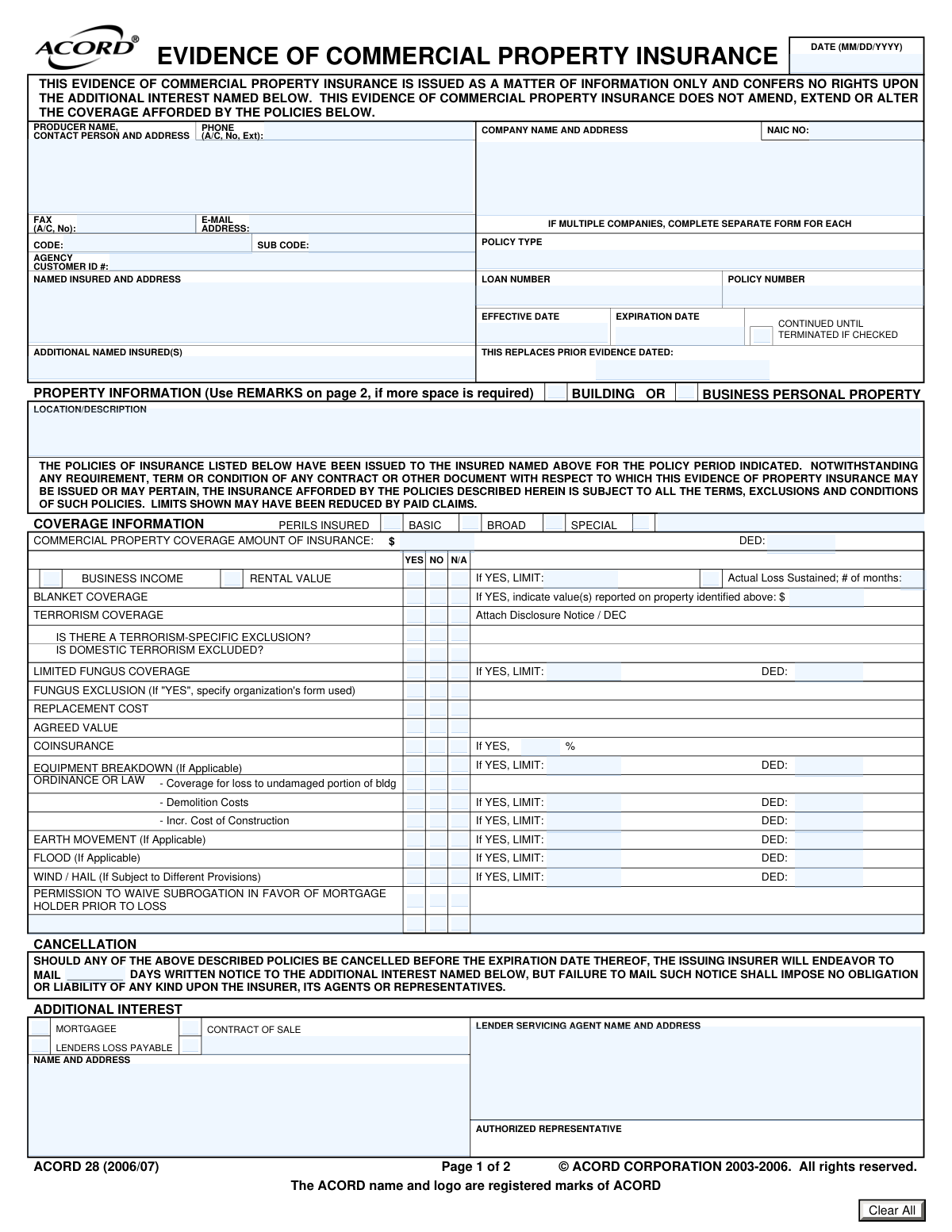
The Evidence of Commercial Property Insurance form is a document that summarizes the insurance coverage on a commercial property, typically provided by an insurance producer to a third party like a lender or landlord. It serves as proof that the property is insured as required by a contract or loan agreement, detailing coverage limits, deductibles, and special conditions. Today this form can be filled out quickly and accurately using AI-powered services like Instafill.ai, which can also convert non-fillable PDF versions into interactive fillable forms.
Evidence of Commercial Property Insurance is part of the commercial forms, commercial insurance forms, insurance forms, property forms and property insurance forms categories on Instafill.
Our AI automatically handles information lookup, data retrieval, formatting, and form filling.
It takes less than a minute to fill out Evidence of Commercial Property Insurance using our AI form filling.
Securely upload your data. Information is encrypted in transit and deleted immediately after the form is filled out.

Form specifications

Form name: Evidence of Commercial Property Insurance
Number of fields: 120
Number of pages: 2
Language: English
main-image

Instafill Demo: How to fill out PDF forms in seconds with AI

How to Fill Out Evidence of Commercial Property Insurance Online for Free in 2026

Are you looking to fill out a EVIDENCE OF COMMERCIAL PROPERTY INSURANCE form online quickly and accurately? Instafill.ai offers the #1 AI-powered PDF filling software of 2026, allowing you to complete your EVIDENCE OF COMMERCIAL PROPERTY INSURANCE form in just 37 seconds or less.
Follow these steps to fill out your EVIDENCE OF COMMERCIAL PROPERTY INSURANCE form online using Instafill.ai:
  1. 1 Navigate to Instafill.ai and upload or select the Evidence of Commercial Property Insurance form.
  2. 2 Use the AI assistant to automatically populate the Producer and Agency information, including contact details and identification numbers.
  3. 3 Enter the Named Insured's details and the Insurance Company's information, such as the NAIC number and policy number.
  4. 4 Describe the insured property and specify the coverage details by checking the appropriate boxes for perils (e.g., Special, Broad), coverage types (e.g., Replacement Cost, Business Income), and entering limits and deductibles.
  5. 5 Add any Additional Interests, such as a mortgagee or lender's loss payee, by providing their name, address, and interest type.
  6. 6 Include any special conditions, remarks, or details about specific coverages like Terrorism, Flood, or Ordinance or Law in the designated sections.
  7. 7 Review all the entered information for accuracy with the help of Instafill.ai's validation checks, then finalize and download or share the completed form.

Our AI-powered system ensures each field is filled out correctly, reducing errors and saving you time.

Why Choose Instafill.ai for Your Fillable Evidence of Commercial Property Insurance Form?

Speed

Complete your Evidence of Commercial Property Insurance in as little as 37 seconds.

Up-to-Date

Always use the latest 2026 Evidence of Commercial Property Insurance form version.

Cost-effective

No need to hire expensive lawyers.

Accuracy

Our AI performs 10 compliance checks to ensure your form is error-free.

Security

Your personal information is protected with bank-level encryption.

Frequently Asked Questions About Form Evidence of Commercial Property Insurance

This form serves as proof of insurance for a commercial property. It summarizes the policy's key coverages, limits, and conditions for interested third parties like lenders, mortgagees, or property buyers.

The insurance producer or agent who manages the policy for the named insured is responsible for accurately completing and issuing this form.

Coverage for a 'Building' applies to the physical structure itself. 'Business Personal Property' coverage applies to the contents within the building, such as equipment, furniture, and inventory.

You will need the full legal name and mailing address of the interested party, such as a mortgagee or lender. You must also specify their role (e.g., Mortgagee, Loss Payee) and include any relevant loan or reference numbers.

If your policy does not have a set expiration date and remains in effect until cancelled, you should check the 'Continued Until Terminated' box and leave the 'Expiration Date' field blank.

These terms describe the scope of covered risks. Basic form covers a specific list of named perils, Broad form adds a few more named perils, and Special form covers all risks of loss unless they are specifically excluded.

Coinsurance is a policy provision requiring you to insure your property for a specific percentage of its value. Failing to meet this requirement can result in a penalty, reducing your claim payout.

Yes, services like Instafill.ai use AI to accurately auto-fill form fields from your saved data, which can save significant time and reduce errors.

Simply upload the form to the Instafill.ai platform. Its AI will identify the fields, allowing you to fill them interactively or have the system auto-fill information from your saved profile.

You can use a service like Instafill.ai, which can convert flat, non-fillable PDFs into interactive, fillable forms that you can complete, sign, and save online.

'Replacement Cost' pays to replace damaged property with new property of similar quality, without deducting for depreciation. 'Agreed Value' waives the coinsurance clause because the insurer and insured have already agreed on the property's value.

Provide the complete physical address of the insured property. You can also add a brief description to clearly identify the specific building or area being insured if the address covers a large site.

This coverage addresses costs you incur to comply with building codes or laws after a covered loss. It can help pay for demolishing undamaged portions of a building or the increased cost to rebuild to current standards.

The completed form is sent to the 'Additional Interest' listed, such as the mortgagee or lender, to serve as their proof of insurance. The insured should also retain a copy for their records.

This is a provision that protects a lender's financial interest in the insured property. It ensures that the lender will be paid for a covered loss even if the insured's actions would normally void coverage.

Compliance Evidence of Commercial Property Insurance
Validation Checks by Instafill.ai

1
Policy Dates Chronology
This validation ensures that the 'Expiration Date' is on or after the 'Effective Date'. A policy cannot expire before it becomes effective. This check is critical for maintaining the logical integrity of the policy period and preventing invalid evidence of insurance from being issued. If this validation fails, the user must correct one or both dates.
2
Conditional Expiration Date
This check validates that the 'Expiration Date' field is left empty if the 'Continued Until Terminated' box is checked. The form logic dictates these two fields are mutually exclusive. This prevents contradictory information about the policy term. If validation fails, the system should prompt the user to either uncheck the box or clear the expiration date.
3
NAIC Number Format
This validation ensures the 'NAIC Number' is a valid 5-digit numeric code. The NAIC number is a standard, unique identifier for insurance companies, and an incorrect format can lead to failed lookups and misidentification of the carrier. If the entry is not a 5-digit number, the submission should be rejected until a valid number is provided.
4
Producer Email Address Format
This check verifies that the 'Producer Email Address' field contains a string that conforms to a standard email format (e.g., [email protected]). This is important for ensuring that communication sent to the producer is deliverable. If the format is invalid, the user should be alerted to correct the email address before proceeding.
5
Required Insured and Property Information
This validation confirms that the 'Named Insured Name and Address' and 'Property Location / Description' fields are not empty. These fields are fundamental to the document, identifying who and what is being insured. Without this information, the evidence of insurance is incomplete and legally insufficient.
6
Conditional Coinsurance Percentage
This check ensures that if 'Coinsurance - Yes' is selected, the 'Coinsurance Percentage' field is populated with a valid percentage value (e.g., between 1 and 100). It is crucial to specify the percentage when coinsurance applies, as it directly impacts claim payments. Failure to provide this value when required would make the coverage details incomplete.
7
Property Type Selection Completeness
This validation requires that at least one of the 'Building' or 'Business Personal Property' checkboxes is selected. This is necessary to clearly define the subject of the insurance coverage being evidenced. If neither is selected, the form is ambiguous as to what property is covered, and the user must make a selection.
8
Mutually Exclusive Perils Selection
This check ensures that for the 'Perils Insured Selection', only one of 'Basic', 'Broad', or 'Special' can be selected. These coverage levels are hierarchical and mutually exclusive. Selecting more than one would create a contradiction regarding the policy's core coverage, so the user must choose only one option.
9
Conditional Fungus Coverage Details
This validation verifies that if 'Limited Fungus Coverage - Yes' is checked, the 'Limited Fungus Coverage Limit' and 'Limited Fungus Coverage Deductible' fields are filled. When this optional coverage is indicated as active, its financial parameters are required information. If the fields are empty, the user must provide the limit and deductible amounts.
10
Cancellation Notice Period Validity
This check ensures the 'Cancellation Notice Days' field contains a positive integer. This number represents a contractual obligation to the additional interest holder, so it must be a clear and valid number of days. A zero, negative, or non-numeric value would be invalid and must be corrected.
11
Conditional Blanket Coverage Value
This validation ensures that if 'Blanket Coverage - Yes' is checked, the 'Blanket Coverage Value(s) Reported' field is populated with a valid monetary value. Affirming that blanket coverage exists without specifying the associated value makes the information incomplete. The system should require the value to be entered if the 'Yes' box is checked.
12
Mutually Exclusive Status Selections
This validation applies to multiple sections like 'Terrorism Coverage', 'Replacement Cost', and 'Agreed Value', ensuring only one of 'Yes', 'No', or 'N/A' is selected for each. This prevents ambiguity and contradictory data for a single policy attribute. If more than one option is selected for a given section, the user must be prompted to correct the entry to a single choice.
13
Conditional Equipment Breakdown Details
This check verifies that if any 'Equipment Breakdown' coverage type ('Basic', 'Broad', or 'Special') is selected, the 'Equipment Breakdown Limit' and 'Equipment Breakdown Deductible' fields are populated. Indicating that the coverage exists without providing its limits and deductibles leaves critical information missing. The system should enforce this rule to ensure complete data capture for the selected coverage.
14
Conditional Business Income Limit
This validation ensures that if either 'Business Income' or 'Rental Value' is checked, the 'Business Income/Rental Value Limit' field is populated with a value. This coverage is meaningless without a specified limit. The check ensures that when a user indicates this coverage is active, they also provide the essential financial cap associated with it.

Common Mistakes in Completing Evidence of Commercial Property Insurance

Using an Incorrect or Incomplete 'Named Insured' Name

Users often enter a 'Doing Business As' (DBA) name, a trade name, or an abbreviation instead of the full legal entity name. This mistake occurs due to a misunderstanding of the legal requirements for insurance contracts. An incorrect name can lead to significant complications, including claim denials or delays, as the entity listed on the form may not legally match the policyholder. To avoid this, always verify the exact legal name of the insured entity as it appears on official business registration documents and enter it completely, including suffixes like 'LLC' or 'Inc.'.

Confusing Property Location with Mailing Address

A frequent error is entering the physical property address in the 'Named Insured' section, which requires the official mailing address for correspondence. These two addresses are often different, and mixing them up can cause critical notices, invoices, and legal documents to be sent to the wrong place. This can result in missed communications or even an unintentional lapse in coverage. Always double-check that the mailing address is for correspondence and the 'Property Location / Description' field contains the address of the physical asset being insured.

Failing to Complete Conditional Fields Correctly

The form contains many fields that are conditional upon a checkbox being marked 'Yes' (e.g., entering a 'Coinsurance Percentage' only if 'Coinsurance - Yes' is checked). A common error is to either check 'Yes' and forget to enter the corresponding limit or deductible, or to enter a value without checking 'Yes,' creating ambiguity. This forces the recipient to seek clarification, delaying processing. Carefully review each section and ensure that for every 'Yes' checkbox, all associated data fields are accurately filled.

Incorrectly Identifying the 'Additional Interest' Type

Users often struggle to differentiate between 'Mortgagee,' 'Lender’s Loss Payable,' and 'Loss Payee,' as these terms have specific legal meanings regarding rights to claim payments and notifications. Selecting the wrong type can result in claim proceeds being paid incorrectly or a lender's interest not being properly protected, potentially violating loan agreements. Before completing this section, confirm the required status directly with the additional interest party (e.g., the bank or lender) to ensure their interests are correctly represented.

Entering Conflicting Policy Dates or Expiration Information

Transposing the 'Effective Date' and 'Expiration Date' or entering dates that do not align with the actual policy term is a frequent error. Furthermore, users often fill in the 'Expiration Date' even when the 'Continued Until Terminated' box is checked, directly contradicting the form's instructions. These mistakes can create apparent gaps in coverage, leading to non-compliance with contract requirements. Always verify dates against the policy declarations page and follow the form's logic for continuous policies.

Making Ambiguous Selections in Yes/No/N/A Checkbox Groups

In sections like 'Terrorism Coverage' or 'Fungus Exclusion,' users may accidentally check both 'Yes' and 'No,' or leave the entire row blank out of uncertainty. This ambiguity makes it impossible for the reviewer to determine the policy's actual terms and requires time-consuming follow-up. It is crucial to make one definitive selection (Yes, No, or N/A) for each question to clearly and accurately state whether a specific coverage or exclusion applies.

Confusing the Producer with the Insurance Company

This form has separate sections for the insurance producer (the agent or broker) and the insurance company (the underwriter). It's easy to mistakenly enter the agent's information in the 'Insurance Company Information' section or vice-versa. This error causes confusion and delays in communication and verification, as correspondence may be sent to the wrong entity. Carefully read each section header to ensure the correct entity's name, address, and NAIC number are entered in the appropriate fields.

Providing an Incomplete or Vague Property Description

The 'Property Location / Description' field is critical for identifying exactly what property is covered, yet it is often filled with incomplete information. Simply entering a street address may be insufficient if there are multiple buildings or units at that location. A vague description can lead to disputes during a claim about which specific building or asset was intended to be insured. To prevent this, be as specific as possible, including building numbers, suite numbers, or other unique identifiers.

Omitting Required Values for Blanket Coverage

The form has a clear conditional requirement: if 'Blanket Coverage - Yes' is checked, the user must enter the 'Blanket Coverage Value(s) Reported'. A common oversight is to check the box but leave the corresponding value field empty. This renders the evidence incomplete, as the recipient cannot verify the amount of coverage allocated to the specific property from the blanket limit. Always ensure that if blanket coverage is indicated, the associated reported values are also entered.

Manually Filling a Non-Fillable PDF Version

Often, these complex forms are only available as flat, non-fillable PDFs, leading to errors when users print, handwrite, and scan them. Handwriting can be illegible, information can be placed in the wrong fields, and the final document looks unprofessional and is prone to data entry mistakes upon receipt. To avoid this, use a tool like Instafill.ai, which can convert a non-fillable PDF into an interactive, fillable form, ensuring data is placed correctly, legibly, and can even be validated to prevent common errors.
Saved over 80 hours a year

“I was never sure if my IRS forms like W-9 were filled correctly. Now, I can complete the forms accurately without any external help.”

Kevin Martin Green

Your data stays secure with advanced protection from Instafill and our subprocessors

Robust compliance program

Transparent business model

You’re not the product. You always know where your data is and what it is processed for.

ISO 27001, HIPAA, and GDPR

Our subprocesses adhere to multiple compliance standards, including but not limited to ISO 27001, HIPAA, and GDPR.

Security & privacy by design

We consider security and privacy from the initial design phase of any new service or functionality. It’s not an afterthought, it’s built-in, including support for two-factor authentication (2FA) to further protect your account.

Fill out Evidence of Commercial Property Insurance with Instafill.ai

Worried about filling PDFs wrong? Instafill securely fills evidence-of-commercial-property-insurance forms, ensuring each field is accurate.