Yes! You can use AI to fill out Gold Coast Health Plan (GCHP) Provider Information Update Form

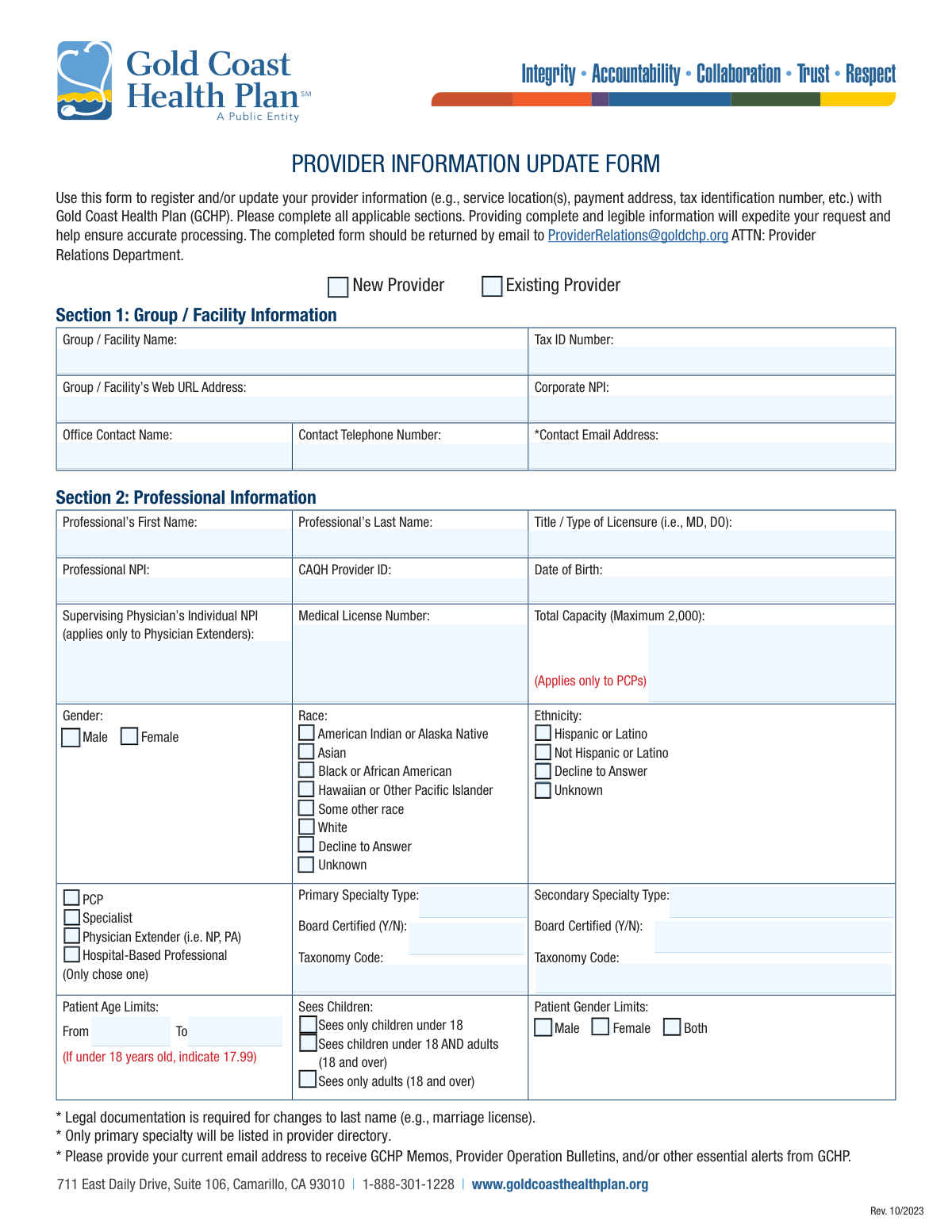
The Gold Coast Health Plan (GCHP) Provider Information Update Form is a comprehensive document for healthcare providers to register or modify their information with GCHP. It captures essential data including professional credentials, practice locations, billing details, and specialties, ensuring accuracy in provider directories and claims processing. Keeping this information current is vital for maintaining a good standing within the network and avoiding administrative issues. Today, this form can be filled out quickly and accurately using AI-powered services like Instafill.ai, which can also convert non-fillable PDF versions into interactive fillable forms.
GCHP Provider Information Update Form is part of the health forms and health information forms categories on Instafill.
Our AI automatically handles information lookup, data retrieval, formatting, and form filling.
It takes less than a minute to fill out GCHP Provider Information Update Form using our AI form filling.
Securely upload your data. Information is encrypted in transit and deleted immediately after the form is filled out.

Form specifications

Form name: Gold Coast Health Plan (GCHP) Provider Information Update Form
Number of fields: 180
Number of pages: 4
Language: English
main-image

Instafill Demo: How to fill out PDF forms in seconds with AI

How to Fill Out GCHP Provider Information Update Form Online for Free in 2026

Are you looking to fill out a GCHP PROVIDER INFORMATION UPDATE FORM form online quickly and accurately? Instafill.ai offers the #1 AI-powered PDF filling software of 2026, allowing you to complete your GCHP PROVIDER INFORMATION UPDATE FORM form in just 37 seconds or less.
Follow these steps to fill out your GCHP PROVIDER INFORMATION UPDATE FORM form online using Instafill.ai:
  1. 1 Navigate to Instafill.ai and upload the GCHP Provider Information Update Form or select it from the available templates.
  2. 2 Allow the AI to scan and process the document, automatically identifying all fields in sections like 'Group / Facility Information' and 'Professional Information'.
  3. 3 Click on each field to input your information, using the AI assistant to accurately fill in details such as Tax ID, NPI numbers, specialty codes, and addresses.
  4. 4 Complete only the sections that require a change, such as Section 4 for a new service location or Section 7 for a TIN update, as instructed on the form.
  5. 5 Carefully review all the entered data across the form to verify its accuracy and completeness before finalizing.
  6. 6 Electronically sign and date the form in the designated signature block to authorize the request.
  7. 7 Download the completed PDF and submit it via email to the GCHP Provider Relations Department as instructed on the form.

Our AI-powered system ensures each field is filled out correctly, reducing errors and saving you time.

Why Choose Instafill.ai for Your Fillable GCHP Provider Information Update Form Form?

Speed

Complete your GCHP Provider Information Update Form in as little as 37 seconds.

Up-to-Date

Always use the latest 2026 GCHP Provider Information Update Form form version.

Cost-effective

No need to hire expensive lawyers.

Accuracy

Our AI performs 10 compliance checks to ensure your form is error-free.

Security

Your personal information is protected with bank-level encryption.

Frequently Asked Questions About Form GCHP Provider Information Update Form

This form is used by new or existing healthcare providers to register with or update their information for Gold Coast Health Plan (GCHP). This includes details like service locations, payment addresses, professional credentials, and contact information.

Both new providers seeking to join the GCHP network and existing providers who need to report any changes to their practice or personal information must complete this form.

The completed form should be returned by email to the Provider Relations Department at [email protected].

No, you only need to complete the sections that require a change. Be sure to fill out Section 1 with your basic group information and then complete the specific section related to your phone number change.

If you are updating your Tax ID Number, you must attach a completed W-9 form to this Provider Information Update Form for the change to be processed.

The form provides space for two locations. If you have more than two, you must complete a separate form for each additional location or attach a company roster with all the required information from Section 4.

No, the form explicitly states that only the provider's primary specialty will be listed in the GCHP provider directory.

To process a last name change, you must provide legal documentation, such as a marriage license, along with the completed form.

If you do not have hospital privileges, Section 8 requires you to provide a letter or a copy of an agreement with a provider who will admit patients on your behalf.

Providing your current email address ensures you receive important communications from GCHP, such as Memos, Provider Operation Bulletins, and other essential alerts.

Yes, services like Instafill.ai use AI to accurately auto-fill form fields from your saved data, which saves time and helps reduce errors.

You can use a service like Instafill.ai to upload the PDF. It will allow you to fill out all the fields digitally, save your progress, and download the completed document for submission.

If your PDF is not fillable, you can use a tool like Instafill.ai. It can convert flat, non-fillable PDFs into interactive forms that you can easily complete on your computer.

Compliance GCHP Provider Information Update Form
Validation Checks by Instafill.ai

1
Physician Extender Supervising NPI Requirement
This validation ensures that if a provider's role is selected as 'Physician Extender (i.e. NP, PA)', the 'Supervising Physician’s Individual NPI' field must be filled. This is crucial for compliance and proper billing, as physician extenders practice under a supervising physician's authority. If the role is 'Physician Extender' and the NPI is missing, the submission will be flagged as incomplete.
2
PCP Total Capacity Limit
This check verifies that if the provider's role is 'PCP', the 'Total Capacity' field contains a numeric value that does not exceed 2,000. This limit is set by the health plan to ensure PCPs are not over-extended and can provide adequate care to their member panel. Submissions with a capacity over 2,000 or a non-numeric entry will be rejected for correction.
3
Patient Age Range Logical Consistency
This validation confirms that the 'Patient Age Limit - From' value is less than or equal to the 'Patient Age Limit - To' value. This prevents illogical data entry, such as a minimum age being higher than the maximum age. An error in this range would lead to incorrect patient assignment and directory listings, so the form will be rejected if the 'From' age is greater than the 'To' age.
4
Patient Age Limits vs. 'Sees Children' Category Consistency
This check cross-references the numeric 'Patient Age Limits' with the categorical 'Sees Children' selection. For example, if 'Sees only adults (18 and over)' is checked, the 'Patient Age Limit - From' must be 18 or greater. This ensures data consistency across related fields and prevents contradictory information in the provider directory. A mismatch will trigger a validation error requiring the user to align the two fields.
5
NPI Number Format and Structure
This validation verifies that all National Provider Identifier (NPI) fields (Corporate, Professional, Supervising, Clinic/Location) contain a valid 10-digit number. It checks for the correct length and numeric-only characters. This is critical for uniquely identifying providers for billing, credentialing, and regulatory purposes, and an invalid NPI will halt processing.
6
Tax ID Number (EIN) Format
This check ensures the 'Tax ID Number' field follows the standard 9-digit Employer Identification Number format (XX-XXXXXXX). Correct formatting is essential for all financial and tax-related processes, including payments and reporting to the IRS. An incorrectly formatted TIN will cause payment failures and will be rejected at the point of submission.
7
Exclusive Provider Role Selection
This validation ensures that only one provider role (PCP, Specialist, Physician Extender, or Hospital-Based Professional) is selected. The form explicitly states to 'Only chose one', and this check enforces that rule to prevent ambiguity in the provider's primary function. If more than one role is selected, the form submission will be considered invalid.
8
Single Primary Service Location
This check verifies that if multiple service locations are entered, only one is marked as the 'Primary Location'. A provider can only have one designated primary practice location for administrative and directory purposes. The system will return an error if 'Y' is selected for 'Is This Your Primary Location?' for more than one location.
9
Conditional Address Section Requirement
This validation enforces the completion of address details in Section 5 (Payment/Billing) and Section 6 (Mailing) if their respective 'same as service address' checkboxes are left unchecked. If the box is not checked, the system requires the user to fill out the name, street, city, state, and ZIP fields for that section. This prevents incomplete address records when a separate address is intended.
10
TIN Change Effective Date Requirement
This check makes the 'Effective Date of TIN Change' field mandatory if the 'Former TIN / EIN' field is populated. When a TIN is being changed, the effective date is critical for determining when to switch from the old number to the new one for billing and payments. A submission changing a TIN without this date will be rejected as incomplete.
11
Language Speaker Identification
This validation ensures that for each non-English language listed in Section 3, either the 'P' (Provider) or 'S' (Staff) checkbox is selected. Simply listing a language without indicating who speaks it provides incomplete data for the provider directory. The form will be flagged if a language is present but neither 'P' nor 'S' is checked.
12
Provider Status Selection
This check ensures that the user has selected one of the two provider status options: 'New Provider' or 'Existing Provider'. This initial selection is fundamental as it dictates the entire workflow, whether it's creating a new record or updating an existing one. Failure to select one will result in an immediate validation error, as the system cannot determine the request's intent.
13
Date of Birth Validity
This validation checks that the 'Date of Birth' is a valid date and that it corresponds to a reasonable age for a licensed medical professional (e.g., over 21 years old). This helps catch data entry errors and ensures the provider's identity information is plausible. A date in the future or one indicating the person is a minor would be rejected.
14
Total Location Time Percentage
This validation calculates the sum of 'Percentage of Time Spent at this Clinic' across all listed service locations. The total sum should not exceed 100%, as a provider cannot allocate more than their total available time. This check prevents logical errors in time allocation which can affect scheduling and resource planning. If the total exceeds 100%, an error is raised.

Common Mistakes in Completing GCHP Provider Information Update Form

Failing to Attach Required Supporting Documents

The form explicitly requires a completed W-9 for TIN changes (Section 7) and a hospital privilege letter for affiliation updates (Section 8). Submitters frequently overlook these instructions and send the form without the necessary attachments. This results in an immediate rejection of the request, causing significant delays in processing critical updates like payments and affiliations. Always review the form for notes on required documentation before submission.

Confusing Individual (Type 1) and Corporate (Type 2) NPIs

Users often enter the group's Corporate NPI in the 'Professional NPI' field, or vice-versa, due to misunderstanding the distinction between an individual's and an organization's identifier. This error leads to claim rejections, credentialing delays, and incorrect provider data linkage. To avoid this, always enter the 10-digit number assigned to the individual practitioner in the 'Professional NPI' field and the organization's NPI in the 'Corporate NPI' field.

Improperly Submitting Multiple Location Updates

The instructions state to use a separate form for each location beyond the two provided, but users often try to attach a non-standard roster or squeeze information into the margins. This leads to data entry errors, missed location updates, and incorrect provider directory listings. To ensure all locations are processed correctly, a separate, fully completed form should be submitted for each service location as instructed.

Submitting an Illegible Scanned Form

This form is often printed, filled out by hand, and then scanned. Poor handwriting for critical numbers like NPIs, Tax IDs, and license numbers is a primary source of data entry errors, causing claim denials and payment delays. To prevent this, it is best to fill out the form digitally. If the form is a non-fillable PDF, tools like Instafill.ai can convert it into a fillable version to ensure all entries are clean, typed, and legible.

Omitting 'Former Address' Information on Updates

When updating a payment or mailing address (Sections 5 & 6), users often provide the new address but leave the 'Former Address' fields blank. The 'Former Address' is crucial for the system to identify which existing record to update. Without it, the system may create a new, duplicate address entry, leading to misdirected mail and payments.

Incorrectly Filling Out Conditional Fields

The form contains fields that are only applicable under certain conditions, such as 'Supervising Physician’s Individual NPI' for Physician Extenders or 'Total Capacity' for PCPs. Users either fill these in when not required or, more critically, omit them when they are. This leads to incomplete profiles, affecting credentialing and patient panel assignments. Carefully read field labels to ensure you only complete fields relevant to the provider's role.

Submitting an Unsigned or Improperly Signed Form

A form submitted without the provider's signature and date in the final section is invalid and will be rejected. Additionally, an office manager's signature may not be sufficient for changes to payment addresses, which require authorization from the Tax ID owner. This oversight brings the entire update process to a halt until a correctly signed form is resubmitted.

Providing Incomplete or Ambiguous Office Hours

The office hours grid in Section 4 is often filled out with inconsistent formats (e.g., '9-5' vs '9:00 AM - 5:00 PM') or left partially blank. This ambiguity can lead to incorrect information in the provider directory, causing patient confusion and access issues. To avoid this, use a consistent format for all entries and clearly mark days the office is closed.

Incorrectly Formatting the Patient Age Limit

Section 2 contains a specific instruction: 'If under 18 years old, indicate 17.99'. Users frequently miss this and enter '0' or 'newborn', which can be misinterpreted by automated systems and lead to incorrect patient filtering in directories. AI-powered form filling tools like Instafill.ai can help by automatically validating and applying specific formatting rules to prevent these types of errors.

Listing Languages Without Attributing Them to Provider or Staff

In Section 3, users list non-English languages but forget to check the corresponding 'P' (Provider) or 'S' (Staff) box. This makes the information unusable, as the health plan cannot determine if the provider themselves is fluent or if it's an office staff member. This omission prevents the provider's language skills from being accurately listed in directories, hindering patient access.
Saved over 80 hours a year

“I was never sure if my IRS forms like W-9 were filled correctly. Now, I can complete the forms accurately without any external help.”

Kevin Martin Green

Your data stays secure with advanced protection from Instafill and our subprocessors

Robust compliance program

Transparent business model

You’re not the product. You always know where your data is and what it is processed for.

ISO 27001, HIPAA, and GDPR

Our subprocesses adhere to multiple compliance standards, including but not limited to ISO 27001, HIPAA, and GDPR.

Security & privacy by design

We consider security and privacy from the initial design phase of any new service or functionality. It’s not an afterthought, it’s built-in, including support for two-factor authentication (2FA) to further protect your account.

Fill out GCHP Provider Information Update Form with Instafill.ai

Worried about filling PDFs wrong? Instafill securely fills gold-coast-health-plan-gchp-provider-information-update-form forms, ensuring each field is accurate.