
Yes! You can use AI to fill out Student Claim for Essential Equipment Form
Don't type 93 fields by hand. Tell our AI about yourself, or upload a document you already have, and it fills every field in seconds. You check it, then download, print or sign.
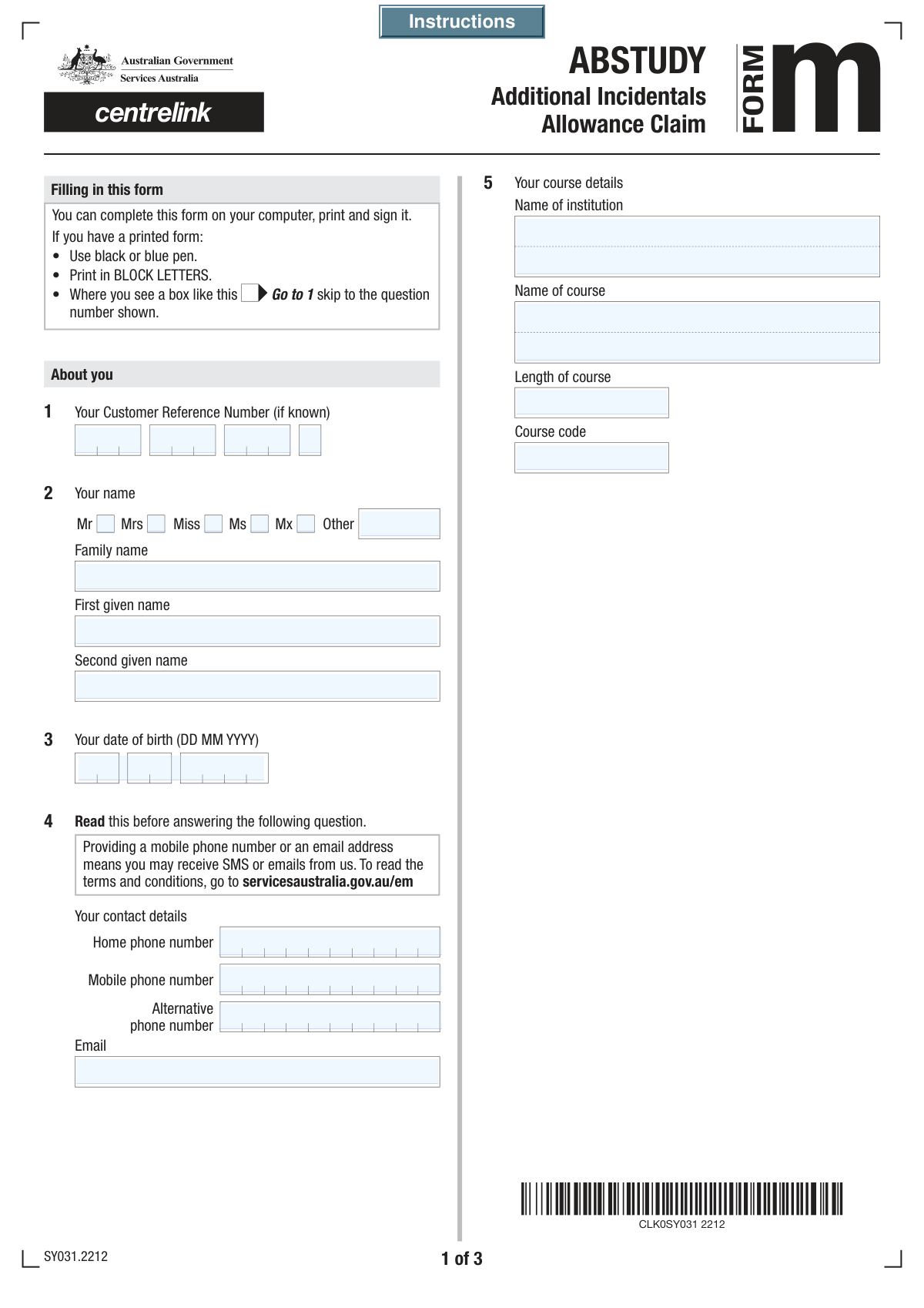
The AI does the filling. You just check it.
No typing into boxes, nothing to install.
What this form asks for
The AI fills all of it, from your answers or your documents.
The AI checks your answers before you download
14 checks built for this form, so a wrong date or a missing answer is caught before anyone else sees it.
This check ensures the value in the 'Total Claim' field is exactly equal to the sum of the 'Items Already Purchased Subtotal' and the 'Items Not Yet Purchased Subtotal'. This is a critical financial validation to prevent manual calculation errors and ensure the claim's final value is accurate. If the total does not match the sum of the subtotals, the submission should be blocked and an error message displayed.
This validation confirms that the value entered in the 'Items Already Purchased Subtotal' field is the correct sum of all individual 'Cost' fields for the purchased items listed. This check is essential for maintaining the financial integrity of the claim data. An incorrect sum would trigger an error, requiring the user to correct either the individual costs or the subtotal amount before proceeding.
This check ensures the 'Other Title' text field is only filled if the 'Title1_MX' (or an equivalent 'Other' radio button) is selected. It prevents users from providing conflicting information, such as selecting 'Mr' while also entering a custom title. If 'Other Title' is filled without the corresponding selection, an error should prompt the user to clear the field or change their title selection.
This check confirms that the 'Date of Birth' is a valid date in the past and represents a plausible age for a student (e.g., older than 16 and younger than 100). This prevents obvious data entry errors like future dates or typos and helps flag potentially nonsensical entries. An invalid or implausible date would prevent form submission until corrected.
This validation inspects the 'Email Address' field to ensure the entry conforms to the standard email format, such as '[email protected]'. This is critical for ensuring that all communications, such as confirmations or requests for more information, can be successfully delivered to the applicant. If the format is invalid, the form should display an error until a valid email is provided.
This validation ensures the user has provided at least one primary method of contact by checking that either the 'Mobile Phone Number' or the 'Email Address' field is filled out. This is important to ensure the organization can reliably contact the applicant regarding their submission. If neither field is filled, the form should not be submittable and should prompt the user to provide at least one.
And 8 more checks
- Validates Completeness of Purchased Item Entries
- Enforces Sequential Purchased Item Entry
- Ensures Customer Reference Number Completeness
- Validates Declaration Date Sequence
- Verifies Cost Field Numerical Format
- Cross-Validates Course Name Consistency
- Mandatory Name Fields
- Validates Not-Yet-Purchased Subtotal Calculation
Let AI fill out your Student Equipment Claim
No typing. Every field filled in seconds, checked, ready to sign.
How to Fill Out Student Equipment Claim Online for Free in 2026
What the AI walks you through.
- Navigate to Instafill.ai and upload or select the Student Claim for Essential Equipment Form.
- Use the AI assistant to automatically fill in your personal details, including your name, date of birth, and contact information.
- Enter your course details, such as the institution name, course name, and course code.
- Carefully list all items you have already purchased, providing a description, receipt number, and cost for each.
- List all items you still need to purchase, providing a description and cost based on quotes.
- Review the automatically calculated subtotals and the total claim amount for accuracy before signing the student declaration.
- Download the completed form to obtain the required signature and declaration from your school or faculty official.
Common Mistakes in Completing Student Equipment Claim
The ones the AI is built to catch.
Incorrectly Entering Segmented Customer Reference Number
Manual Calculation Errors for Subtotals and Total Claim
Mismatching Item Descriptions, Receipts, and Costs
Ignoring Conditional Field Requirements
Confusing Student and Faculty Declaration Sections
Data Entry Errors Due to Inconsistent Field Labels
Transposing First Name and Family Name
Incorrect or Incomplete Title Selection
Missing Signatures or Dates in Declaration
Illegible Handwriting on Non-Fillable Forms
Frequently Asked Questions About Student Equipment Claim
Is it really free for 7 days?
Can I fill other forms too?
How do I cancel?
How does the AI fill out Student Equipment Claim?
What happens to my information?
How complex is Student Equipment Claim to fill out?
What is the purpose of this form?
Who needs to complete this form?
Where can I find my Customer Reference Number?
Do I need receipts for all my purchased items?
What should I do if I have more items than the form has space for?
Who needs to sign the 'School/Faculty Declaration' section?
How do I calculate the 'Total Claim' amount?
What documents do I need to submit along with this form?
How long will it take to process my claim?
Can I use an AI tool to help me fill out this form?
How can I fill out this form online?
The PDF version of this form I have is not fillable. What can I do?
Get your Student Equipment Claim filled out by AI
$0 today. Cancel before Nov 10 and you pay nothing.
Other forms like this one
VA claim forms: Form OWCP-915, Claim for Medical Reimbursement, Form 8862, Information To Claim Certain Credits, Form CA-7, Claim for Compensation, Form CA-5, Claim for Compensation, Form SC-100, Plaintiff's Claim and ORDER to Go to Small Claims Court, Form 20-0995, Decision Review Request: Supplemental Claim, Form 104, List of Creditors 20 Largest Unsecured Claims, Form 941-X (Rev. April 2023), Adjusted Employer’s QUARTERLY Federal Tax Return or Claim for Refund, Judicial Council of California Form SC-104, Proof of Service (Small Claims), Immigration and Refugee Board of Canada (IRB) – Refugee Protection Division (RPD) Basis of Claim Form (for persons claiming refugee protection in Canada) (RPD.02.01), SC-108, Request to Correct or Cancel Judgment and Answer (Small Claims), Judicial Council of California Form SC-105, Request for Court Order and Answer (Small Claims), SC-120, Defendant’s Claim and ORDER to Go to Small Claims Court (Small Claims), Judicial Council of California Form SC-104, Proof of Service (Small Claims), Continental American Insurance Company (CAIC) / Aflac Group Critical Illness Claim Form (with Attending Physician’s Statement, HIPAA Authorization to Obtain Information, and Electronic Funds Transaction Authorization), Judicial Council of California Form SC-108, Request to Correct or Cancel Judgment and Answer (Small Claims), SC-105, Request for Court Order and Answer (Small Claims), Judicial Council of California Form SC-120, Defendant’s Claim and ORDER to Go to Small Claims Court (Small Claims), Small Claim and Notice of Small Claim (ORS 46.425) (OJD Official) (Jan 2026), VA Form 21-4138, Statement in Support of Claim
student forms: Form 1098-E, Student Loan Interest Statement, NSFAS Consent Form (National Student Financial Aid Scheme) – APP2026, International Student Application for Financial Aid 2026-2027 (International Student Application for Financial Assistance 2026-2027), Barber & Hairdresser Student/Apprentice Quarterly Report Form (Alaska Board of Barbers and Hairdressers) – Form 08-4315, ROTC Cadet Academic Plan / Degree and Credit Hour Worksheet (Student Identification, Term-by-Term Courses, GPA Summary, and Completion Certification), DNA Kingston Training Enrolment and Genuine Student Form for International Students, South Sydney College International Student Application Form, Darwin Institute of Trade International Student Application Form, 2026–27 FAFSA® Form, Free Application for Federal Student Aid, Free Application for Federal Student Aid (FAFSA), Student Change of Circumstances Form, Form SY022, Claim for ABSTUDY for students or Australian Apprentices in lawful custody, Form SY042, Details of income for student payments, Tertiary Student Enrolment Declaration, Education Course Costs and Student Details Claim Form
Let AI fill out your Student Equipment Claim
Your trial starts once a card is added. You pay nothing before Nov 10.
Our AI already knows this form, all 93 fields of it. Skip the typing: tell it about yourself, or upload what you have, and it fills the whole form in seconds.
- AI fills every field on all 5 pages, tables and checkboxes included
- No typing into boxes: answer a few questions, or upload a document you already have, an old copy of this form, a photo of a document
- The AI checks the answers; you review and change anything before you download
- Download the finished PDF, print it, or sign it online
- Encrypted, and never used to train AI
Cancel before Nov 10 and you pay nothing.
A card is needed to start the trial. Cancel in two clicks from your account.
Terms · Privacy