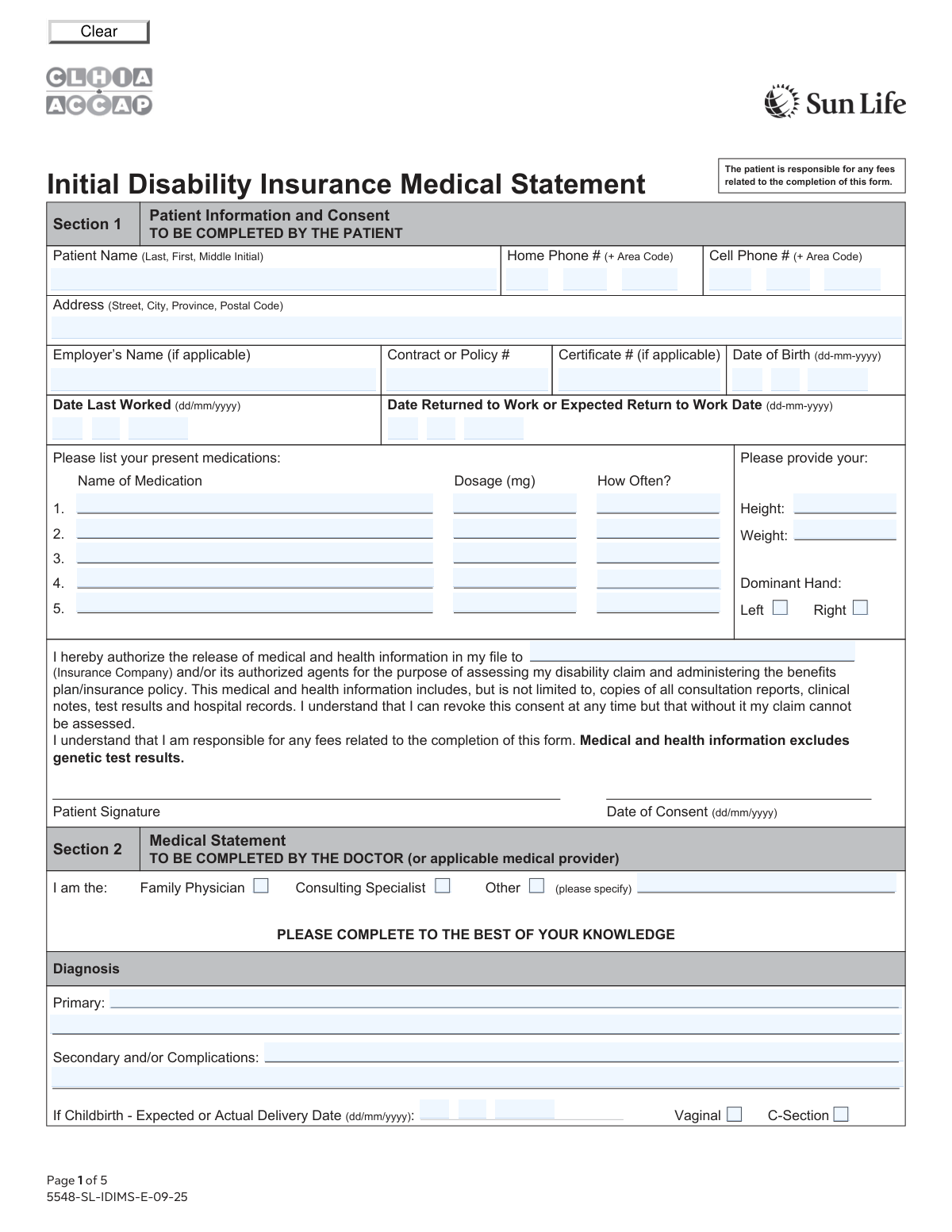
Yes! You can use AI to fill out Attending Physician's Statement for Disability Claim

An Attending Physician's Statement (APS) is a detailed medical report required by insurance companies to evaluate a disability claim. The form is completed by the patient's doctor and provides comprehensive information about the diagnosis, treatment, prognosis, and the patient's functional limitations. Today, this form can be filled out quickly and accurately using AI-powered services like Instafill.ai, which can also convert non-fillable PDF versions into interactive fillable forms for easier completion by both patient and physician.
Our AI automatically handles information lookup, data retrieval, formatting, and form filling.
It takes less than a minute to fill out Attending Physician's Statement (APS) using our AI form filling.
Securely upload your data. Information is encrypted in transit and deleted immediately after the form is filled out.

Form specifications

Form name: Attending Physician's Statement for Disability Claim
Number of fields: 216
Number of pages: 5
Language: English
Categories: disability claim forms, disability forms, NJ state forms, PA state forms, physician forms, VA claim forms
main-image

Instafill Demo: How to fill out PDF forms in seconds with AI

How to Fill Out Attending Physician's Statement (APS) Online for Free in 2026

Are you looking to fill out a ATTENDING PHYSICIAN'S STATEMENT (APS) form online quickly and accurately? Instafill.ai offers the #1 AI-powered PDF filling software of 2026, allowing you to complete your ATTENDING PHYSICIAN'S STATEMENT (APS) form in just 37 seconds or less.
Follow these steps to fill out your ATTENDING PHYSICIAN'S STATEMENT (APS) form online using Instafill.ai:
  1. 1 Navigate to Instafill.ai and upload or select the Attending Physician's Statement form. The platform can convert even non-fillable PDFs into an interactive format.
  2. 2 Use the AI assistant to automatically populate the patient's section with your personal, contact, and employment information.
  3. 3 Carefully review the pre-filled data and complete any remaining fields in Section 1, such as medication details and the authorization consent.
  4. 4 Securely share a link to the form with your attending physician or medical provider for them to complete their section (Section 2).
  5. 5 Your physician will fill in the detailed medical information, including diagnosis, treatment history, functional limitations, and prognosis.
  6. 6 Once the physician has completed their part, review the entire form for accuracy and completeness before signing.
  7. 7 Download the final, completed Attending Physician's Statement to submit to the insurance company or requesting agency.

Our AI-powered system ensures each field is filled out correctly, reducing errors and saving you time.

Why Choose Instafill.ai for Your Fillable Attending Physician's Statement (APS) Form?

Speed

Complete your Attending Physician's Statement (APS) in as little as 37 seconds.

Up-to-Date

Always use the latest 2026 Attending Physician's Statement (APS) form version.

Cost-effective

No need to hire expensive lawyers.

Accuracy

Our AI performs 10 compliance checks to ensure your form is error-free.

Security

Your personal information is protected with bank-level encryption.

Frequently Asked Questions About Form Attending Physician's Statement (APS)

This form is a medical statement used to support a disability claim. It gathers essential information about a patient's personal details, employment, and medical condition for an insurance company or benefits provider.

The form has two main parts. The patient must complete the first section with their personal, employment, and insurance information, while a qualified medical provider (like a family doctor or specialist) must complete the second section with medical details.

The 'Contract or Policy Number' usually identifies your employer's group benefits plan, while the 'Certificate Number' is your unique personal ID within that plan. Both numbers can typically be found on your insurance benefits card.

If you are unemployed, you can leave the 'Employer's Name' field blank. For the 'Date Last Worked', enter the last day you were employed before your disability began.

Your doctor must provide your primary and secondary diagnoses, treatment history, current physical and cognitive limitations, and the prognosis for recovery. They also need to provide their professional details and signature.

If your condition is from an illness and not an injury or accident, simply select 'No' for the questions regarding occupational injury, motor vehicle accident, and other accidents. You only need to provide an 'Event Date' if your condition was caused by a specific incident.

List the five most relevant medications for your disability claim in the spaces provided. If you need to list more, you can attach a separate, signed page with the complete list.

The 'Authorized Recipient' is the insurance company, authorized agent, or organization that is processing your disability claim. Naming them gives your consent for them to receive your medical information for assessment.

Yes, services like Instafill.ai use AI to help you accurately auto-fill form fields with your personal information. This can save you time and help prevent common errors.

To use Instafill.ai, you just need to upload the PDF form to their platform. The AI will make the form fillable online, and you can use your saved profile to populate your information instantly before downloading the completed document.

If your PDF is a 'flat' or non-fillable file, you can use a tool like Instafill.ai. It can convert the static document into an interactive, fillable form that you can easily complete on your computer.

The 'Date of first visit' is the date your doctor first saw you for this specific condition. The 'Date of last visit' refers to your most recent appointment with the doctor regarding this condition.

You or your doctor will need to provide the dates of admission and discharge, the name of the institution for any hospital stays, and the specialist's name, specialty, and referral date for any consultations.

Compliance Attending Physician's Statement (APS)
Validation Checks by Instafill.ai

1
Patient Name Completeness
Validates that both the 'Patient Name (Last)' and 'Patient Name (First)' fields are filled. A full name is essential for accurate patient identification and record-keeping. If either the last or first name is missing, the form submission should be blocked with an error message prompting the user to complete the required fields.
2
Valid and Past Date of Birth
Ensures the combination of 'Birth Day', 'Birth Month', and 'Birth Year' fields forms a logically valid calendar date (e.g., not April 31st). It also verifies that the resulting date is in the past and not a future date. This prevents data entry errors and ensures the patient's age is calculated correctly for clinical and administrative purposes.
3
Logical Work and Return Date Sequence
This check verifies that the 'Date Returned or Expected Return to Work' is on or after the 'Date Last Worked'. It is logically impossible for a return date to precede the last day worked. This validation prevents chronological errors that would impact the assessment of the disability period and benefit calculations.
4
Medication Row Completeness
For each medication row, this validation ensures that if a 'Medication Name' is provided, the corresponding 'Dosage' and 'How Often' fields are also filled. This is crucial for a complete medical picture, as the medication name alone is insufficient for clinical assessment. A failure would prompt the user to provide the missing dosage and frequency for the specified medication.
5
Exclusive Dominant Hand Selection
Validates that the user has selected either 'Dominant Hand - Left' or 'Dominant Hand - Right', but not both. A person can only have one dominant hand, so selecting both is a logical contradiction. If both are checked, an error should be displayed, forcing the user to choose only one option to ensure data accuracy.
6
Required Provider Type for 'Other'
This check ensures that if the 'Other (please specify)' checkbox is selected in the provider section, the corresponding 'Other - Provider Type (specify)' text field is not left empty. This rule is necessary to understand the role of the medical provider when they do not fit into the standard categories. Failure to provide this detail would result in an incomplete and potentially confusing record.
7
Mandatory Event Date for Condition Cause
Verifies that if the cause of the condition is marked as 'Yes' for 'Occupational Illness', 'Occupational Injury', 'Motor vehicle accident', or 'Other accident', then the 'Event Day', 'Event Month', and 'Event Year' fields must be filled. The date of the event is critical for insurance claims and establishing the timeline of the disability. An error will be triggered if the date is missing when a cause is indicated.
8
Logical Sequence of Visit Dates
This validation ensures a logical chronological order for visit dates: the 'Date of first visit' must be on or before the 'Date of last visit', which in turn must be on or before the 'Date of next visit'. This maintains the integrity of the patient's treatment timeline. A validation failure would indicate a data entry error that needs correction to accurately reflect the patient's history.
9
Certificate Number Requires Policy Number
This validation enforces the rule that the 'Certificate Number' field can only be filled if the 'Contract or Policy Number' field also contains a value. The certificate number is a sub-identifier linked to a main policy. Allowing a certificate number without a policy number would create an orphaned, unidentifiable piece of data.
10
Hospital Discharge Date After Admittance
For each hospitalization entry, this check confirms that the 'Date of discharge' is on or after the 'Date of admittance'. A discharge date cannot precede an admission date. This validation is essential for accurately calculating the length of a hospital stay for billing and medical records.
11
Mutually Exclusive Yes/No Checkboxes
This validation applies to all pairs of 'Yes'/'No' checkboxes, such as 'Occupational Illness — Yes' and 'Occupational Illness — No'. It ensures that for each pair, only one option can be selected. This prevents contradictory answers and ensures a clear, unambiguous response for each question, which is fundamental for correct data processing.
12
Required Elaboration for Non-Adherence
Ensures that if 'Is the patient following the recommended treatment program? - No' is checked, the 'Please elaborate (treatment adherence details)' field must be filled. Understanding the reasons for non-adherence is clinically significant and crucial for case management. This rule forces the provider to supply context for the non-compliance.
13
Conditional Delivery Date
This check ensures that the 'Delivery date' fields (Day, Month, Year) are only filled if either the 'Vaginal' or 'C-Section' checkbox is selected. This prevents irrelevant data from being entered and maintains logical consistency within the childbirth information section. If the delivery date is entered without a delivery type, the form should prompt the user to select one.

Common Mistakes in Completing Attending Physician's Statement (APS)

Incorrect Date Formatting and Transposition

The form requires dates to be entered into separate Day (DD), Month (MM), and Year (YYYY) fields, often with a 'dd/mm/yyyy' format hint. Many users, particularly in North America, are accustomed to the MM/DD/YYYY format and accidentally switch the day and month, leading to invalid dates. This error causes significant processing delays and can lead to requests for clarification, especially for dates where the day is 12 or less. To avoid this, carefully double-check that the numerical month and day are in the correct respective boxes. AI-powered tools like Instafill.ai can automatically parse and format dates correctly, preventing this common transposition error.

Incomplete or Incorrect Phone Number Entry

This form splits phone numbers into three separate fields: Area Code, Prefix, and Line Number. Users often make mistakes by entering the full number into the first box, misplacing the prefix and line number, or leaving a box empty. An incorrect or incomplete phone number can prevent the administrator or provider from contacting the patient, delaying the entire claim process. Always verify that each of the three number segments is entered into its corresponding field. Using a form-filling tool can help by automatically segmenting a standard phone number into the required fields.

Improperly Formatted Address

The form asks for the full mailing address to be entered on a single line, including street, city, province, and postal code. People are accustomed to multi-line address fields and may use line breaks, omit components like the postal code, or use non-standard abbreviations. An improperly formatted address can lead to returned mail and significant delays in communication. To prevent this, type the full address in one continuous line, using commas to separate the components as shown in the example (e.g., 123 Main St, Anytown, ON, A1A 1A1).

Patient Completing Physician-Only Sections

The form contains sections clearly marked 'TO BE COMPLETED BY THE DOCTOR,' such as Section 2. Patients sometimes mistakenly fill out these sections themselves, assuming they need to complete the entire document. This action can invalidate the medical portion of the claim, as it requires an objective assessment from a healthcare provider. This mistake necessitates a new form being completed by the physician, causing major delays. Patients should only fill out sections designated for them and leave all medical assessment fields for their doctor to complete.

Missing Information for Conditional Fields

Many fields on this form are conditional, requiring more information only if a specific box is checked (e.g., checking 'Other' and then providing a description, or checking 'Yes' to a previous injury and providing details). A common mistake is to check the box but forget to provide the required elaboration in the corresponding text field. This leaves the form incomplete and requires follow-up. To avoid this, immediately look for a related text field after checking any 'Yes' or 'Other' box. AI tools like Instafill.ai can highlight these dependent fields, ensuring they are not missed.

Using Abbreviations for Employer or Provider Names

When asked for an 'Employer's Name' or 'Institution Name,' users often enter common abbreviations or acronyms (e.g., 'UBC' instead of 'University of British Columbia'). While convenient, these abbreviations can be ambiguous and may not match official records, complicating the verification process for insurance or disability claims. Always write out the full, official name of the company or institution to ensure accurate and swift processing. This helps avoid back-and-forth communication to clarify the entity's identity.

Confusing Contract Number and Certificate Number

Insurance plans often have both a group 'Contract or Policy Number' and an individual 'Certificate Number.' Users frequently confuse these two, enter one in the wrong field, or assume they are the same. Entering the wrong number can lead to a failure in locating the policy and an outright rejection of the claim. Carefully check your insurance card or policy documents to identify each number correctly and enter them in their designated fields on the form.

Incomplete Medication Details

The medication section requires three pieces of information for each entry: Medication Name, Dosage (mg), and Frequency. A frequent error is listing the medication name but omitting the dosage or providing a vague frequency like 'daily' without specifying if it's once or twice a day. This incomplete data is not clinically useful and can hinder the assessment of your condition and treatment plan. For each medication, ensure all three fields are filled with specific, accurate information as it appears on your prescription. If the form is a non-fillable PDF, a tool like Instafill.ai can convert it to a fillable version, making it easier to enter all required details.

Failing to Answer All Yes/No Pairs

The 'Condition Cause' section presents several questions (e.g., 'Occupational Illness', 'Motor vehicle accident') each with its own 'Yes' and 'No' checkbox. Users often check 'Yes' for the relevant cause but then neglect to check 'No' for all other options. This ambiguity forces the reviewer to guess whether the other options were considered, potentially triggering a request for clarification. To ensure clarity, you must select one option for each pair, explicitly checking 'No' for all causes that do not apply.

Incorrect Patient Name Order

The form explicitly requests the patient's name in the order of 'Last, First, Middle Initial.' However, the common convention is to write 'First, Last,' causing many people to fill it out incorrectly out of habit. This can lead to filing errors and difficulty matching the form to the correct patient record in a database. Always read the field label carefully and enter your name in the specified sequence to prevent administrative errors. Form-filling software can be configured to remember this preference and populate the fields in the correct order automatically.
Saved over 80 hours a year

“I was never sure if my IRS forms like W-9 were filled correctly. Now, I can complete the forms accurately without any external help.”

Kevin Martin Green

Your data stays secure with advanced protection from Instafill and our subprocessors

Robust compliance program

Transparent business model

You’re not the product. You always know where your data is and what it is processed for.

ISO 27001, HIPAA, and GDPR

Our subprocesses adhere to multiple compliance standards, including but not limited to ISO 27001, HIPAA, and GDPR.

Security & privacy by design

We consider security and privacy from the initial design phase of any new service or functionality. It’s not an afterthought, it’s built-in, including support for two-factor authentication (2FA) to further protect your account.

Fill out Attending Physician's Statement (APS) with Instafill.ai

Worried about filling PDFs wrong? Instafill securely fills attending-physicians-statement-for-disability-claim forms, ensuring each field is accurate.